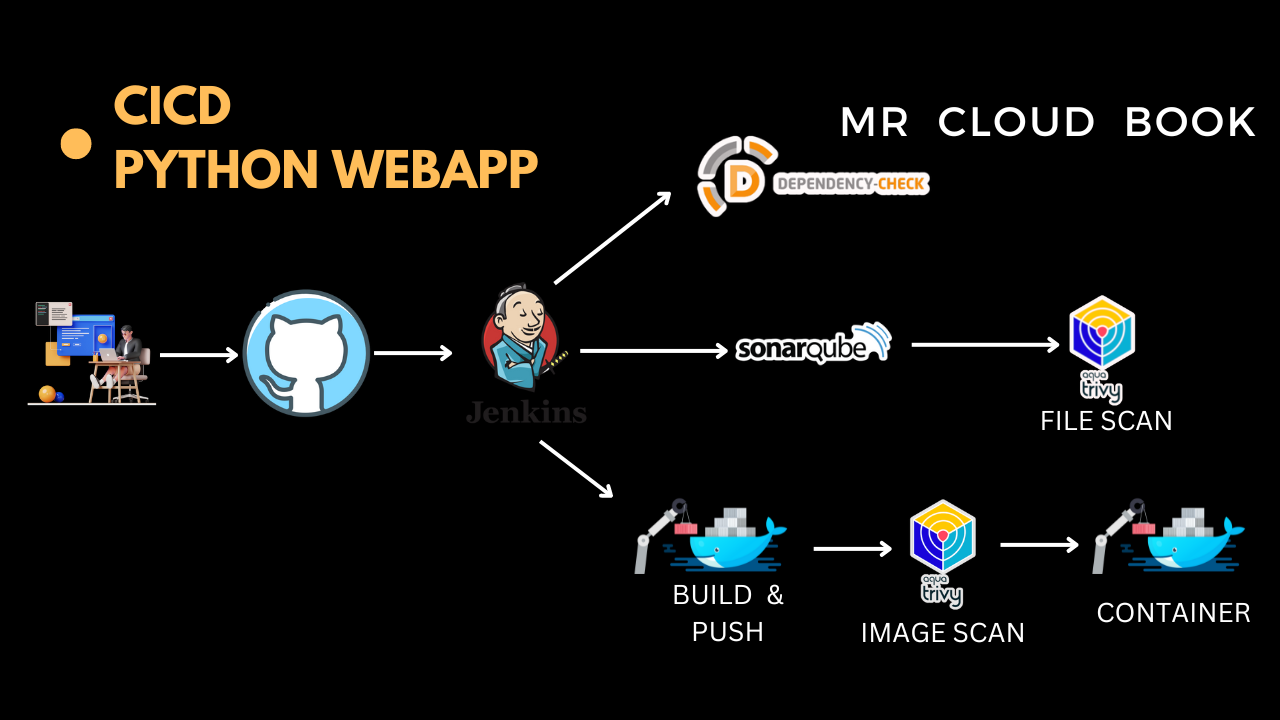
Hello friends, we will be deploying a python based application. This is an everyday use case scenario used by several organizations. We will be using Jenkins as a CICD tool and deploying our application on a Docker Container. Hope this detailed blog is useful.
Github: https://github.com/Aj7Ay/Python-System-Monitoring.git
Steps:-
Step 1 - Create an Ubuntu T2 Large Instance
Step 2 - Install Jenkins, Docker and Trivy. Create a Sonarqube Container using Docker.
Step 3 - Install Plugins like JDK, Sonarqube Scanner, OWASP Dependency Check,
Step 4 - Create a Pipeline Project in Jenkins using a Declarative Pipeline
Step 5 - Configure Sonar Server in Manage Jenkins
Step 6 - we have to install and make the package
Step 7 - Docker Image Build and Push
Step 8 - Deploy the image using Docker
Step 9 - Access the Real World Application
Step 10 - Terminate the AWS EC2 Instance
Now, let’s get started and dig deeper into each of these steps:-
Step 1 - Launch an AWS T2 Large Instance.
Use the image as Ubuntu. You can create a new key pair or use an existing one. Enable HTTP and HTTPS settings in the Security Group.

Step 2 - Install Jenkins, Docker and Trivy
2A - To Install Jenkins
Connect to your console, and enter these commands to Install Jenkins
sudo vi jenkins.sh
#enter the below code
#!/bin/bash
sudo apt update -y
#sudo apt upgrade -y
wget -O - https://packages.adoptium.net/artifactory/api/gpg/key/public | tee /etc/apt/keyrings/adoptium.asc
echo "deb [signed-by=/etc/apt/keyrings/adoptium.asc] https://packages.adoptium.net/artifactory/deb $(awk -F= '/^VERSION_CODENAME/{print$2}' /etc/os-release) main" | tee /etc/apt/sources.list.d/adoptium.list
sudo apt update -y
sudo apt install temurin-17-jdk -y
/usr/bin/java --version
curl -fsSL https://pkg.jenkins.io/debian-stable/jenkins.io-2023.key | sudo tee \
                  /usr/share/keyrings/jenkins-keyring.asc > /dev/null
echo deb [signed-by=/usr/share/keyrings/jenkins-keyring.asc] \
                  https://pkg.jenkins.io/debian-stable binary/ | sudo tee \
                              /etc/apt/sources.list.d/jenkins.list > /dev/null
sudo apt-get update -y
sudo apt-get install jenkins -y
sudo systemctl start jenkins
sudo systemctl status jenkins
sudo chmod 777 jenkins.sh
./jenkins.sh
Once Jenkins is installed, you will need to go to your AWS EC2 Security Group and open Inbound Port 8080, since Jenkins works on Port 8080.
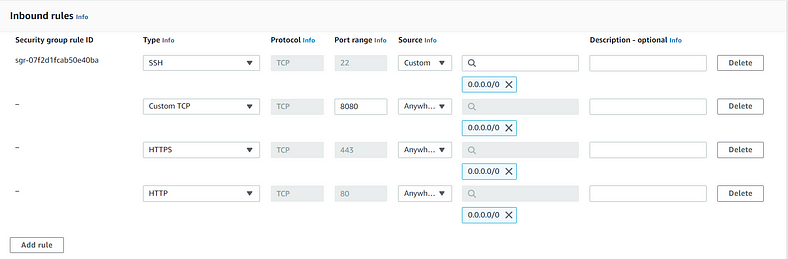
Now, grab your Public IP Address
EC2 Public IP Address:8080
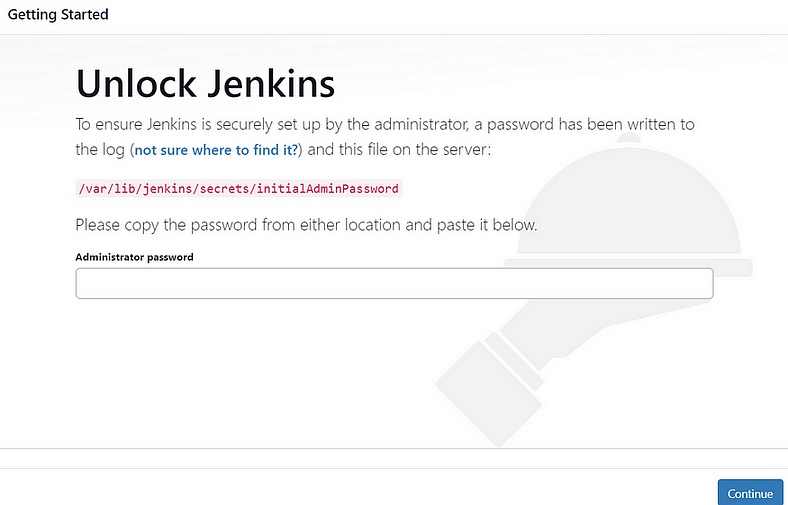
sudo cat /var/lib/jenkins/secrets/initialAdminPassword
Unlock Jenkins using an administrative password and install the required plugins.
Jenkins will now get installed and install all the libraries.


Jenkins Getting Started Screen

2B - Install Docker
sudo apt-get update
sudo apt-get install docker.io -y
sudo usermod -aG docker $USER
sudo chmod 777 /var/run/docker.sock
sudo docker ps
After the docker installation, we create a sonarqube container (Remember added 9000 port in the security group)
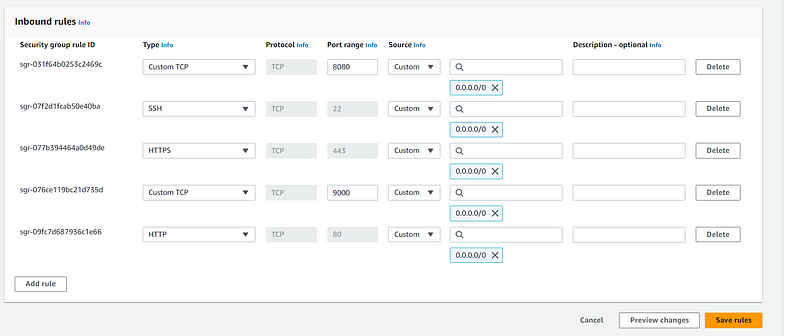
docker run -d --name sonar -p 9000:9000 sonarqube:lts-community

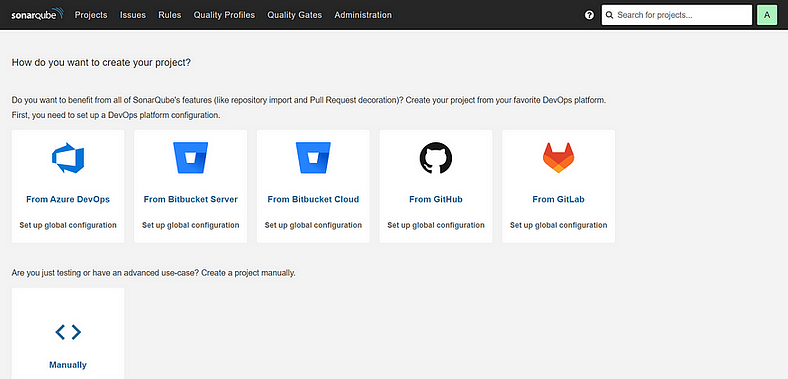
Now our sonarqube is up and running
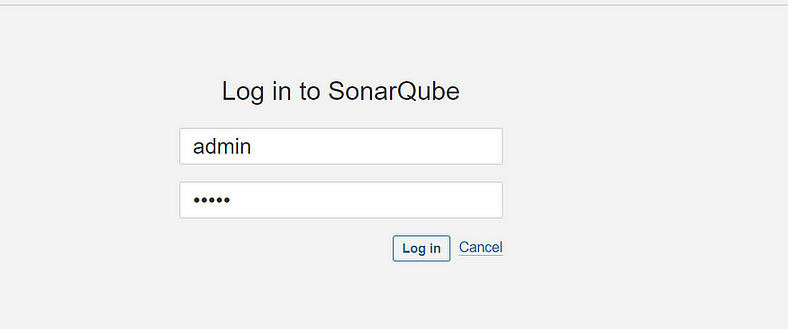
Enter username and password, click on login and change password
username admin
password admin
2C - Install Trivy
sudo apt-get install wget apt-transport-https gnupg lsb-release -y
wget -qO - https://aquasecurity.github.io/trivy-repo/deb/public.key | gpg --dearmor | sudo tee /usr/share/keyrings/trivy.gpg > /dev/null
echo "deb [signed-by=/usr/share/keyrings/trivy.gpg] https://aquasecurity.github.io/trivy-repo/deb $(lsb_release -sc) main" | sudo tee -a /etc/apt/sources.list.d/trivy.list
sudo apt-get update
sudo apt-get install trivy -y
Next, we will log in to Jenkins and start to configure our Pipeline in Jenkins
Step 3 - Install Plugins like JDK, Sonarqube Scanner, OWASP Dependency Check, Docker.
3A - Install Plugin
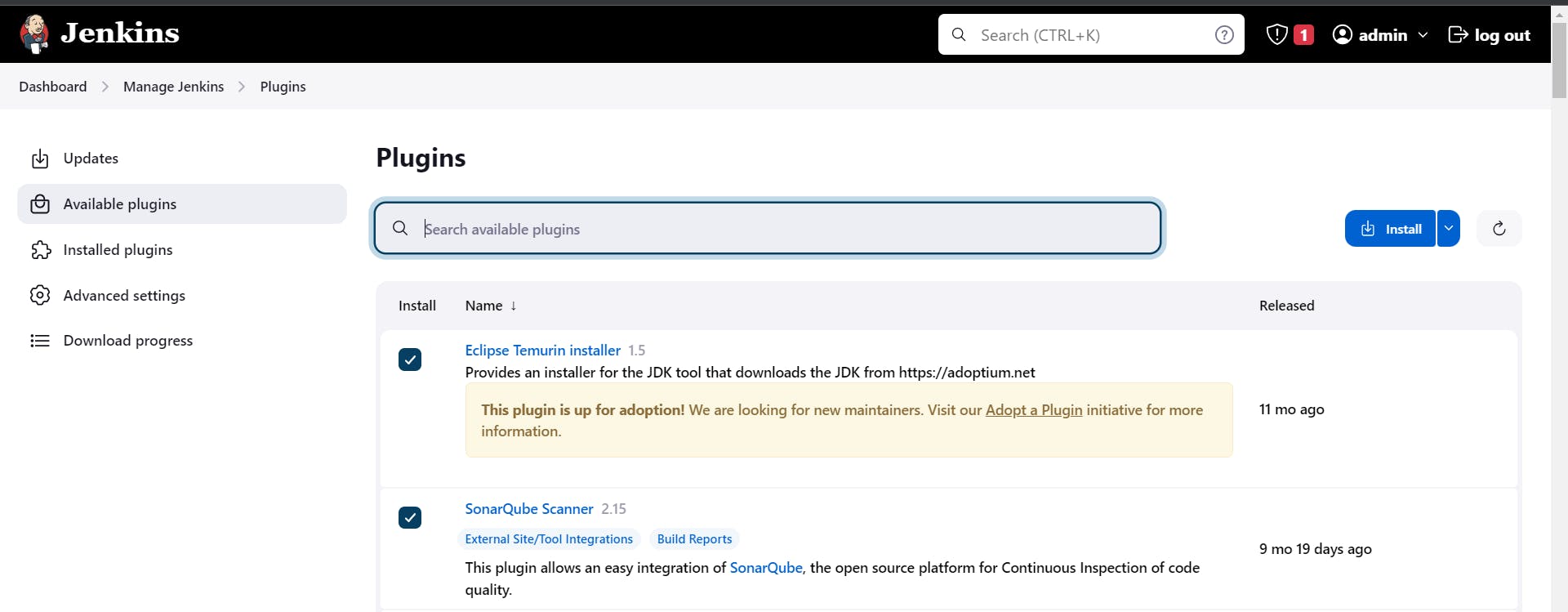
Goto Manage Jenkins →Plugins → Available Plugins →
Install below plugins
1 → Install OWASP ( (Install without restart)
2 → SonarQube Scanner (Install without restart)
3 → 1 → Eclipse Temurin Installer (Install without restart)
3B - Configure Java and Maven in Global Tool Configuration
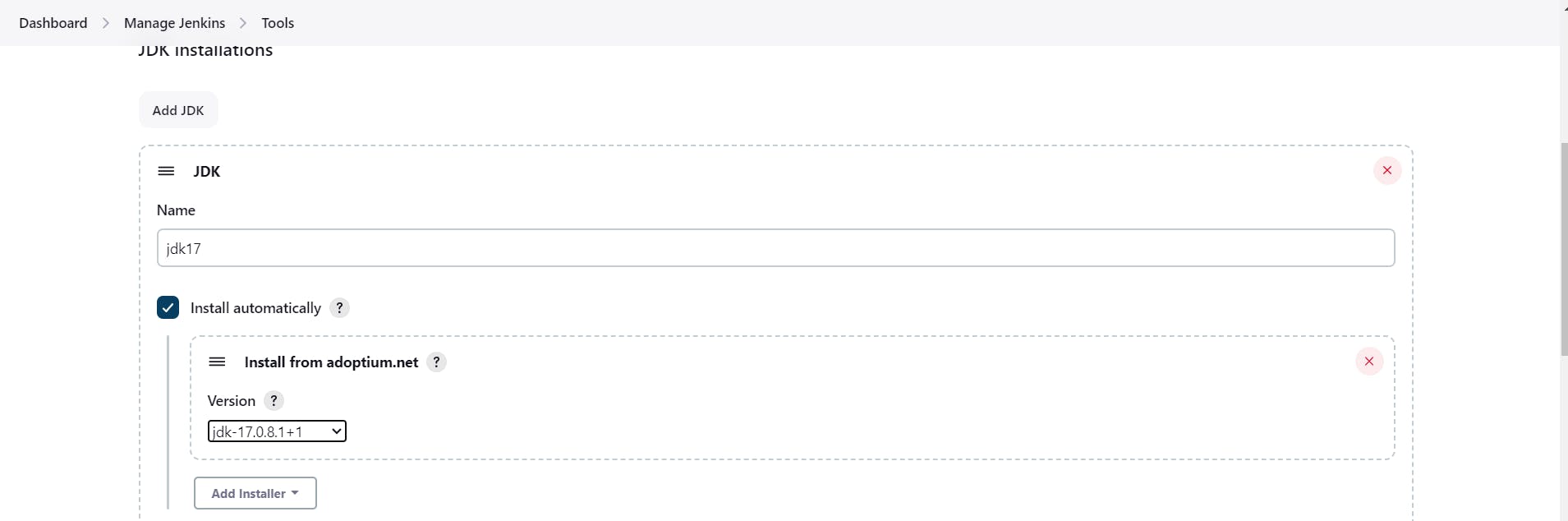
Goto Manage Jenkins → Tools → Install JDK Click on Apply and Save
3C - Create a Job
Label it as Dotnet CI-CD, click on Pipeline and OK.
Step 4 - Install OWASP Dependency Check Plugins
GotoDashboard → Manage Jenkins → Plugins → OWASP Dependency-Check. Click on it and install it without restart.
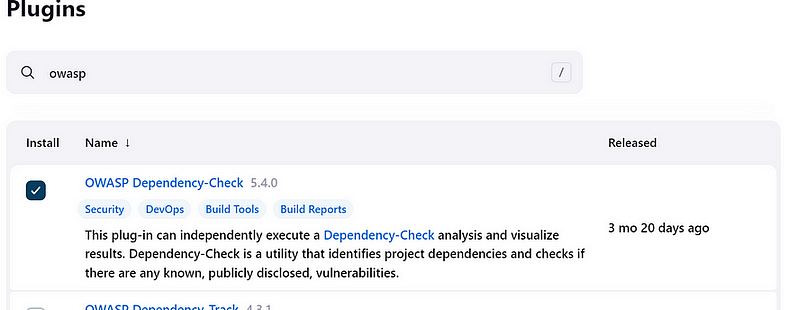
First, we configured the Plugin and next, we had to configure the Tool
Goto Dashboard → Manage Jenkins → Tools →
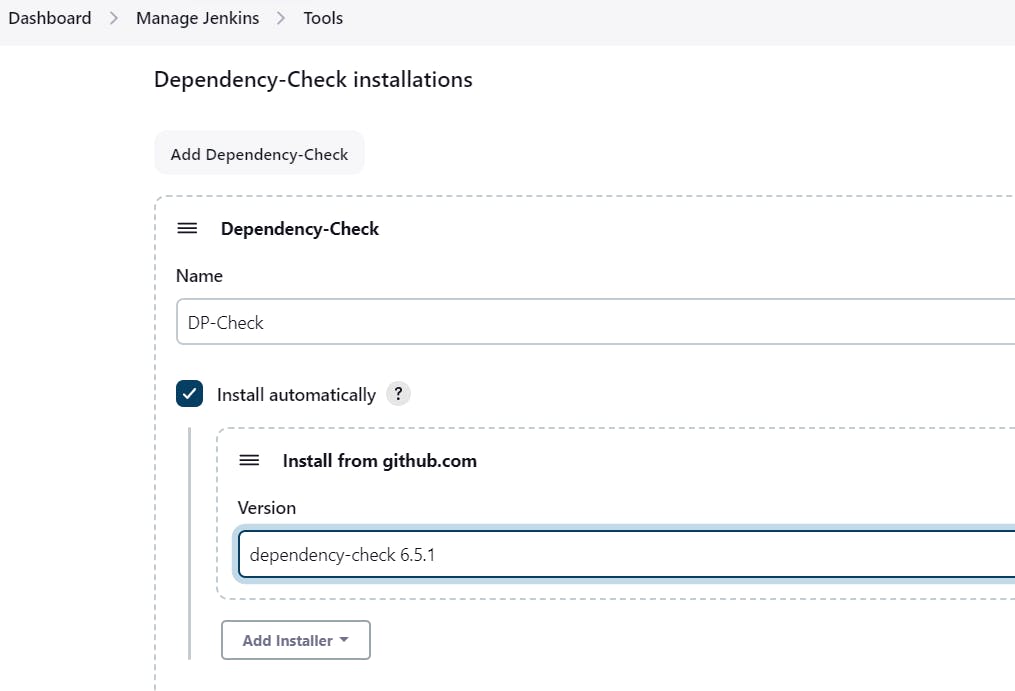
Click on Apply and Save here.
Step 5 - Configure Sonar Server in Manage Jenkins
Grab the Public IP Address of your EC2 Instance, Sonarqube works on Port 9000, sp
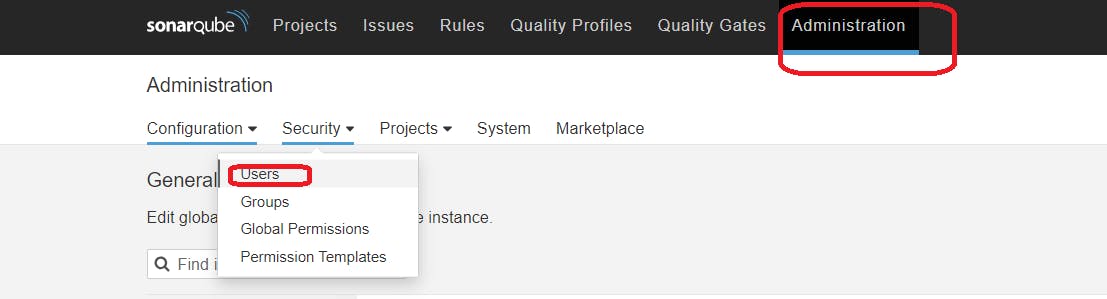
Click on Update Token

Create a token with a name and generate
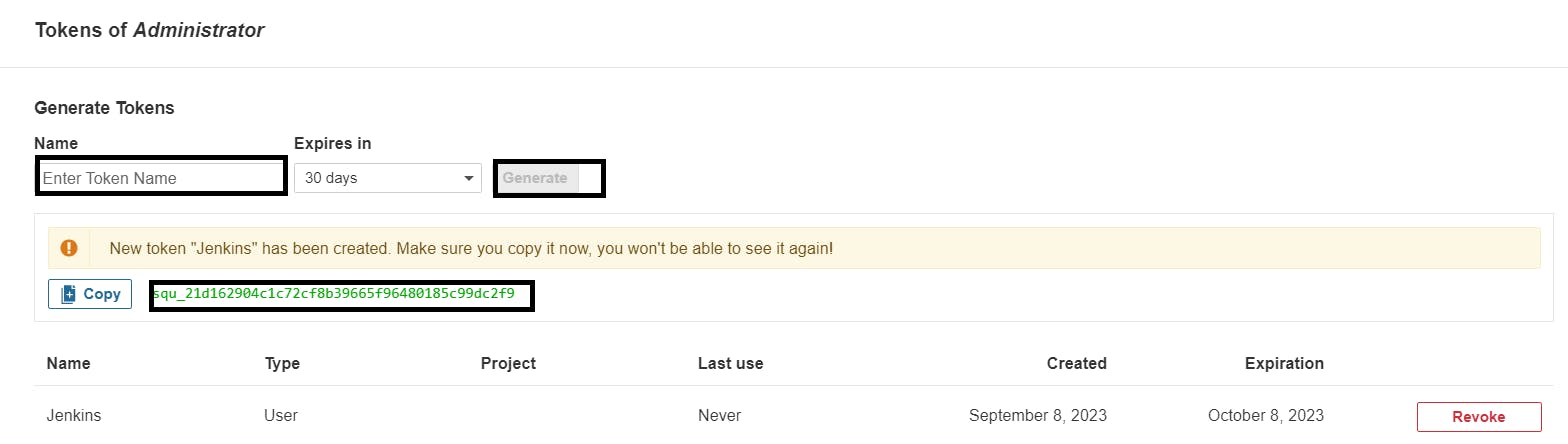
Copy this Token
Goto Dashboard → Manage Jenkins → Credentials → Add Secret Text. It should look like this
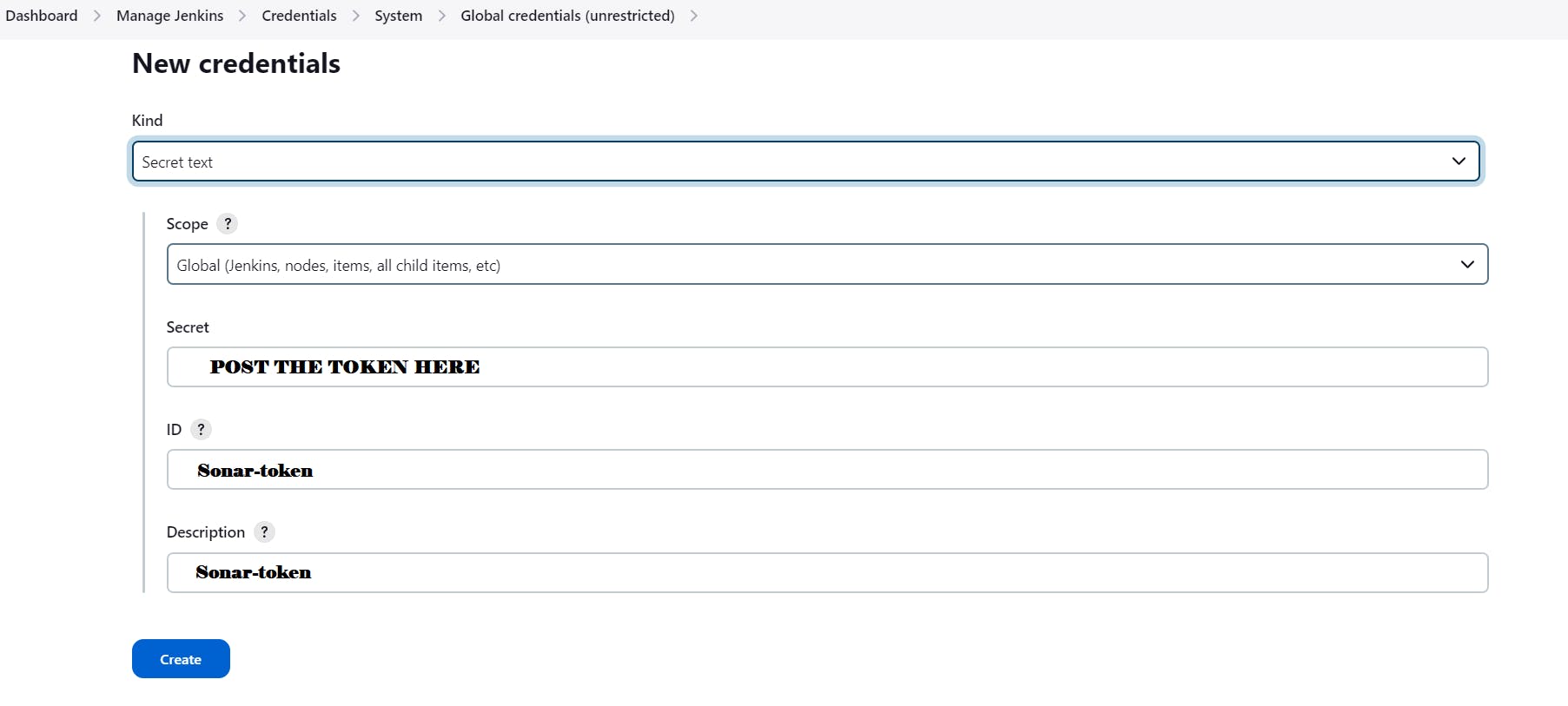
You will this page once you click on create

Now, go to Dashboard → Manage Jenkins → Configure System
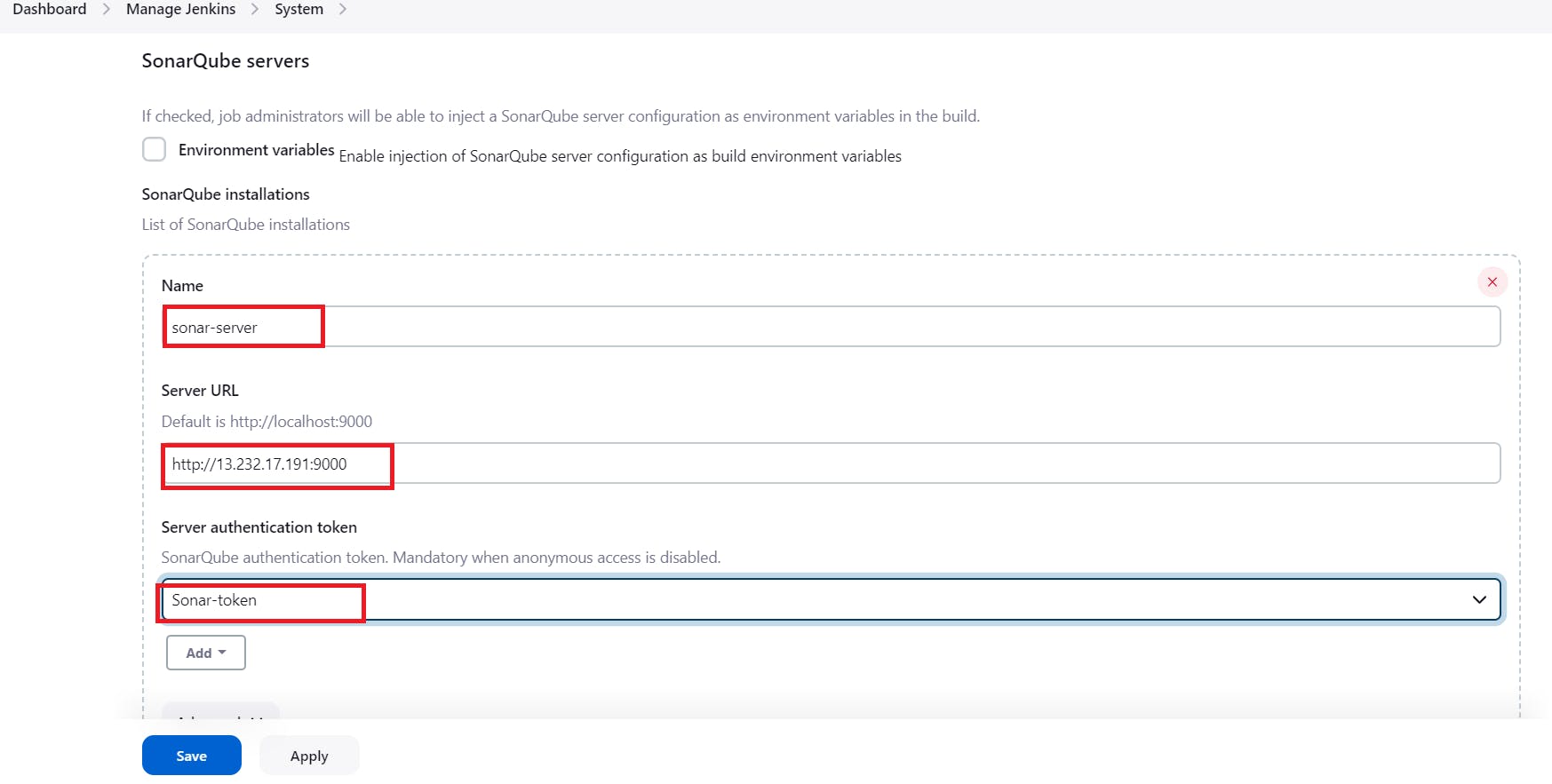
Click on Apply and Save
The Configure System option is used in Jenkins to configure different server
Global Tool Configuration is used to configure different tools that we install using Plugins
We will install a sonar scanner in the tools.
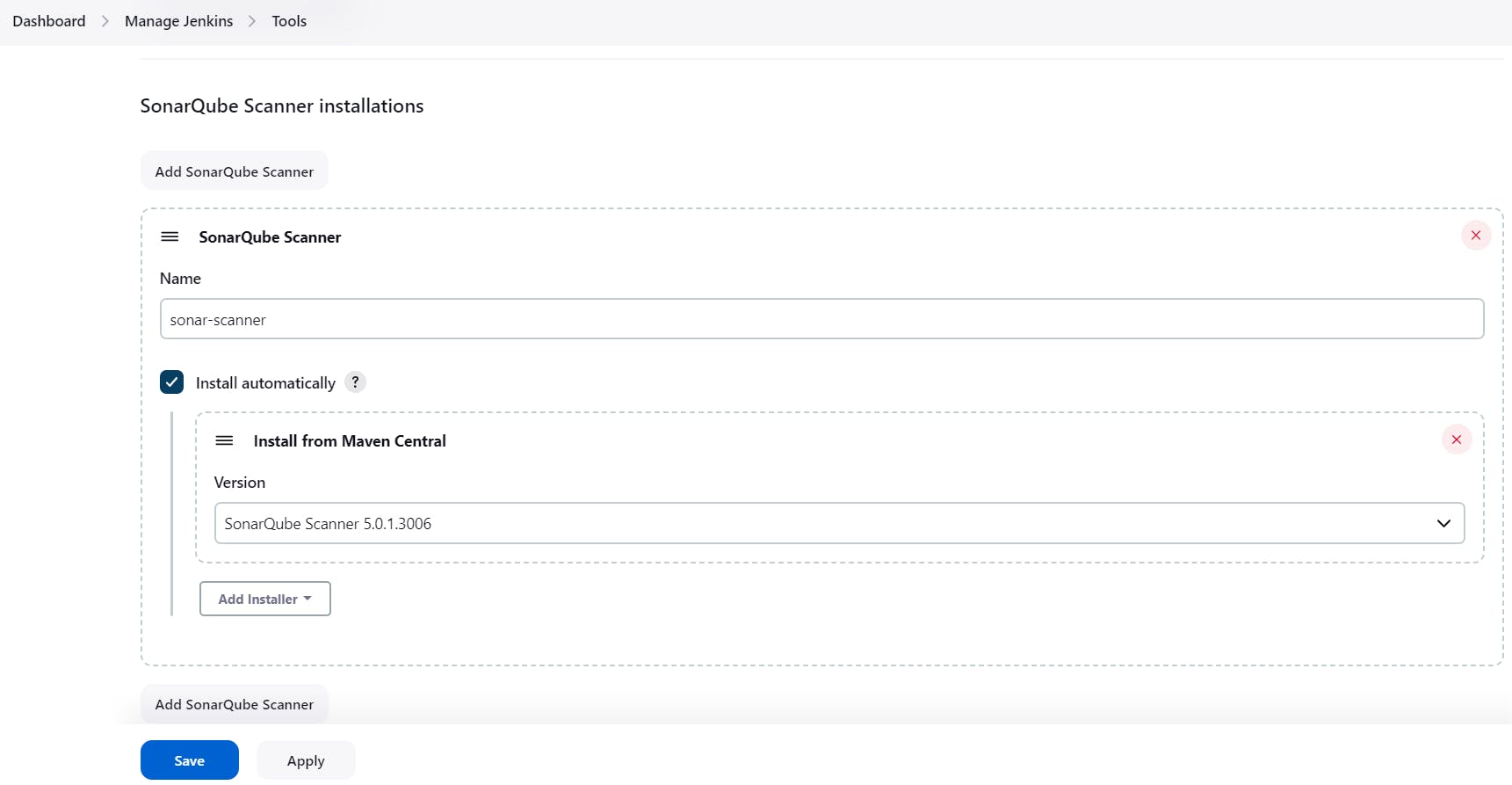
In the Sonarqube Dashboard add a quality gate also
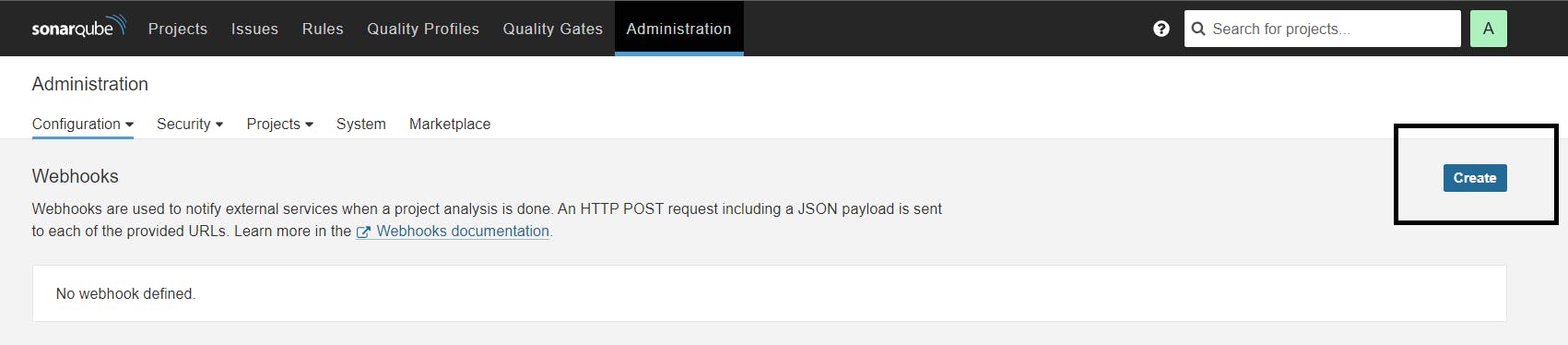
Administration--> Configuration-->Webhooks
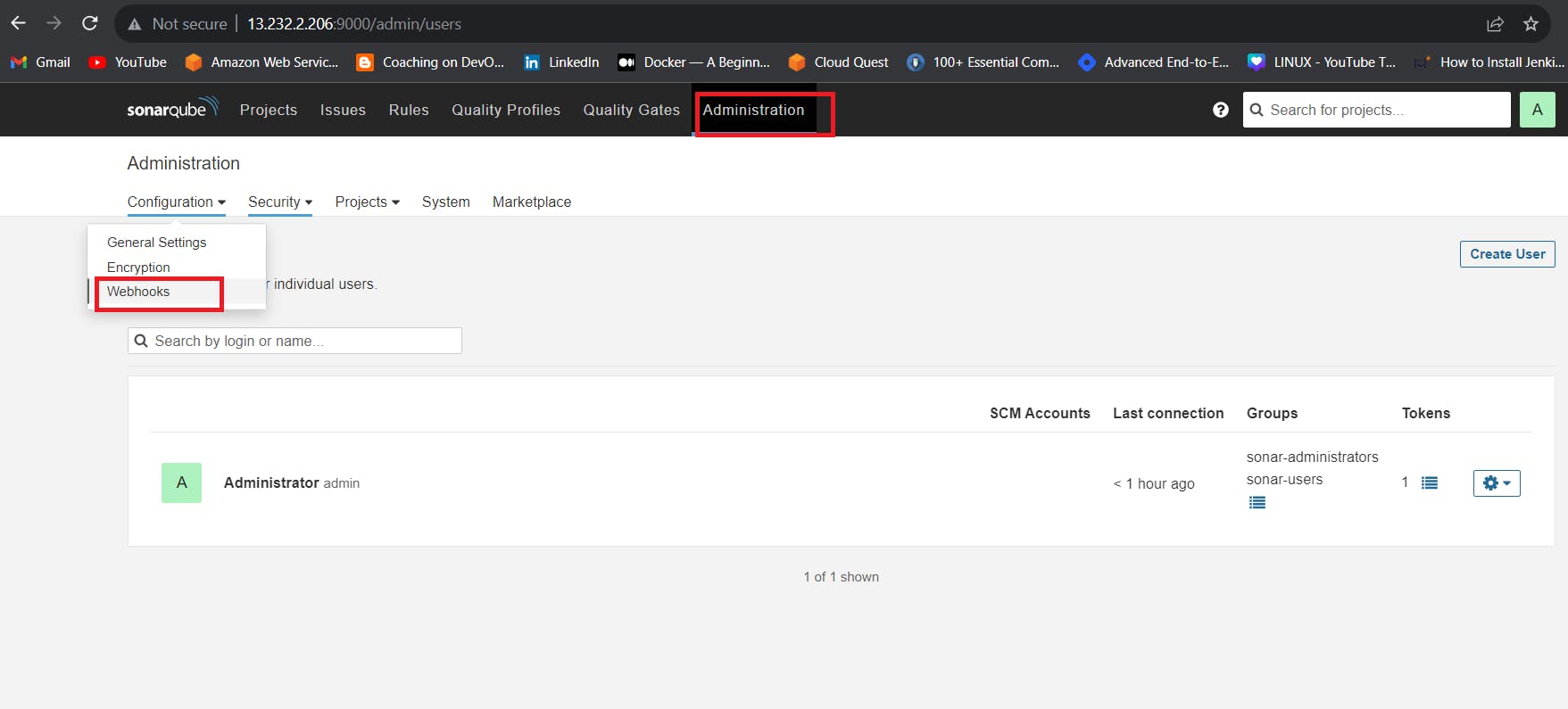
Click on Create
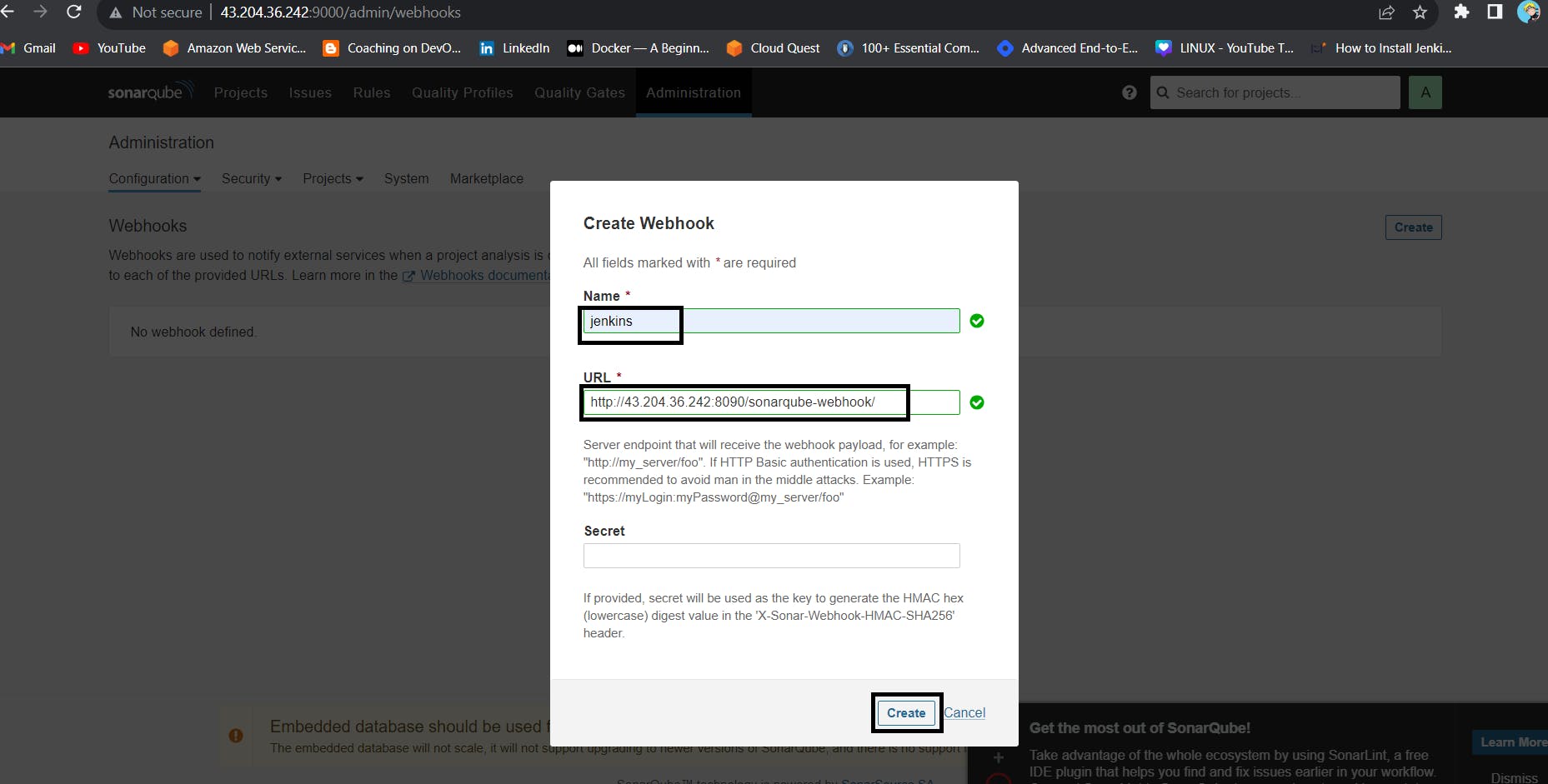
Add details
#in url section of quality gate
http://jenkins-public-ip:8080/sonarqube-webhook/
Let’s go to our Pipeline and add the below code Pipeline Script.
pipeline{
    agent any
    tools{
        jdk 'jdk17'
    }
    environment {
        SCANNER_HOME=tool 'sonar-scanner'
    }
    stages {
        stage('clean workspace'){
            steps{
                cleanWs()
            }
        }
        stage('Checkout From Git'){
            steps{
                git branch: 'main', url: 'https://github.com/Aj7Ay/Python-System-Monitoring.git'
            }
        }
        stage("Sonarqube Analysis "){
            steps{
                withSonarQubeEnv('sonar-server') {
                    sh ''' $SCANNER_HOME/bin/sonar-scanner -Dsonar.projectName=Python-Webapp \
                    -Dsonar.projectKey=Python-Webapp '''
                }
            }
        }
        stage("quality gate"){
           steps {
                script {
                    waitForQualityGate abortPipeline: false, credentialsId: 'Sonar-token'
                }
            }
        }
        stage("TRIVY File scan"){
            steps{
                sh "trivy fs . > trivy-fs_report.txt"
            }
        }
        stage("OWASP Dependency Check"){
            steps{
                dependencyCheck additionalArguments: '--scan ./ --format XML ', odcInstallation: 'DP-Check'
                dependencyCheckPublisher pattern: '**/dependency-check-report.xml'
            }
        }
    }
}
Click on Build now, you will see the stage view like this
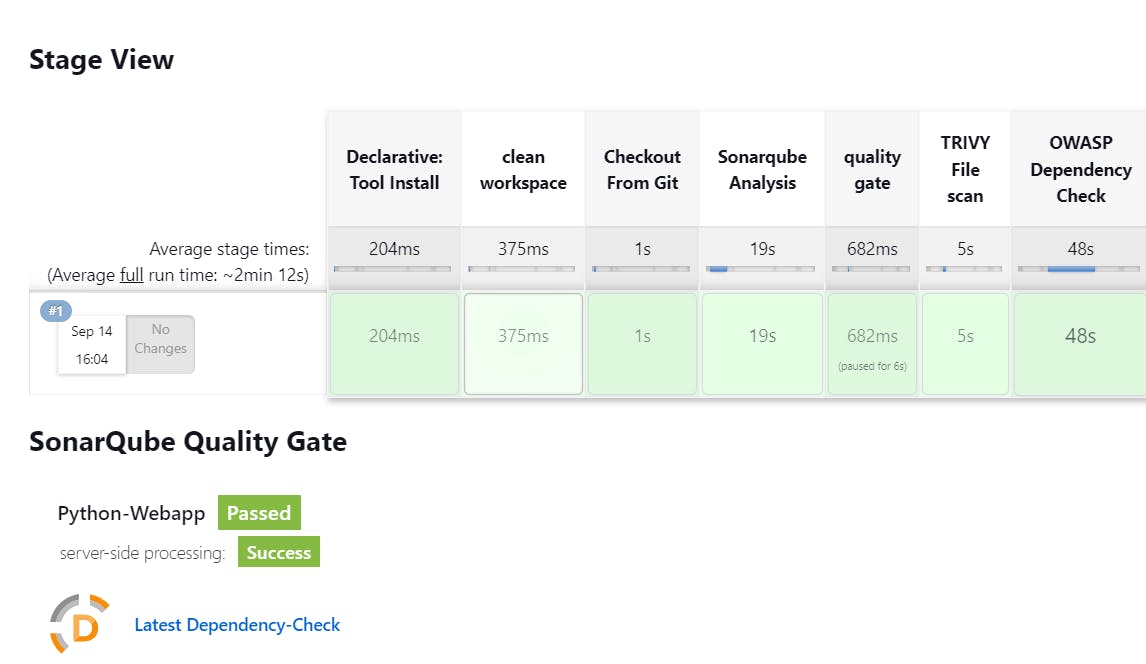
To see the report, you can go to Sonarqube Server and go to Projects.

You can see the report has been generated and the status shows as passed. You can see that there are 522 lines. To see a detailed report, you can go to issues.
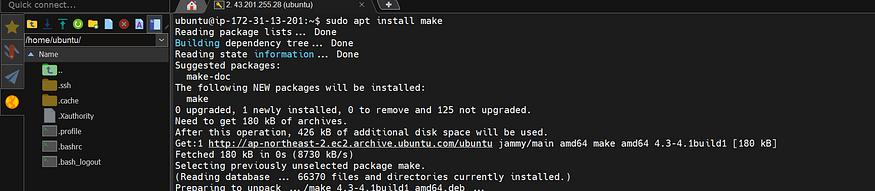
Step 6 - we have to install make package
sudo apt install make
# to check version install or not
make -v
Step 7 - Docker Image Build and Push
We need to install the Docker tool in our system, Goto Dashboard → Manage Plugins → Available plugins → Search for Docker and install these plugins
DockerDocker CommonsDocker PipelineDocker APIdocker-build-step
and click on install without restart
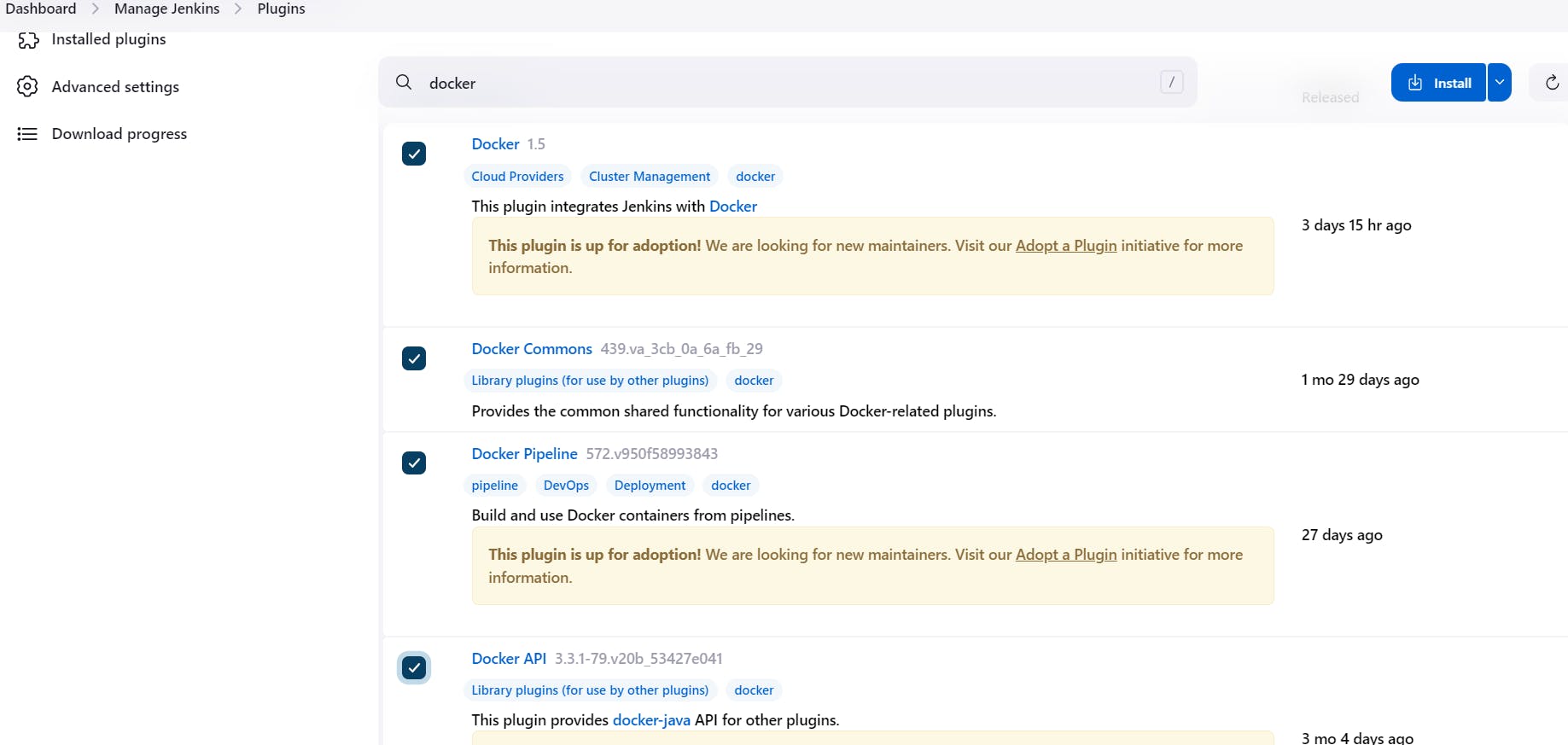
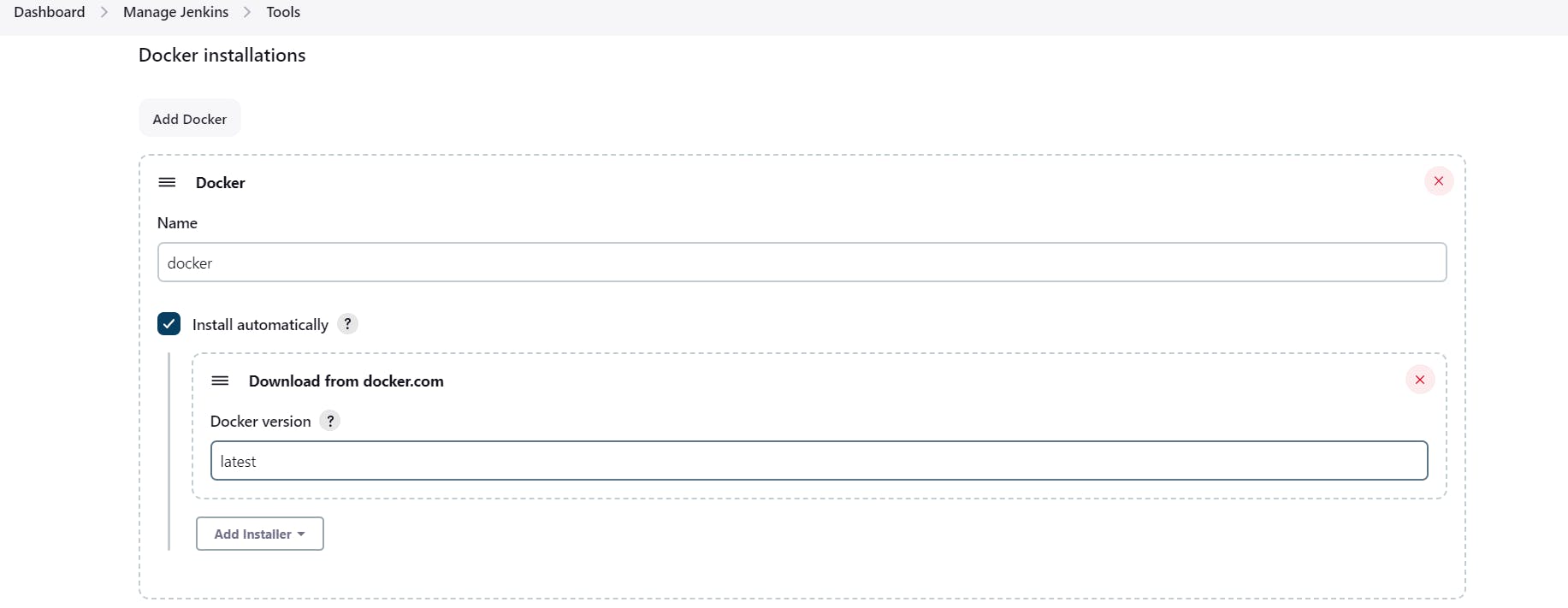
Now, goto Dashboard → Manage Jenkins → Tools →
Add DockerHub Username and Password under Global Credentials

In the makefile, we already defined some conditions to build, tag and push images to dockerhub.
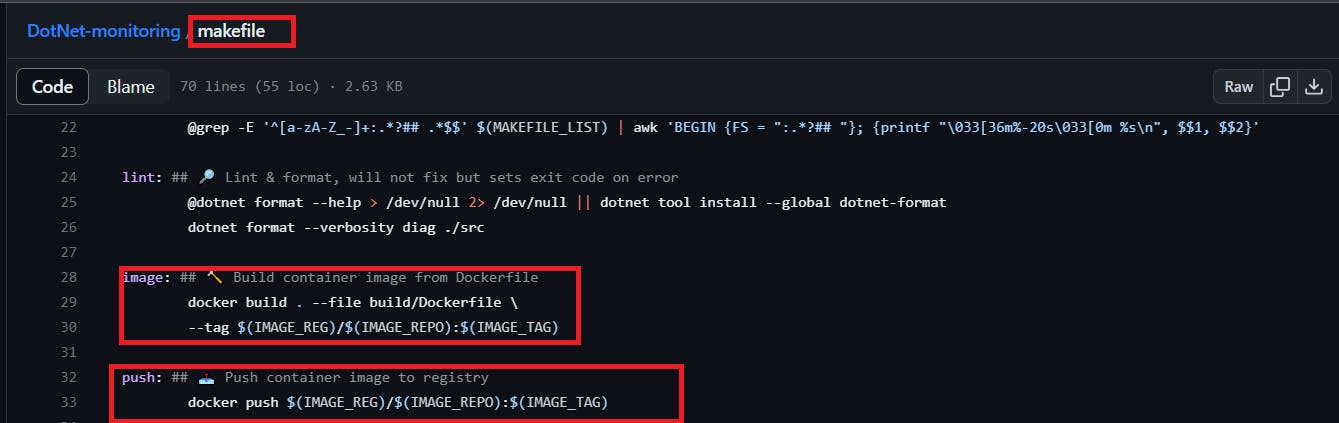
that’s why we are using make image and make a push in the place of docker build -t and docker push
Add this stage to Pipeline Script
stage("Docker Build & tag"){
            steps{
                script{
                   withDockerRegistry(credentialsId: 'docker', toolName: 'docker'){
                       sh "make image"
                    }
                }
            }
        }
        stage("TRIVY"){
            steps{
                sh "trivy image sevenajay/python-system-monitoring:latest > trivy.txt"
            }
        }
        stage("Docker Push"){
            steps{
                script{
                   withDockerRegistry(credentialsId: 'docker', toolName: 'docker'){
                       sh "make push"
                    }
                }
            }
        }
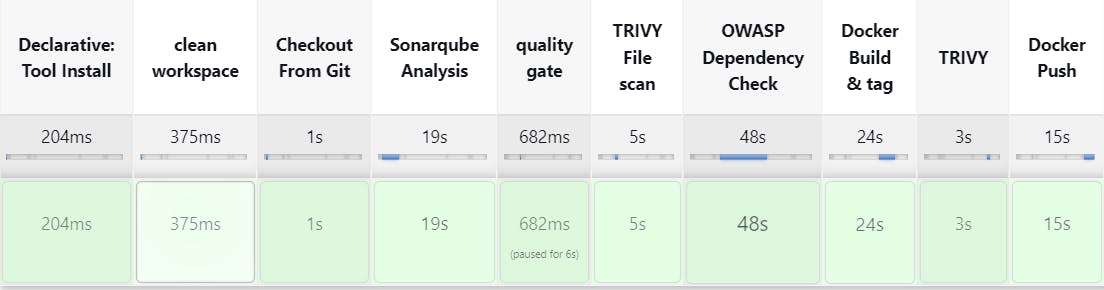
When all stages in docker are successfully created then you will see the result You log in to Dockerhub, and you will see a new image is created

stage view
Step 8 - Deploy the image using Docker
Add this stage to your pipeline syntax
stage("Deploy to container"){
            steps{
                sh "docker run -d --name python1 -p 5000:5000 sevenajay/python-system-monitoring:latest"
            }
        }
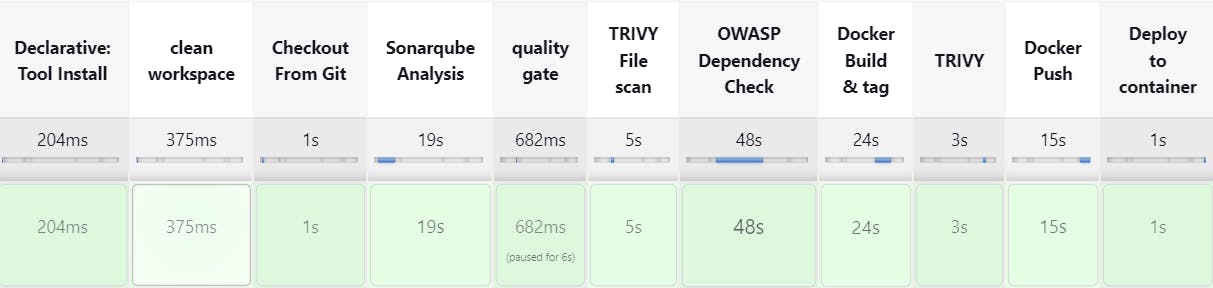
You will see the Stage View like this,
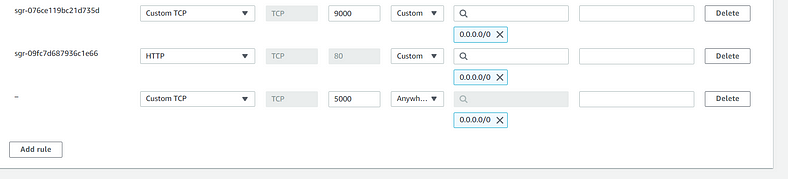
(Add port 5000 to Security Group)
The final script looks like this,
pipeline{
    agent any
    tools{
        jdk 'jdk17'
    }
    environment {
        SCANNER_HOME=tool 'sonar-scanner'
    }
    stages {
        stage('clean workspace'){
            steps{
                cleanWs()
            }
        }
        stage('Checkout From Git'){
            steps{
                git branch: 'main', url: 'https://github.com/Aj7Ay/Python-System-Monitoring.git'
            }
        }
        stage("Sonarqube Analysis "){
            steps{
                withSonarQubeEnv('sonar-server') {
                    sh ''' $SCANNER_HOME/bin/sonar-scanner -Dsonar.projectName=Python-Webapp \
                    -Dsonar.projectKey=Python-Webapp '''
                }
            }
        }
        stage("quality gate"){
           steps {
                script {
                    waitForQualityGate abortPipeline: false, credentialsId: 'Sonar-token'
                }
            }
        }
        stage("TRIVY File scan"){
            steps{
                sh "trivy fs . > trivy-fs_report.txt"
            }
        }
        stage("OWASP Dependency Check"){
            steps{
                dependencyCheck additionalArguments: '--scan ./ --format XML ', odcInstallation: 'DP-Check'
                dependencyCheckPublisher pattern: '**/dependency-check-report.xml'
            }
        }
        stage("Docker Build & tag"){
            steps{
                script{
                   withDockerRegistry(credentialsId: 'docker', toolName: 'docker'){
                       sh "make image"
                    }
                }
            }
        }
        stage("TRIVY"){
            steps{
                sh "trivy image sevenajay/python-system-monitoring:latest > trivy.txt"
            }
        }
        stage("Docker Push"){
            steps{
                script{
                   withDockerRegistry(credentialsId: 'docker', toolName: 'docker'){
                       sh "make push"
                    }
                }
            }
        }
        stage("Deploy to container"){
            steps{
                sh "docker run -d --name python1 -p 5000:5000 sevenajay/python-system-monitoring:latest"
            }
        }
    }
}
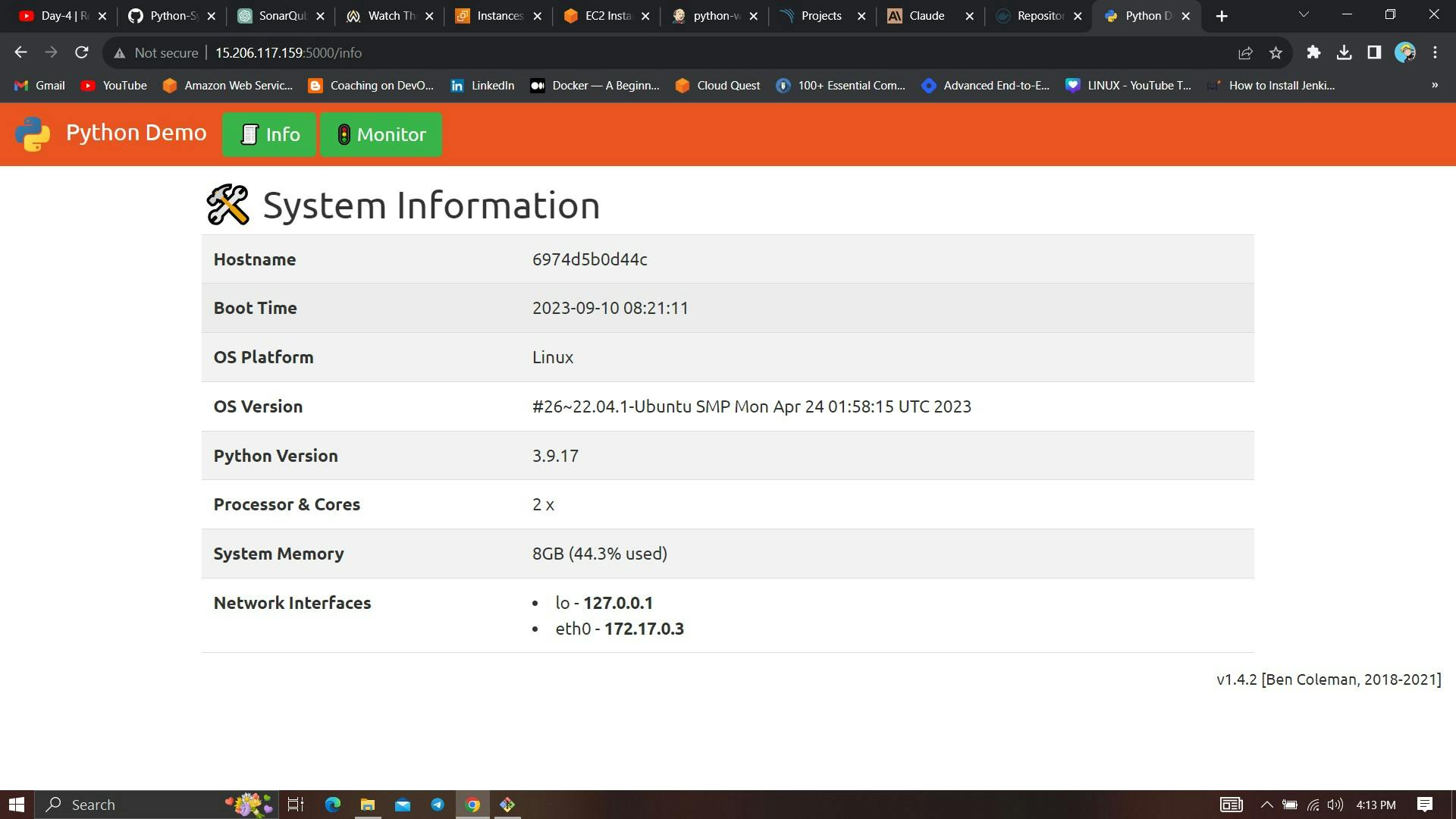
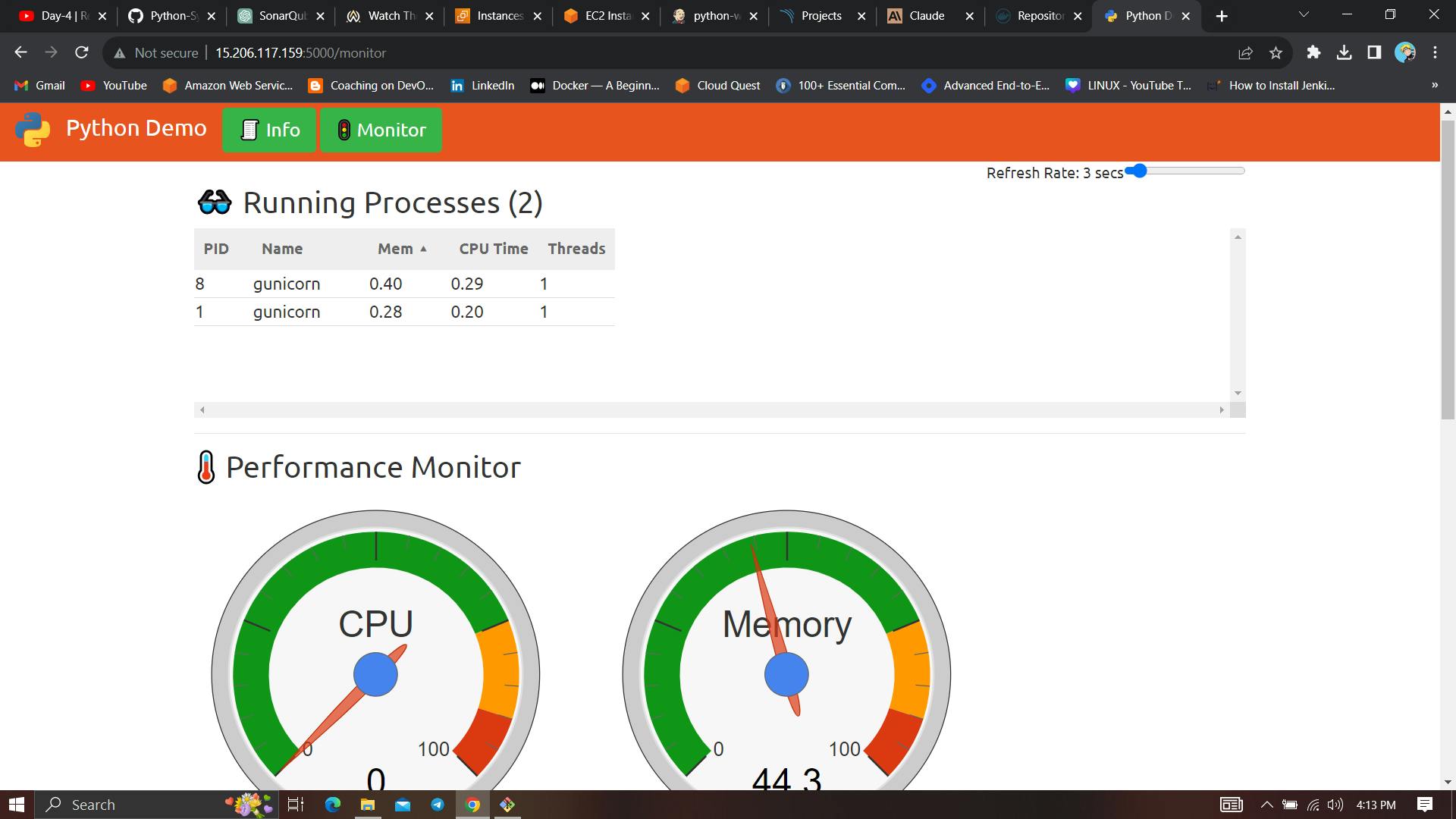
And you can access your application on Port 5000. This is a Real World Application that has all Functional Tabs.
public-ip of jenkins:5000
Step 9 - Access the Real World Application
Step 10 - Terminate the AWS EC2 Instance
Lastly, do not forget to terminate the AWS EC2 Instance.
If this post was helpful, please follow and click the like button below to show your support.
Comments (2)
HI Sir i am fallow your document but not understanding wher to put this code pipeline{ agent any tools{ jdk 'jdk17' } environment { SCANNER_HOME=tool 'sonar-scanner' } stages { stage('clean workspace'){ steps{ cleanWs() } } stage('Checkout From Git'){ steps{ git branch: 'main', url: 'https://github.com/Aj7Ay/Python-System-Monitoring.git' } } stage("Sonarqube Analysis "){ steps{ withSonarQubeEnv('sonar-server') { sh ''' $SCANNER_HOME/bin/sonar-scanner -Dsonar.projectName=Python-Webapp \ -Dsonar.projectKey=Python-Webapp ''' } } } stage("quality gate"){ steps { script { waitForQualityGate abortPipeline: false, credentialsId: 'Sonar-token' } } } stage("TRIVY File scan"){ steps{ sh "trivy fs . > trivy-fs_report.txt" } } stage("OWASP Dependency Check"){ steps{ dependencyCheck additionalArguments: '--scan ./ --format XML ', odcInstallation: 'DP-Check' dependencyCheckPublisher pattern: '**/dependency-check-report.xml' } } } }
Step 1: Open Jenkins Go to Jenkins Dashboard → New Item Choose Pipeline and name your job Click OK Step 2: Configure Pipeline Scroll down to Pipeline section Select Pipeline Script Paste your pipeline script Step 3: Save and Run Click Save Click Build Now to run the pipeline
Leave a comment