Docker Built Its Own Hypervisor. Your Laptop Will Notice.
For 13 years, the virtual machine below Docker Desktop belonged to somebody else. In August 2026, that stopped. Here is the full story of the layer that decides how fast your containers feel, and what you must do about it before October.
You type docker compose up. The fan starts. The terminal shows nothing. You wait four seconds, or eleven, or twenty.
Then, some hours later, you close your containers and your laptop still has 6 GB less memory than it had this morning. You restart Docker Desktop to get that memory back. You have done this so many times that you no longer think about it.
Here is the surprise: most of that pain does not come from your containers. It comes from a layer below them.
That layer is a virtual machine, plus a small program that makes the machine and controls it. The program is a virtual machine manager, or VMM. It is the most invisible part of Docker Desktop, and one of the most important. It sets your container start times. It sets the speed of your file operations. It decides if Docker Desktop gives your memory back.
For 13 years, that program came from somebody else. VirtualBox. Then HyperKit. Then QEMU. Then the Apple Virtualization framework. Then a library with the name libkrun.
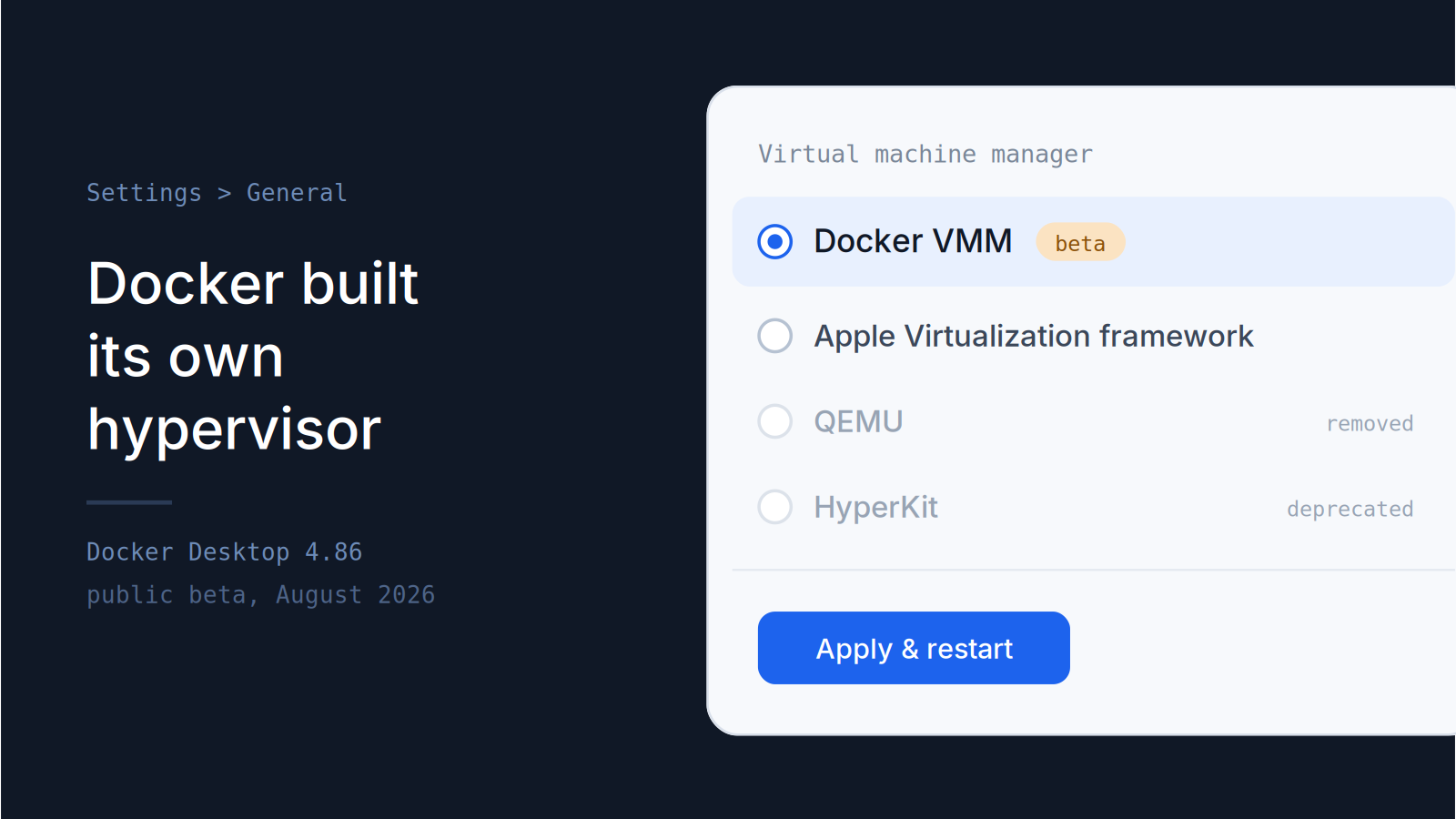
On 12 August 2026, Docker announced the public beta of a hypervisor that Docker wrote itself. It arrived in Docker Desktop 4.86, on Mac and on Windows at the same time. General availability has a target of the end of October 2026. At that point it becomes the default for every new installation.
So this is not one more release note. This is a change of foundation. Here is the history that explains it, the numbers that Docker reports, the limits that can stop you, and the 10 minute test that tells you if you must switch today.
First, a fact that surprises many developers
A container is not a small computer.
A container is a group of processes on a Linux system. The Linux kernel keeps these processes apart from the others with namespaces and control groups. There is no small operating system inside the container. There is one kernel, and it belongs to the host.
That fact controls everything in this article: containers need a Linux kernel.
macOS uses the Darwin kernel. Windows uses the Windows NT kernel. Neither kernel can run a Linux container directly. Not with a plugin, and not with a driver.
So Docker Desktop does something that most users never see:
- It makes a small Linux virtual machine on your computer.
- It starts the Docker Engine in that virtual machine.
- It connects your files and your network to that virtual machine.
- It sends your
dockercommands to the engine in that machine.
Step 1 needs a virtual machine manager. The VMM sits between your hardware and the Linux system that holds your containers. It takes memory and CPU time from the host. It gives the guest a disk, a network interface, and a console. It starts the guest kernel, and it stops it. It moves every byte between the two sides.
When the VMM does this work well, you never think about it. When it does the work badly, you meet it 40 times each day.
Remember the relation, because it explains the rest: the VMM is not your container, but the VMM decides how your container feels.
2013 to 2016: the VirtualBox years
Docker started as Linux software, and on Linux this problem does not exist. The kernel is already correct.
Mac users wanted the same tool, so the first answer was direct: run a Linux system in VirtualBox. The early Docker documents for Mac OS X told you to install VirtualBox first. Then you installed a small Linux image with the name boot2docker. Later, Docker Machine made that machine for you and set your environment variables.
It worked. It also asked a lot from you.
You installed two products from two companies, with two release cycles and kernel extensions. You saw the virtual machine, because it had its own IP address, and localhost gave you nothing. File shares were slow, and a project with many small files was very slow. You gave the machine a fixed quantity of memory, and the machine kept all of it. In each new shell you ran docker-machine env and set your variables again.
Developers accepted this, because containers gave more than they took. But nobody called it good. It felt like a Linux tool in a box on a Mac, and that is what it was.
2016: Docker for Mac makes the machine disappear
Docker for Mac arrived in 2016, and it removed the VirtualBox requirement. The whale became a menu bar icon. Published ports answered on localhost. The virtual machine became difficult to find, and that was the purpose.
Three components made this possible, and the first one has a history worth two minutes.
HyperKit was the new virtual machine manager. The BSD project made a small hypervisor with the name bhyve. Somebody moved bhyve to macOS and called it xhyve. Docker made HyperKit from xhyve. Three projects, one line of descent.
HyperKit runs in user space. It does not need kernel extensions, because it uses the Hypervisor framework that Apple gives to applications. That property solved two problems at the same time. You did not install a third-party kernel driver, and Apple kept control of the dangerous operations.
HyperKit was also small. It was built for light virtual machines, so it gives a disk, a network interface, and a console. It gives no graphics, no sound, and no USB. It does one job.
LinuxKit built the guest. The guest was not a standard Linux distribution. It held a kernel and a small group of containers, with no package manager and no user account to log in as. You got a short start time and a small attack surface. You also got a rule: change your containers, and do not change the virtual machine.
VPNKit solved the network, and this part is more difficult than it looks. A laptop moves. It uses a home network, then a corporate VPN, then a public network, and corporate networks add proxies and unusual rules. VPNKit put the network stack of the virtual machine into a user-space program that speaks to the host network as a normal application. Your corporate VPN stopped breaking your containers.
This structure held for years, and Docker Desktop became normal software in large companies. One problem stayed, and it generated more complaints than all the others together.
The file share problem that would not go away
Your code is on the host. Your application runs in the Linux virtual machine. A file share connects them, and that share was the slowest part of the system for six years.
The cause is arithmetic, not bad engineering. One file operation from the container goes through the guest kernel, then through a virtual device, then to a program on the host, then to the host file system, and then all the way back. Each step adds a small cost.
One file gives no problem. But a JavaScript project can hold more than 40,000 files, and some web frameworks read thousands of files for each request. Multiply a small cost by 40,000 and you get a coffee break.
Docker made three attempts.
osxfs was the first. It gave correct behaviour, and the container saw a normal file system. It was also slow for the operations that developers do most: many small reads, directory scans, and file change notifications. The community answered with workarounds. People moved dependency folders into named volumes. People used the cached and delegated options. People added external file synchronization tools. Every workaround gave a small gain and added complexity.
gRPC-FUSE came next. It was faster, and it became the default. It was still not enough for a large project.
VirtioFS was the real correction. Docker Desktop 4.6 added it as an experimental option in March 2022. VirtioFS is a shared file system for virtual machines, and it uses the virtio device model, so each operation needs far less work between the guest and the host. Docker reported that some file operations took up to 98 percent less time. Independent tests measured builds about 4 times faster than with gRPC-FUSE. VirtioFS is the default on recent macOS versions, so you probably use it now without a decision.
Keep one technical point from this section, because it explains the whole article. The file share is a virtual device. The VMM gives the virtual devices. So a change of VMM can change the speed of your file share. That is exactly what happened next.
Apple Silicon breaks the model twice
Apple changed the processor of the Mac in late 2020. The new chips use the arm64 instruction set. The old Macs used x86_64. Docker got two problems for the price of one.
Problem one: HyperKit could not continue
HyperKit came from x86 code, and it did not operate on the new chips. Docker needed a new way to make a virtual machine, so it used two.
QEMU came first, because QEMU is a machine emulator and virtualizer for many architectures, and it was ready. It let Docker Desktop operate on the new Macs early.
The Apple Virtualization framework became the standard choice. Apple supplies it in macOS, Apple maintains it, and Apple makes it faster with each macOS version. It is stable, it is fast, and many other tools use it.
But it has one property that decides this story: it is a general framework. Apple built it for virtual machines of all types, and not for container hosts only. So it makes decisions that are correct for a general guest and not optimal for a container engine. Hold that thought for two sections.
Problem two: your images were the wrong architecture
Many images existed for amd64 only, and your new laptop was arm64.
The first answer was QEMU emulation of the amd64 instruction set. It was functional and very slow. One public test measured a prime sieve program. Native Apple Silicon took about 26 seconds. QEMU emulation of the same test took about 254 seconds.
The second answer was Rosetta. Rosetta 2 translates x86_64 instructions to arm64 instructions with a small cost, and Docker Desktop 4.25 made Rosetta for Linux generally available. In the same test, Rosetta took about 32 seconds against 26 seconds for native code. That is a large correction: from 10 times slower to 25 percent slower.
One condition applies to Rosetta, and it becomes very important later: Rosetta operates only with the Apple Virtualization framework.
The old options are gone
Docker removed the earlier options one after the other.
Docker announced the deprecation of QEMU on Apple Silicon on 15 April 2025, with a full deprecation date of 14 July 2025. After 1 July 2025, new versions moved users to the Apple Virtualization framework automatically. The option stayed in the settings for 30 more days for users with migration problems, and then Docker removed it. The documentation shows QEMU as deprecated in version 4.44 and later.
HyperKit is deprecated too. It remains on Intel-based Macs, and Docker tells those users to move to the Apple Virtualization framework.
One clarification is necessary, because many readers get this wrong. The deprecation applies to the virtual machine function only. QEMU continues to give emulation for multi-platform builds. If you build an amd64 image on an arm64 host with docker buildx, QEMU can still do that work.
2024: Docker VMM, a hypervisor for containers only
Docker Desktop 4.35 added a third option on Apple Silicon in October 2024: Docker VMM, in beta.
The principle is one sentence. The Apple Virtualization framework is a general virtualization layer, but Docker Desktop runs exactly one type of guest: a small Linux system that holds containers. So Docker can tune the guest kernel and the virtualization layer together, and it can make choices that are correct for containers and wrong for everything else. Docker calls the result a container-optimized hypervisor.
The numbers got attention. With a cold cache, a walk over a large shared file system with find was about 2 times faster than with the Apple Virtualization framework. With a warm cache, the result was up to 25 times better, and faster than the same operation directly on the Mac. An independent report measured git status in a large repository with a cold cache. The time went from about 27 seconds to about 10 seconds.
Read that second number again. Faster than the host. That sounds impossible, so here is the reason.
The cause is the cache. The Linux guest keeps file metadata in its own memory, so a second scan does not touch the Mac file system at all. macOS must give correct behaviour to every application on your computer, so it cannot make the same assumptions. A repeated operation can therefore be faster inside the guest. It is a cache effect, and not a measurement error.
There was one detail in this generation that most users never saw. Docker did not write the complete hypervisor at that time. From version 4.35 to version 4.85, Docker VMM on Mac used libkrun, an open-source virtualization library.
So in the middle of 2026, your options looked like this:
| Option | Platform | Status |
|---|---|---|
Docker VMM (with libkrun) |
Mac, Apple Silicon | Beta. Fastest for arm64 workloads |
| Apple Virtualization framework | Mac | Stable. Standard choice. Necessary for Rosetta |
| HyperKit | Mac, Intel | Deprecated |
| QEMU | Mac, Apple Silicon | Removed |
| WSL 2 | Windows | Default |
| Hyper-V | Windows | Alternative. Needs administrator rights |
Look at the list again. Almost every item came from a different company or a different project. That is the point of what happened in August.
August 2026: Docker takes the whole stack
Docker Desktop 4.86 keeps the name Docker VMM and replaces everything below it. libkrun is gone. The hypervisor belongs to Docker.
Docker gives a direct reason: Docker Desktop always used a third-party VMM, and Docker now owns the full stack. Ownership gives three results. Docker can tune the engine for container workloads only. Docker can ship a correction on its own schedule. And Docker can answer your bug report without a request to a different project.
There is a second change of the same size. Docker VMM is no longer a Mac component. Version 4.86 brings it to Mac and to Windows, and Linux support comes at general availability. The first generation was a fast option for one group of users on one platform. The second generation is one engine for every platform.
Docker reports five results for the beta:
- Faster start. The engine and the containers start in less time. First start, project change, and restart after a failure.
- Faster file input and output. The share between container and host has less delay, and you meet it in every cycle of edit, compile, and test.
- Return of idle memory. The engine gives idle memory back to the host, so Docker Desktop does not hold RAM that your containers do not use.
- Better stability on Windows. Windows developers get a VMM that Docker builds and maintains.
- Isolation with speed. The containers stay in a fully isolated virtual machine. On Windows, Docker describes the result as the isolation of Hyper-V with the speed of WSL 2.
The third item is the one that changes your day
Read the memory item again, because it gets the least attention and it changes the most.
The most frequent complaint about Docker Desktop is not speed. It is memory that never comes back. You start Docker Desktop in the morning and run two services. Four hours later the process holds several gigabytes. You stop your containers, and the number does not move. You close your editor, and the number does not move. So you restart Docker Desktop, in the middle of the afternoon, for no technical reason that you can explain to a colleague.
This is not a defect. A virtual machine takes memory from the host and then owns it. The guest kernel uses free memory for caches, because unused memory is a wasted resource. From outside, the host cannot see the difference between a cache that saves you 10 seconds and a page that no process will ever read again.
A container-optimized VMM knows more. It knows the guest is a container host and nothing else. So it can tell the guest to release pages, and it can hand those pages back to macOS or Windows. The result is a laptop that stays usable while Docker Desktop is open.
One more reason belongs to your security team and not to you. If the virtualization layer belongs to Docker, Docker can monitor it and govern it in ways that a third-party backend does not permit. Docker plans administrator controls and policy at the machine boundary. The same engine also runs Docker Sandboxes, the Docker product for isolated environments for coding agents, and Docker says this is intentional: one improvement in the engine reaches both products.
If somebody asks why a new engine is necessary, give them that paragraph.
Windows: the choice you never had
Mac users get a faster option. Windows users get a new option for the first time in years, and its value is easiest to see against the two old ones.
WSL 2 is the default Windows backend. It runs a full Linux kernel in a light virtual machine, with close integration into the Windows file system and network. It works in per-user and all-users installation modes, and it needs no administrator rights. It is fast and simple to install. But your containers run in the Microsoft kernel, in a machine that Microsoft controls, so Docker cannot apply all of its governance controls at that boundary.
Hyper-V is the native hypervisor of Windows. It runs the Docker Linux machine in a fully isolated virtual machine, with a strong boundary between your containers and your host. The costs are administrative. It works in all-users installation mode only, it needs administrator rights, and memory allocation is traditionally static.
Docker VMM takes the middle position. It gives a real virtual machine boundary, which WSL 2 does not give. It gives light memory behaviour and short start times, which Hyper-V does not give. And Docker maintains it.
| Property | WSL 2 | Hyper-V | Docker VMM |
|---|---|---|---|
| Real virtual machine boundary | No | Yes | Yes |
| Needs administrator rights | No | Yes | No |
| Per-user installation mode | Yes | No | Yes |
| Returns idle memory | Partly | No | Yes |
| Maintained by Docker | No | No | Yes |
| Status in version 4.86 | Default | Alternative | Beta |
If you work alone and WSL 2 satisfies you, do nothing today. If your organization put you on Hyper-V for isolation and the speed disappointed you, test Docker VMM this week. This is the option you asked for.
Switch in two minutes
One requirement causes almost every failed attempt, so read it first.
Docker VMM needs a minimum of 4 GB of memory for the Docker Linux virtual machine. Increase the memory before you change the engine. You also need Docker Desktop 4.86 or later, and an Apple Silicon processor if you are on a Mac.
To increase the memory:
- Open Docker Desktop.
- Open Settings.
- Select Resources.
- Set the memory control to 4 GB or more.
- Select Apply & restart.
To change the engine. The steps are identical on Mac with Apple Silicon and on Windows:
- Open Settings.
- Select General.
- Find Virtual Machine Manager.
- Select Docker VMM.
- Select Apply & restart.
A second restart of Docker Desktop can be necessary after this change. The documentation lists it as known behaviour, so restart one more time before you write a bug report.
If you used Docker VMM before the upgrade, your setting stays, and Docker Desktop moves you to the new engine automatically. To know which engine you have: versions 4.35 to 4.85 use libkrun, and versions 4.86 and later use the Docker hypervisor.
Nothing here is permanent. To go back, open Settings > General, select Apple Virtualization framework on Mac or WSL 2 on Windows, and select Apply & restart. Then tell Docker what happened. The beta program collects feedback in the product, in the Docker community Slack, and through the support channels.
Now the part that can stop you
This is a beta, and the limits are specific. Read them before you move a whole team.
No Rosetta support on Mac
This is the big one, and for many teams it makes the decision. Docker VMM does not support Rosetta, so emulation of amd64 images is slow. Docker says it examines possible solutions.
Your images decide the outcome. If all of them are arm64, Docker VMM is a good choice, and you can test it today. If one image or more is amd64 only, Docker VMM makes those containers much slower, and no setting corrects it. Rosetta needs the Apple Virtualization framework, so you cannot have both.
Many teams have exactly one legacy amd64 image. A database. An internal service. A tool that nobody can rebuild, because the person who built it left in 2022. That one image can control the engine for the whole team.
Find out in one command:
docker image inspect --format '{{.RepoTags}} {{.Architecture}}' $(docker image ls -q)
Some databases can fail with VirtioFS
Docker reports that some databases, for example MongoDB and Cassandra, can fail when they use VirtioFS with Docker VMM. Docker expects a correction in a future version.
The correct configuration is also good practice for three other reasons: keep database files in a named volume, and not in a bind mount. A named volume stays on the virtual machine disk, so the file share never touches the operation.
Replace this:
services:
  db:
    image: mongo
    volumes:
      - ./data:/data/db      # bind mount. It uses the file share.
With this:
services:
  db:
    image: mongo
    volumes:
      - dbdata:/data/db      # named volume. It stays in the virtual machine.

volumes:
  dbdata:
Your database gets faster, and this class of problem goes away.
No automatic bind mount shares
Docker VMM does not make automatic shares for bind mounts. If a container gives the error file is not shared from the host, open Settings > Resources > File sharing, add the folder that your container needs, and select Apply & restart. Do this one time for each project folder that is not in your standard list.
No Linux support in version 4.86
Docker VMM is not available on Linux in this version. Linux support comes at general availability. The effect is small, because most Linux users need no virtual machine at all.
So which one do you choose
Short rules.
Choose Docker VMM if you use an Apple Silicon Mac and all your images are arm64. Or if the memory behaviour of Docker Desktop makes you restart it. Or if you work on Windows with Hyper-V and you want more speed. Or if you want a voice in the engine before it becomes your default.
Choose the Apple Virtualization framework if you need Rosetta for amd64 images. Or if this week does not permit an interruption. Or if a database uses a bind mount and you cannot change that today.
Keep WSL 2 if you work on Windows, WSL 2 gives good results, and no policy asks for a virtual machine boundary.
Leave HyperKit if you still use it. It is deprecated. Use the Apple Virtualization framework on Intel Macs.
| Your situation | Recommended option |
|---|---|
| Apple Silicon, arm64 images only | Docker VMM |
| Apple Silicon, some amd64 images | Apple Virtualization framework |
| Apple Silicon, database in a bind mount | Apple Virtualization framework. Or move to a named volume, then test Docker VMM |
| Intel Mac | Apple Virtualization framework |
| Windows, no special policy | WSL 2. Then test Docker VMM |
| Windows, isolation policy | Docker VMM |
| Linux | No change. Wait for general availability |
Do not trust my numbers. Measure yours.
Every benchmark in this article comes from a different computer and a different project. Your project is not that project. A local measurement takes about 10 minutes, and it beats every article on the internet, including this one.
Select two or three operations that you do many times each day. Good candidates: a cold start of your Compose project, an installation of dependencies in a bind mount, a git status in your largest repository from inside a container, and one full test run.
Then follow this sequence:
- Record your current Virtual Machine Manager in Settings > General.
- Run
docker compose downto get a clean state. - Run each test operation three times with the
timecommand. Record the results. - Change the Virtual Machine Manager.
- Run
docker compose downagain. - Run each test operation three times. Record the results.
- Compare the middle value of each group.
For example:
time docker compose up -d
time docker compose exec app git status
time docker compose exec app npm ci
Four rules make your numbers useful. Use the middle value and not the best value, because the first run always includes cache effects. Measure the cold condition and the warm condition, because the largest gains show up warm. Measure your amd64 containers separately, because that is where Docker VMM is weak today. And write the results where your team can read them, because somebody will ask the same question next month.
What happens in October
Docker gives clear plans. The beta continues through the autumn of 2026, and Docker examines the workloads that you actually run: builds, file synchronization, and container start patterns.
General availability has a target of the end of October 2026. At that point, Docker VMM becomes the default engine for new Docker Desktop installations on Mac, Windows, and Linux. The longer plan is one runtime for the laptop, the cloud, and on-premises systems, with containers, Compose applications, and agents on one foundation.
Two dates matter for you. Today, Docker VMM is a choice, and you can leave it in one minute. At general availability it is the default, and your new colleague gets it without a decision on a Monday morning.
That is the argument for a test now. A problem that you find in August has a corrective action and a report channel. The same problem in November arrives with a new starter, a broken environment, and no time.
Sources
- Docker. Docker VMM Public Beta: A Complete Overhaul, Built for Performance. 12 August 2026. https://www.docker.com/blog/docker-vmm-public-beta/
- Docker Docs. Virtual Machine Manager. https://docs.docker.com/desktop/features/vmm/
- Docker. Docker Desktop for Mac: QEMU Virtualization Option to be Deprecated in 90 Days. April 2025. https://www.docker.com/blog/docker-desktop-for-mac-qemu-virtualization-option-to-be-deprecated-in-90-days/
- Docker. What Are the Latest Docker Desktop Enterprise-Grade Performance Optimizations. https://www.docker.com/blog/what-are-the-latest-docker-desktop-enterprise-grade-performance-optimizations/
- Docker. Speed boost achievement unlocked on Docker Desktop 4.6 for Mac. https://www.docker.com/blog/speed-boost-achievement-unlocked-on-docker-desktop-4-6-for-mac/
- Docker. Docker Desktop 4.25 (Rosetta for Linux general availability). https://www.docker.com/blog/docker-desktop-4-25/
- Docker Docs. Docker Desktop release notes. https://docs.docker.com/desktop/release-notes/
Comments (1)
Thanks for updating
Leave a comment