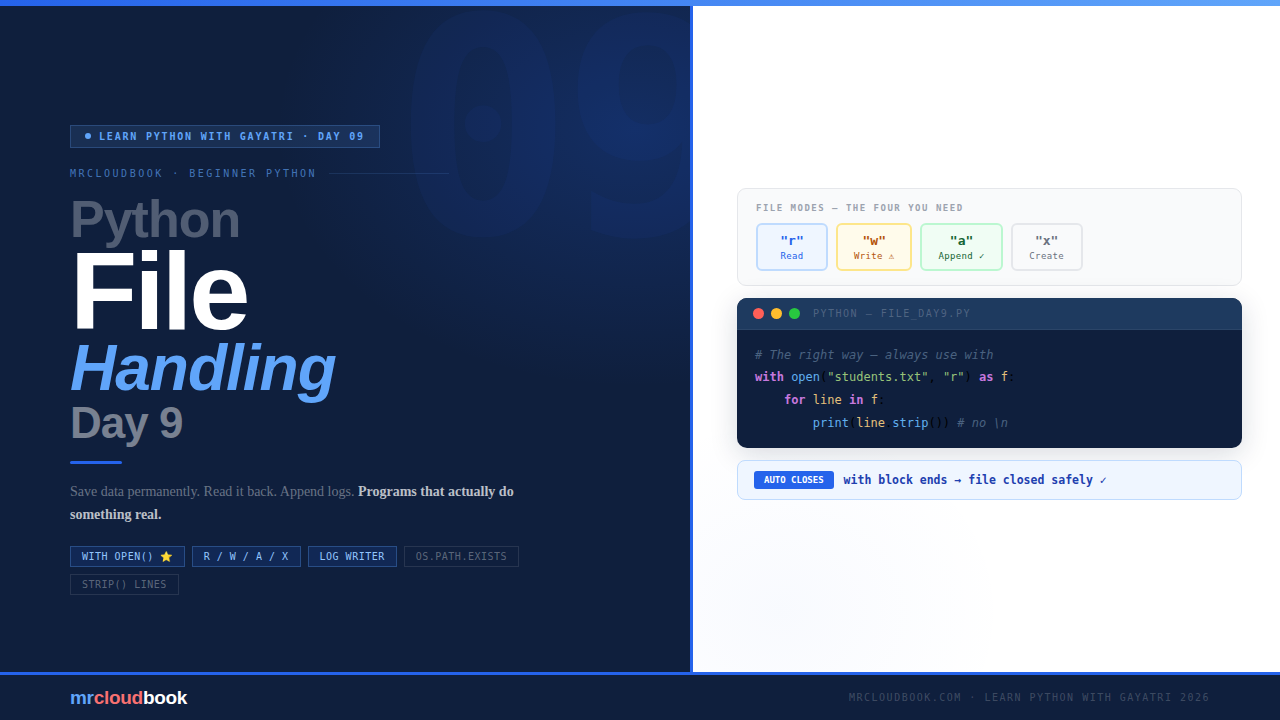
Why Do We Need File Handling?
Right now, everything your Python program stores disappears the moment it stops running. Variables, lists, dictionaries - all gone. Files fix that. They let your programs interact with the real world and persist data between runs.
File handling is one of those skills that separates beginners from programmers who can actually build useful things. With files, your Python programs can:
- Save results - write output to a text file for later review
- Read data - load a list of names, a config file, or a CSV
- Append new records - add to an existing file without losing old data
- Write logs - track what your program did and when
Real World Example Imagine you have an automation script that checks orders every hour. You want to save the results to a file so you can review them later - not just print them and lose them forever. That is exactly what file handling is for.
File Modes - The Four You Need to Know
Before opening a file, you tell Python what you want to do with it. This is the file mode. Get this wrong and you can accidentally delete all your data.
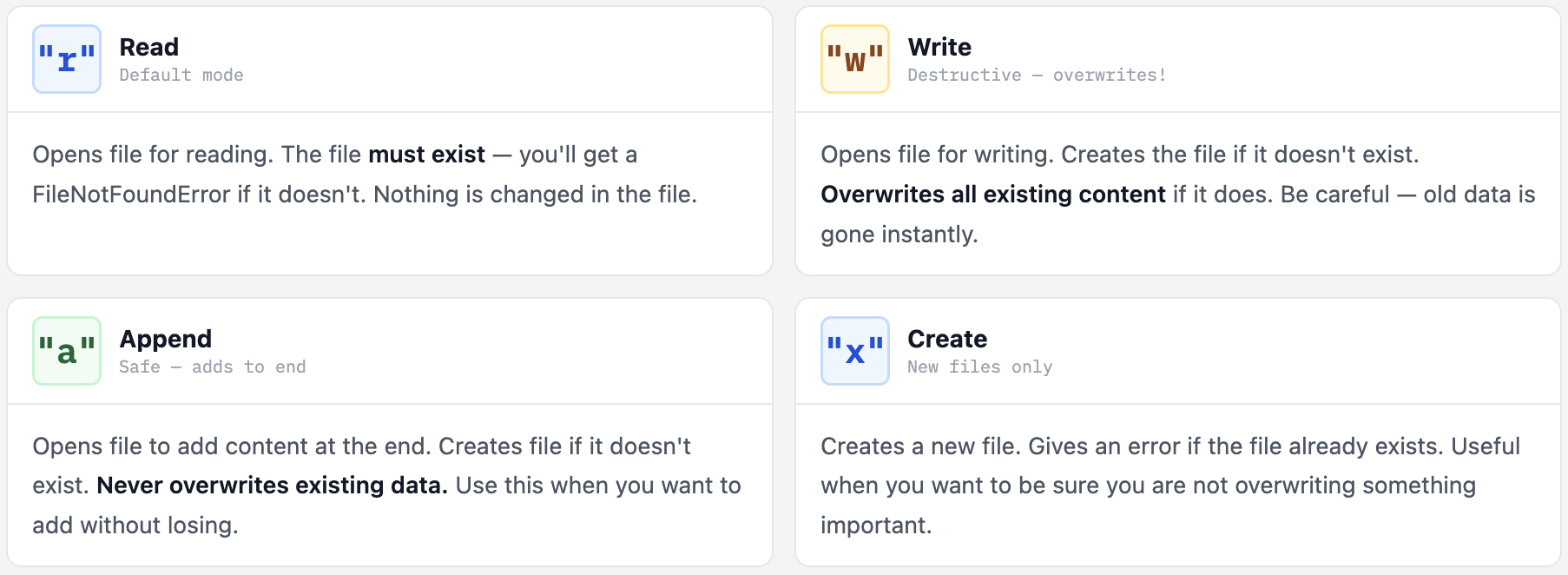
The Most Important Rule - "w" Deletes Everything "w" mode will delete all existing content in the file the moment you open it - before you write a single character. If you just want to add new content without losing old data, always use "a" (append) mode instead. This is the #1 file handling mistake beginners make.
The Better Way - Using with
There are two ways to open a file. One is manual and risky. The other is automatic and safe. Always use the second one.
The Old Way - Manual open() and close()
# Opens a file
file = open("notes.txt", "r")
content = file.read()
file.close()   # ← must not forget this!
# If an error happens before close(), the file stays open - problems!
The Right Way - with statement (always use this)
# The with statement - file automatically closes when the block ends
with open("notes.txt", "r") as file:
    content = file.read()
    print(content)
# File is automatically closed here - even if an error occurs inside!
# No file.close() needed.
✓ Why with Is Better The `with` statement automatically closes the file when the block ends - even if an error occurs inside the block. This prevents files from staying open (which can cause data loss or locks). Think of it as: `"open this file, do your work, then close it automatically - no matter what."` Every professional Python developer uses `with open(...)`. Start this habit now and you will never forget to close a file.
Reading from a File
Four ways to read a file - each suits a different situation. The loop method is the one you will reach for most.
Let’s say we have students.txt with: Priya / Rahul / Meena / Arjun (one per line).
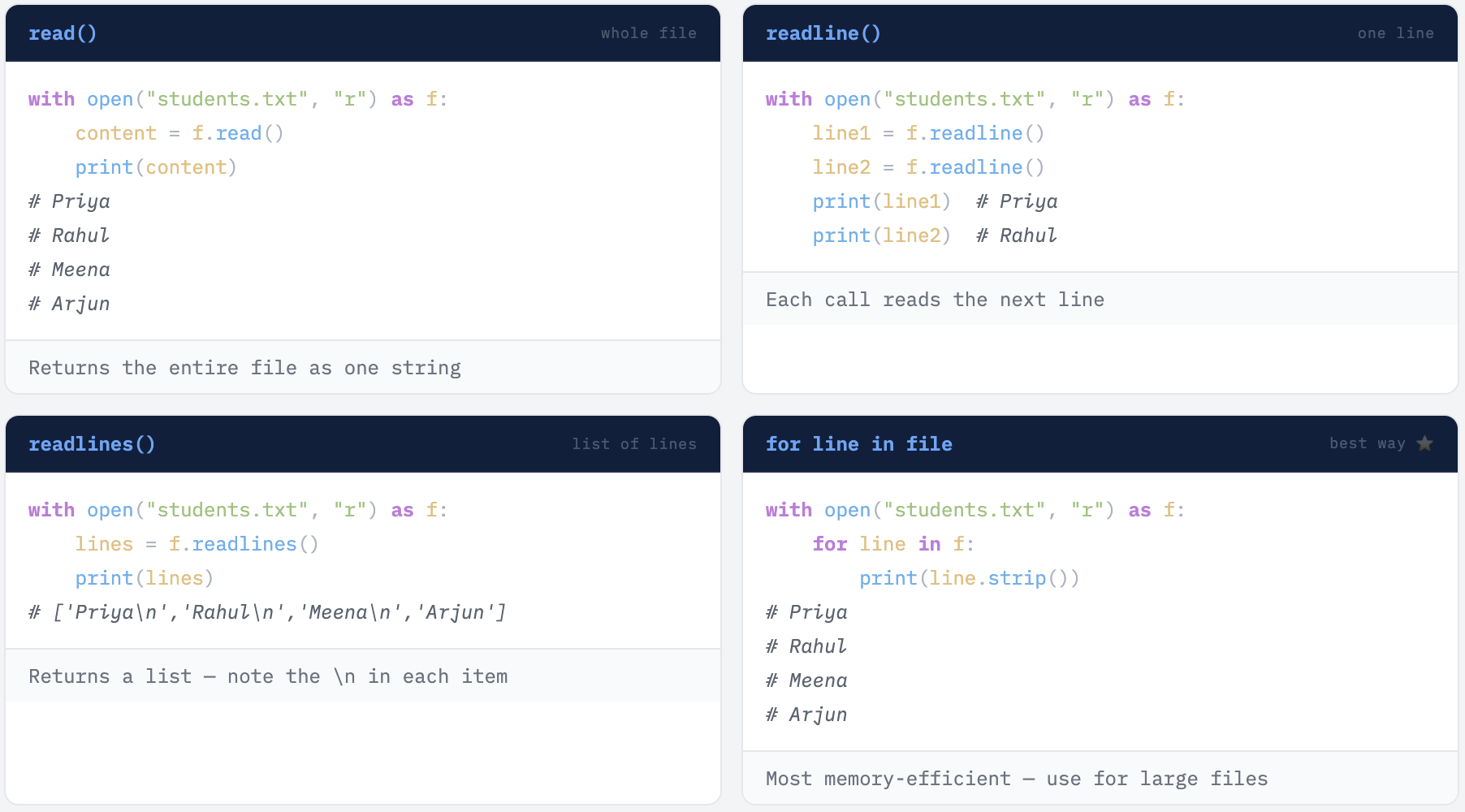
Always Use strip() When Looping Lines Each line read from a file includes a `\n` (newline) character at the end. Calling `.strip()` removes it, giving you the clean text. Without it you get double-spacing in your output.
Writing to a File
Two methods for writing - one for a single string, one for a list. Both use “w” mode which creates or overwrites the file.
# write() - write a string to the file
with open("output.txt", "w") as file:
    file.write("Hello, this is my first file!\n")
    file.write("Python file handling is easy.\n")
# Creates output.txt with two lines

# writelines() - write a list of strings
students = ["Priya\n", "Rahul\n", "Meena\n", "Arjun\n"]
with open("students.txt", "w") as file:
    file.writelines(students)
⚠ Remember \n for New Lines In Python, \n means "start a new line". Without it, everything gets written on the same line. When using write(), you are responsible for adding \n yourself. writelines() also does not add newlines - include them in your list items.
Appending to a File - Mode “a”
Append mode is your safest friend when you want to add data without touching what’s already there. No accidental overwrites, no data loss.
# students.txt already has: Priya, Rahul, Meena, Arjun

# Append two more names - original data is safe
with open("students.txt", "a") as file:
    file.write("Sneha\n")
    file.write("Vikram\n")

# Now students.txt has ALL 6 names - nothing was deleted!
# Priya, Rahul, Meena, Arjun, Sneha, Vikram

Check if a File Exists - os.path.exists()
Before reading a file, it is good practice to check if it actually exists. Python’s os module provides the tool for this. Opening a file that does not exist in "r" mode raises a FileNotFoundError.
import os

if os.path.exists("students.txt"):
    print("File found! Reading it...")
    with open("students.txt", "r") as file:
        print(file.read())
else:
    print("File not found!")

# Other useful os.path functions:
os.path.exists("file.txt")    # True / False
os.path.getsize("file.txt")   # size in bytes
os.path.isfile("file.txt")    # True if it's a file (not a folder)
Real Life Examples 🌟
Example 1 - Save a List to a File
students = ["Priya", "Rahul", "Meena", "Arjun", "Sneha"]

with open("class_list.txt", "w") as file:
    for name in students:
        file.write(name + "\n")

print("Class list saved!")

# Read it back and count
with open("class_list.txt", "r") as file:
    lines = file.readlines()
    print(f"Total students: {len(lines)}")  # Total students: 5
Example 2 - Simple Log Writer
This is exactly how real automation scripts track their activity. Every script that runs in production keeps a log file like this.
import datetime

def write_log(message):
    now = datetime.datetime.now()
    timestamp = now.strftime('%Y-%m-%d %H:%M:%S')
    with open("app_log.txt", "a") as log_file:   # "a" - never overwrites!
        log_file.write(f"[{timestamp}] {message}\n")

write_log("Program started")
write_log("Data processed successfully")
write_log("Program ended")

# app_log.txt:
# [2026-04-07 10:30:00] Program started
# [2026-04-07 10:30:02] Data processed successfully
# [2026-04-07 10:30:05] Program ended
Example 3 - Word Counter
with open("story.txt", "r") as file:
    content = file.read()
    words   = content.split()
    print(f"Total words: {len(words)}")
    print(f"Total lines: {content.count(chr(10)) + 1}")
    print(f"Total chars: {len(content)}")
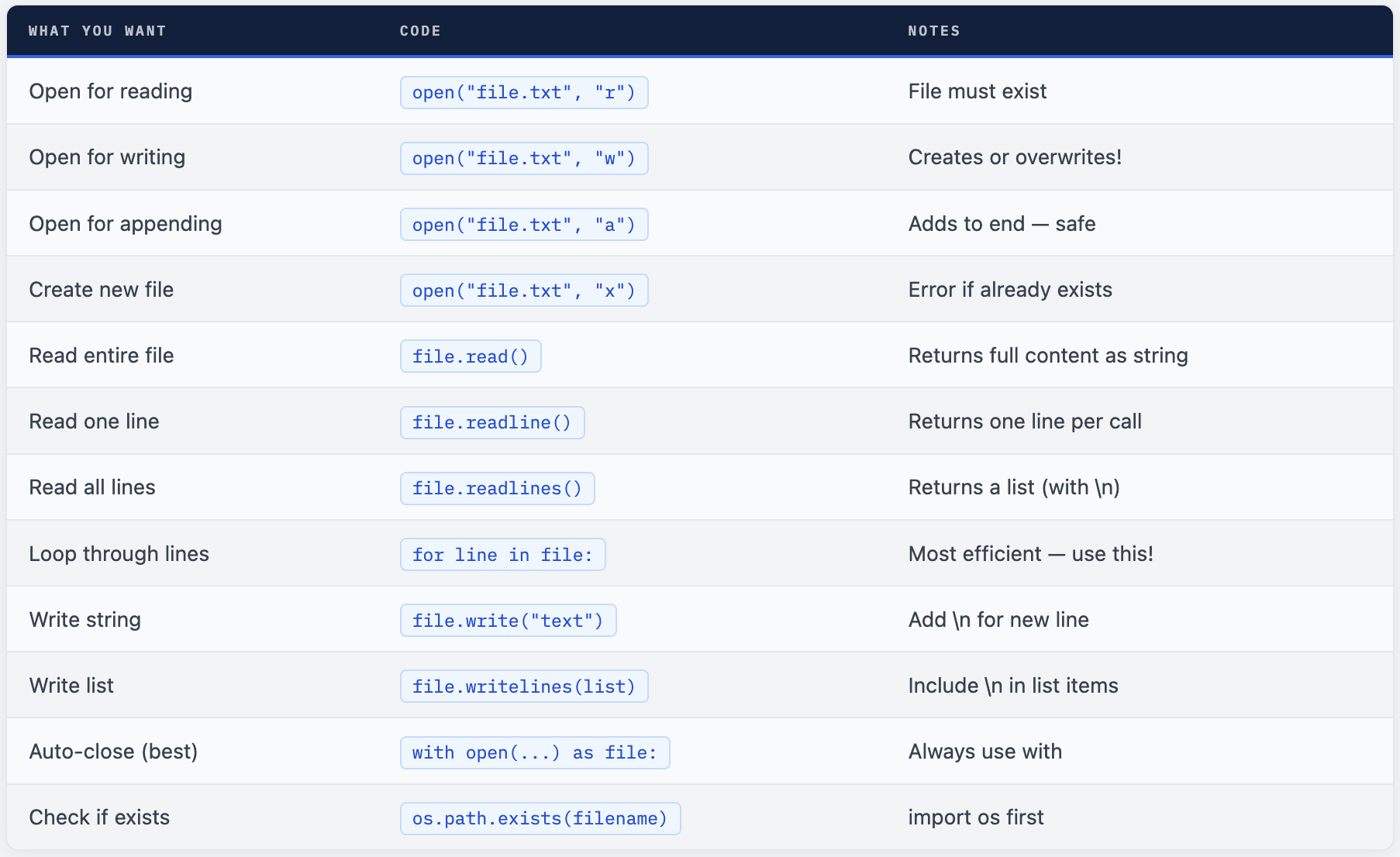
Quick Reference
Your Turn - 5 Exercises + 1 Challenge
- Create a file called my_goals.txt and write 5 of your goals into it - one per line.
- Read the file back and print each goal with a number:
Goal 1: ...,Goal 2: ..., etc. - Append 2 more goals to the file without losing the original 5.
- Write a program that reads a text file and counts the total number of words in it.
- Create a simple diary program - ask the user to type a note, and save it to diary.txt with today’s date as a prefix.
🏆 Challenge - Sort Names Alphabetically Read a file containing names (one per line), sort them alphabetically, and write the sorted list to a new file called sorted_names.txt. Hint: use readlines() to get a list, then .sort() to sort it, then write each name back with a loop.
File handling separates beginners from real Python programmers.
Your programs can now save data, read it back, append logs, and interact with the file system. That is a huge step.

Comments (0)
No comments yet. Be the first to share your thoughts.
Leave a comment