Day 1 gave you variables and data types - the atoms of Python. You learned how to store values like names, numbers, and booleans. Now it’s time to make those values do something. Operators are symbols that perform actions. Expressions combine values and operators to produce a result. Without operators, your variables just sit there doing nothing. Once you finish Day 2, you’ll be able to calculate discounts, check conditions, build text, and make your first real decisions in code.
Arithmetic Operators
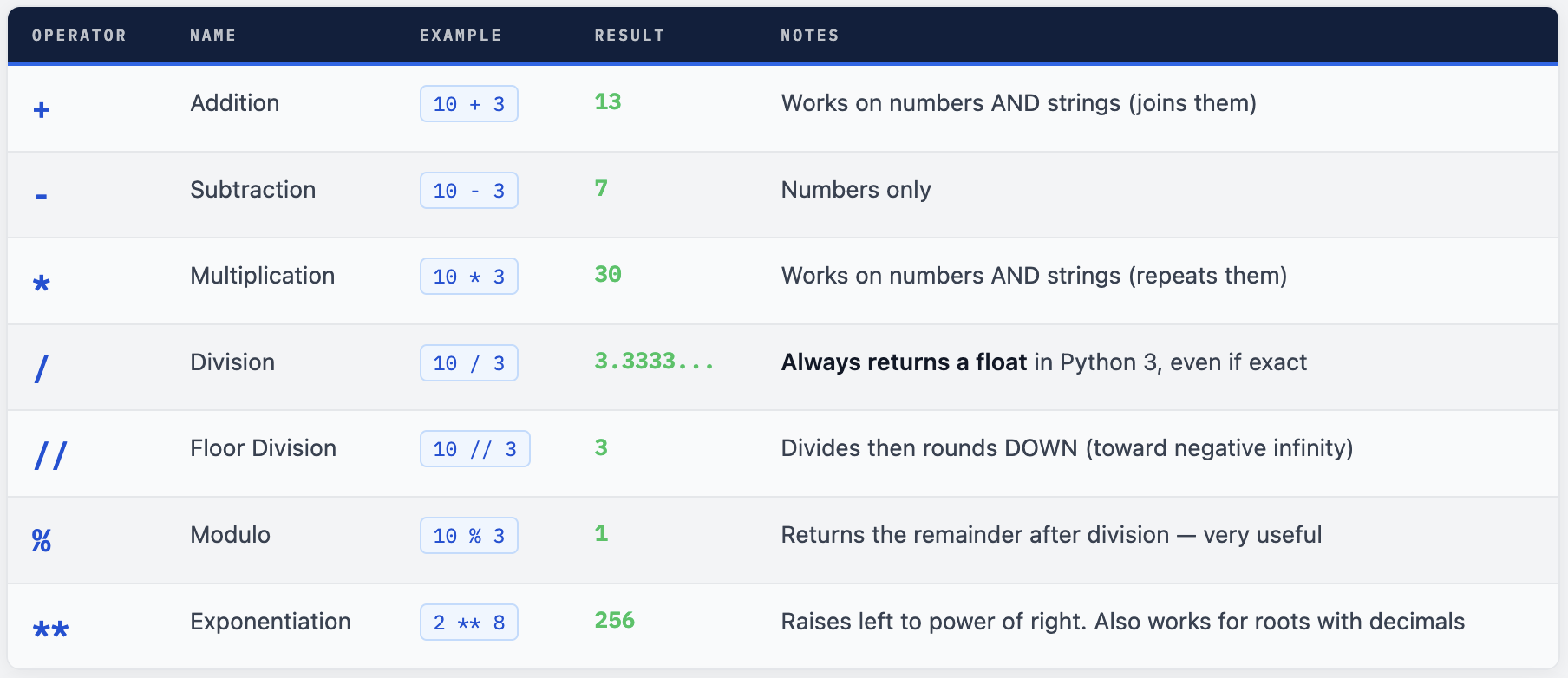
These are the operators for mathematical calculations. You probably know addition and multiplication already. But Python has three operators that beginners always get surprised by: floor division (//), modulo (%), and exponentiation (**). Learn these three well - they appear in real-world code constantly.
# Basic arithmetic - familiar from school maths
print(10 + 3)    # 13
print(10 - 3)    # 7
print(10 * 3)    # 30

# Division ALWAYS returns float in Python 3
print(10 / 3)    # 3.3333333333333335
print(10 / 2)    # 5.0   ← notice it's 5.0 not 5
print(9 / 3)     # 3.0   ← still a float

# Floor division - divide, then drop the decimal (round DOWN)
print(10 // 3)   # 3     ← 3.33... becomes 3
print(10 // 2)   # 5     ← same as 10/2 but integer
print(7 // 2)    # 3     ← 3.5 becomes 3, NOT 4

# Modulo - the remainder after division
print(10 % 3)    # 1     ← 10 = 3×3 + 1, remainder is 1
print(10 % 2)    # 0     ← divides evenly, no remainder
print(7 % 3)     # 1     ← 7 = 2×3 + 1

# Exponentiation - raising to a power
print(2 ** 8)    # 256   ← 2×2×2×2×2×2×2×2
print(3 ** 3)    # 27    ← 3×3×3
print(9 ** 0.5)  # 3.0   ← square root of 9 (0.5 = ½ power)
print(27 ** (1/3)) # 3.0  ← cube root of 27
⚠ The Division Surprise - Python 3 vs Python 2 In Python 3, the `/` operator always gives a float, even when the numbers divide evenly. `print(10 / 2)` → `5.0` not `5` This is different from Python 2, where `10 / 2` gave `5`. If you find old Python tutorials online that show integer division with `/`, they were written for Python 2. The fix is simple: when you need an integer result, use floor division `//`: `print(10 // 2)` → `5`
Floor Division - Deep Dive
Floor division (//) divides two numbers and rounds the result down to the nearest integer. The name “floor” comes from the maths concept of the floor function, which means rounding toward negative infinity. For positive numbers, this just removes the decimal. For negative numbers, it rounds away from zero.
# Positive numbers - floors toward zero (removes decimal)
print(17 // 5)    # 3    (17÷5 = 3.4 → floor = 3)
print(20 // 6)    # 3    (20÷6 = 3.33 → floor = 3)
print(7 // 2)     # 3    (7÷2 = 3.5 → floor = 3, not 4)
print(8 // 2)     # 4    (8÷2 = 4.0 → floor = 4, exact)

# Negative numbers - floors AWAY from zero
# -7÷2 = -3.5. Floor rounds to -4 (further from zero, not -3)
print(-7 // 2)    # -4   (not -3)
print(7 // -2)    # -4   (same reason)
print(-10 // 3)   # -4   (-10÷3 = -3.33 → floor = -4)

# Real use case: convert seconds to minutes and seconds
total_seconds = 385
minutes = total_seconds // 60   # 6 (how many full minutes)
seconds = total_seconds % 60    # 25 (remaining seconds)
print(f"Time: {minutes}m {seconds}s")  # Time: 6m 25s

# Real use case: paginate results (10 items per page)
item_index = 47
page       = item_index // 10   # 4   (item 47 is on page 4)
position   = item_index % 10    # 7   (position 7 on that page)
print(f"Item {item_index} is on page {page}, position {position}")
Modulo - The Most Underrated Operator
Modulo (%) returns the remainder after dividing one number by another. It’s far more useful than it first appears. The key insight: think of modulo as a “wrap-around” operation - like a clock that resets to 0 after 12.
To understand a % b: ask yourself "after dividing a by b as many times as possible, how much is left over?" For example, 17 % 5 - you can fit 5 into 17 three times (= 15), and the leftover is 2. So 17 % 5 = 2.
# Understanding how modulo works
print(17 % 5)     # 2   (17 = 3×5 + 2, the leftover is 2)
print(10 % 3)     # 1   (10 = 3×3 + 1)
print(15 % 5)     # 0   (divides perfectly - no leftover)
print(3 % 10)     # 3   (3 is smaller than 10 - can't divide even once)

# Use 1: even/odd check (most common use)
number = 47
is_even = number % 2 == 0
print(f"{number} is {'even' if is_even else 'odd'}")   # 47 is odd

# Use 2: "every Nth item" - print every 3rd item number
for i in range(1, 13):
    if i % 3 == 0:
        print(f"Every 3rd: {i}")   # 3, 6, 9, 12

# Use 3: clock wrap-around (circular index)
hours      = 14           # 14:00 in 24-hour time
clock_12h  = hours % 12  # 2  (2 PM in 12-hour format)
print(f"12-hour: {clock_12h} PM")

# Use 4: FizzBuzz - the classic interview question
for n in range(1, 16):
    if   n % 15 == 0: print("FizzBuzz")
    elif n % 3  == 0: print("Fizz")
    elif n % 5  == 0: print("Buzz")
    else:              print(n)
Exponentiation - Powers and Roots
The ** operator raises the left number to the power of the right. Most beginners know it as “power of”, but there’s a neat trick: you can compute roots by using fractional exponents. The square root of a number is the same as raising it to the power of 0.5 (½). The cube root is raising to 1/3. This is more Pythonic than using math.sqrt() for simple cases.
# Basic powers
print(2 ** 1)    # 2      (2 to the power of 1)
print(2 ** 2)    # 4      (2 squared)
print(2 ** 10)   # 1024   (10 binary bits = 1024 combinations)
print(10 ** 3)   # 1000   (1 thousand)
print(10 ** 6)   # 1000000  (1 million)
print(10 ** 9)   # 1000000000  (1 billion)

# Square root using ** 0.5
print(9 ** 0.5)   # 3.0     (√9 = 3)
print(25 ** 0.5)  # 5.0     (√25 = 5)
print(2 ** 0.5)   # 1.4142...  (√2, irrational)

# Cube root using ** (1/3)
print(27 ** (1/3))   # 3.0   (∛27 = 3)
print(8 ** (1/3))    # 2.0   (∛8 = 2)

# Real use: compound interest formula
# Amount = Principal × (1 + rate/100)^years
principal = 10000
rate      = 8       # 8% annual interest
years     = 5
amount    = principal * ((1 + rate/100) ** years)
print(f"After {years} years: ₹{amount:.2f}")  # ₹14693.28
Mixed Types in Arithmetic
When you mix integers and floats in an operation, Python automatically upgrades the result to a float. This is called implicit type conversion. You don’t need to do anything - Python handles it silently. But it’s important to know, because it explains why type(5 + 2.0) gives float.
# int + int = int
result = 5 + 3
print(result, type(result))     # 8  <class 'int'>

# int + float = float (Python auto-promotes)
result = 5 + 2.0
print(result, type(result))     # 7.0  <class 'float'>

# int * float = float
result = 3 * 1.5
print(result, type(result))     # 4.5  <class 'float'>

# int / int = float ALWAYS (division is special)
print(type(10 / 2))    # <class 'float'>  even though result is 5.0

# int // int = int, but int // float = float
print(type(10 // 2))    # <class 'int'>
print(type(10 // 2.0))  # <class 'float'>  → 5.0
💡 Quick Summary - When Do You Get a Float? You get a float result whenever: - You use / - always a float, no exceptions - Either operand is a float - Python promotes to float - You use // or % with a float operand You get an integer result when both operands are integers and you use //, %, +, -, or *.
Comparison Operators
Comparison operators compare two values and return a boolean - either True or False. They are the backbone of every decision your code makes. Every if statement, every loop condition, every filter - all of them rely on comparisons. If you can’t write comparisons correctly, your code can’t make decisions.
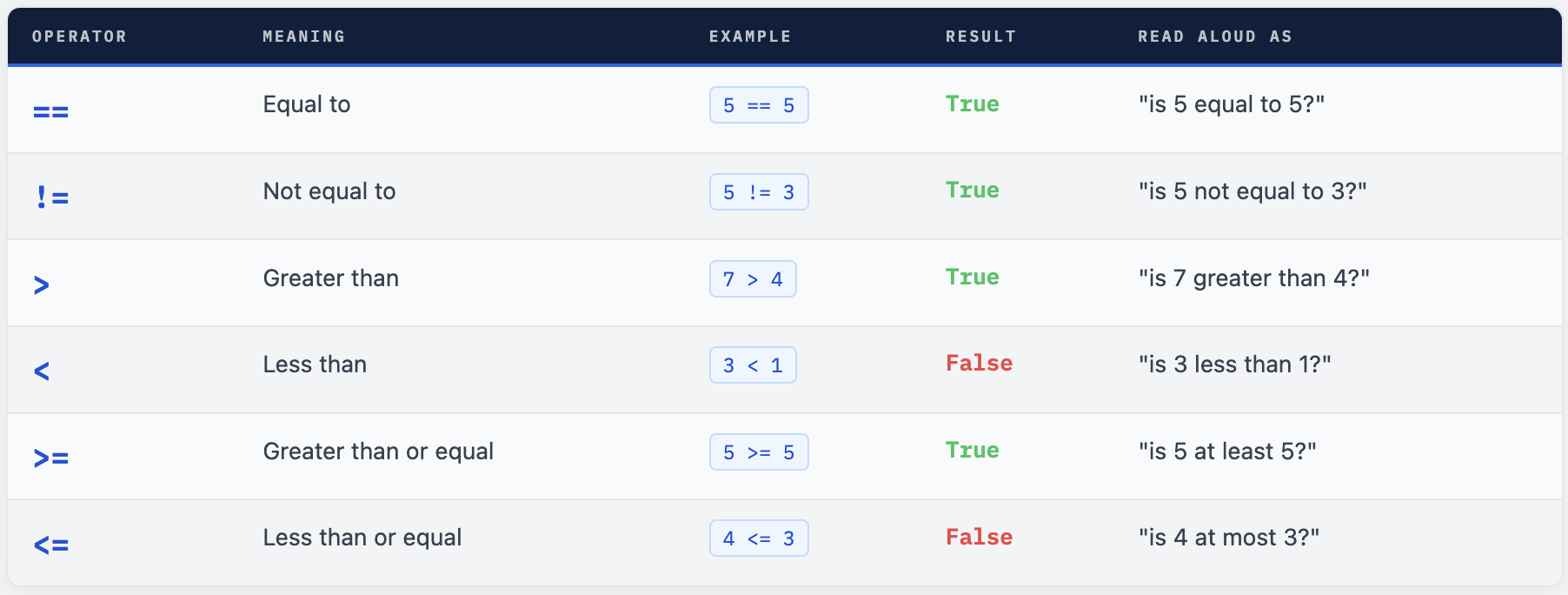
Every comparison produces a bool value - that’s a real Python value you can store in a variable, print, or pass to a function. You’re not limited to using comparisons only inside if statements.
# All comparisons return True or False
print(10 == 10)   # True
print(10 == 11)   # False
print(10 != 11)   # True
print(10 != 10)   # False
print(10 > 5)     # True
print(10 < 5)     # False
print(10 >= 10)   # True  (equal counts!)
print(10 <= 9)    # False

# Store comparison results in variables (very common)
price         = 1299.99
budget        = 1500.00
is_affordable = price <= budget   # True
is_on_sale    = price < 1000     # False
print(is_affordable)   # True
print(is_on_sale)      # False
= vs == - The Single Most Common Beginner Bug `=` is assignment. It stores a value into a variable. It does NOT check anything. `==` is comparison. It asks a question and returns True or False. Writing `if age = 18:` is a `SyntaxError` in Python - Python catches it. But understanding the difference is fundamental: `age = 25` means "store 25 into age." `age == 25` means "is age equal to 25?" `Build the habit now: one equal sign = storing, two equal signs == asking.`
Comparison Works on Strings Too
You can compare strings using == and !=. Python compares them character-by-character. One important rule: Python is case-sensitive, so “Apple” and “apple” are not equal. You can also use > and < on strings - Python uses alphabetical (lexicographic) order.
# String equality - case-sensitive!
print("apple" == "apple")     # True
print("Apple" == "apple")     # False (A ≠ a)
print("APPLE" == "apple")     # False
print("hello" != "world")     # True

# Fix: convert to same case before comparing
user_input = "Yes"
print(user_input.lower() == "yes")    # True (works regardless of case)

# Alphabetical ordering with > and <
print("apple" < "banana")     # True  ('a' comes before 'b')
print("zebra" > "ant")        # True  ('z' comes after 'a')
print("abc" < "abd")          # True  ('c' comes before 'd')

# Common use: checking status values
order_status = "DELIVERED"
print(order_status == "DELIVERED")   # True
print(order_status != "PENDING")    # True
The Type Trap - input() Always Returns a String
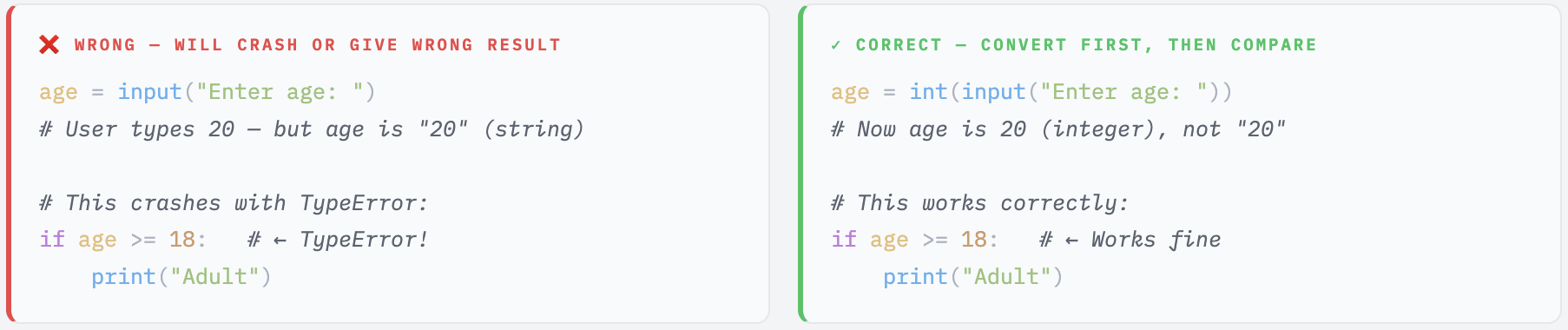
This is one of the most common bugs in early Python programs. The built-in input() function always returns a string, no matter what the user types. If you compare that string directly to a number, Python raises a TypeError. You must convert it first.
Chained Comparisons - Python’s Elegant Shortcut
Python lets you write range checks in a way that looks exactly like a maths expression. Most other languages (Java, JavaScript, C) force you to repeat the variable and use &&. Python reads more naturally.
age   = 30
score = 75
temp  = 22.5

# Range check - reads like a maths expression
print(18 <= age <= 65)         # True  - working age range
print(0 <= score <= 100)        # True  - valid percentage
print(35 <= score <= 100)       # True  - passing score
print(20.0 <= temp <= 25.0)     # True  - comfortable room temperature
print(60 <= score < 70)         # False - score is 75, not in 60-69 range

# What Python actually does internally:
# 18 <= age <= 65 is equivalent to (18 <= age) and (age <= 65)
# but shorter and more readable

# Grade bands example
if   90 <= score <= 100: print("A+")
elif 80 <= score < 90:  print("A")
elif 70 <= score < 80:  print("B")   # ← This one runs for score=75
elif 60 <= score < 70:  print("C")
else:                   print("Fail")
Comparing Booleans and Using Results in Arithmetic
A neat Python feature: True has a numeric value of 1, and False has a value of 0. This means you can add booleans together to count how many are True. You’ll see this pattern in data processing and validation.
# True = 1, False = 0
print(int(True))     # 1
print(int(False))    # 0
print(True + True)  # 2

# Count how many conditions are True
has_name    = True
has_email   = True
has_phone   = False
has_address = True

fields_filled = has_name + has_email + has_phone + has_address
print(f"{fields_filled}/4 fields filled")   # 3/4 fields filled

# sum() on a list of booleans - elegant pattern
scores   = [72, 45, 88, 32, 65, 91, 28]
passmark = 40
passed   = sum(s >= passmark for s in scores)
print(f"{passed}/{len(scores)} students passed")   # 5/7 students passed
Logical Operators
Logical operators combine multiple conditions into a single expression. Python uses English words - and, or, not - instead of symbols like && and || used in Java or JavaScript. This is intentional: Python was designed to be readable like prose. Once you master these three operators, you can express almost any decision condition.
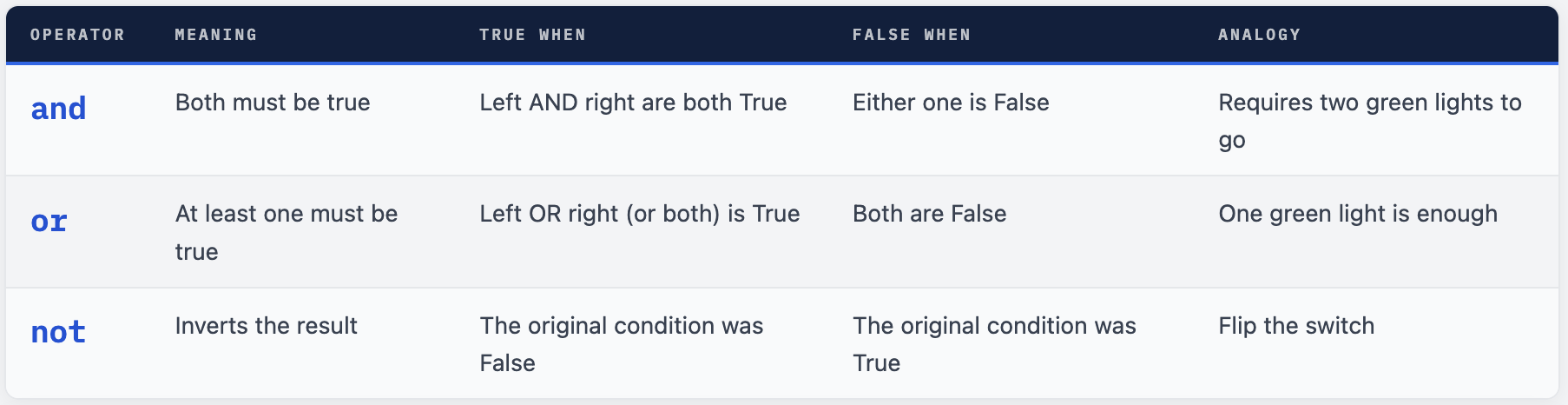
# AND: BOTH conditions must be True
print(True  and True)   # True  ← both are True
print(True  and False)  # False ← one is False
print(False and True)   # False ← one is False
print(False and False)  # False ← both are False

# OR: at least ONE must be True
print(True  or True)    # True  ← both True
print(True  or False)   # True  ← left is True
print(False or True)    # True  ← right is True
print(False or False)   # False ← both False

# NOT: flips the boolean
print(not True)         # False
print(not False)        # True
print(not (5 > 3))      # False (5>3 is True, flipped to False)
print(not (3 > 5))      # True  (3>5 is False, flipped to True)
Combining with Real Conditions
The real power of logical operators comes when you combine them with comparison expressions. This is where Python code starts reading like plain English - complex multi-condition checks that are still easy to understand.
# Access control system
age            = 22
has_id         = True
is_member      = False
is_vip         = True

# Must be adult AND have ID
can_enter   = age >= 18 and has_id
print(can_enter)        # True

# Discount: member OR young adult (under 25) OR VIP
gets_discount = is_member or age < 25 or is_vip
print(gets_discount)    # True (age < 25 is True)

# Password validation: must be long enough AND not too simple
password   = "Py@2024!"
is_valid   = len(password) >= 8 and password != "12345678"
print(is_valid)         # True

# Form validation: none of the required fields are empty
name  = "Gayatri"
email = "gayatri@example.com"
phone = ""
all_filled = name and email and phone  # False (phone is empty string)
print("Form complete:", bool(all_filled))  # Form complete: False

# Student pass condition: ALL subjects >= 35 AND overall >= 40%
maths    = 45
english  = 38
science  = 52
total    = maths + english + science
percent  = (total / 300) * 100

subjects_ok = maths >= 35 and english >= 35 and science >= 35
overall_ok  = percent >= 40
passed      = subjects_ok and overall_ok
print(f"Passed: {passed} (Overall: {percent:.1f}%)")   # Passed: True (Overall: 45.0%)
Short-Circuit Evaluation - How Python Actually Evaluates These
Python doesn’t always evaluate both sides of a logical expression. It uses short-circuit evaluation: it stops as soon as the result is determined. With and, if the left side is False, the whole expression is already False - so Python never checks the right side. With or, if the left side is True, Python never checks the right.
This matters in practice because the right side might be an expensive function call, or might cause an error if the left side fails. Short-circuiting protects you.
# With AND: if left is False, right is never evaluated
user   = None                          # user is not logged in
# user.is_admin would crash (None has no attribute)
# But AND short-circuits: user is falsy so Python stops immediately
if user and user.is_admin:             # Safe! Right side never runs
    print("Admin access")

# With OR: if left is True, right is never evaluated
cached_result = 42                    # we have a cached value
# fetch_from_db() is expensive - but OR short-circuits
# if cached_result is truthy, Python never calls fetch_from_db()
# value = cached_result or fetch_from_db()

# AND returns the first falsy value, or the last value if all truthy
print(0 and 5)          # 0    (0 is falsy - stops there)
print(3 and 5)          # 5    (3 is truthy - returns last value)
print("" and "hello")  # ""   (empty string is falsy - stops)

# OR returns the first truthy value, or the last value if all falsy
print(0 or 5)           # 5    (0 is falsy - tries next)
print(3 or 5)           # 3    (3 is truthy - returns it)
print("" or "default") # "default"  (empty string falsy)

# Practical pattern: default value with OR
username = input("Name (or press Enter): ") or "Guest"
print(f"Hello, {username}")   # If user presses Enter → "Hello, Guest"
💡 The Default Value Pattern One of the most idiomatic Python patterns uses `or` to set a default when a value might be empty: `name = user_input or "Anonymous"` This reads: "use user_input, but if it's empty/falsy, use 'Anonymous' instead." You'll see this constantly in real Python code.
not with Comparisons - Choosing Readable Style
You can use not in two ways. Sometimes not makes code more readable; sometimes the direct comparison is clearer. Choose whichever reads more naturally.
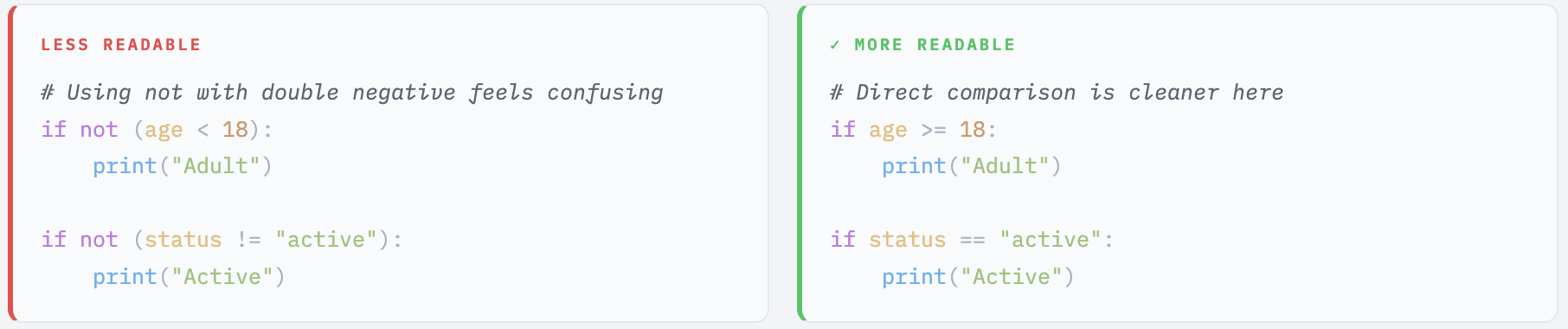
not shines when checking something that doesn’t have a natural “positive” form:
# not shines when negating a truthiness check
items = []
if not items:                   # if list is empty
    print("No items in cart")

name = ""
if not name:                    # if name is empty string
    print("Please enter your name")

# not in - checking absence in a collection
allowed_statuses = ["PLACED", "SHIPPED", "DELIVERED"]
status = "CANCELLED"
if status not in allowed_statuses:
    print(f"Unknown status: {status}")
Truthiness - What Python Considers True or False
Every value in Python has a boolean interpretation called its truthiness. When Python evaluates a condition - in an if statement, with and/or/not - it converts the value to a boolean internally. Understanding truthiness lets you write shorter, more Pythonic conditions without always writing == True or != "".
The rule is simple: everything is truthy unless it’s in the falsy list below. Memorise the falsy values and you know everything else is truthy by default.
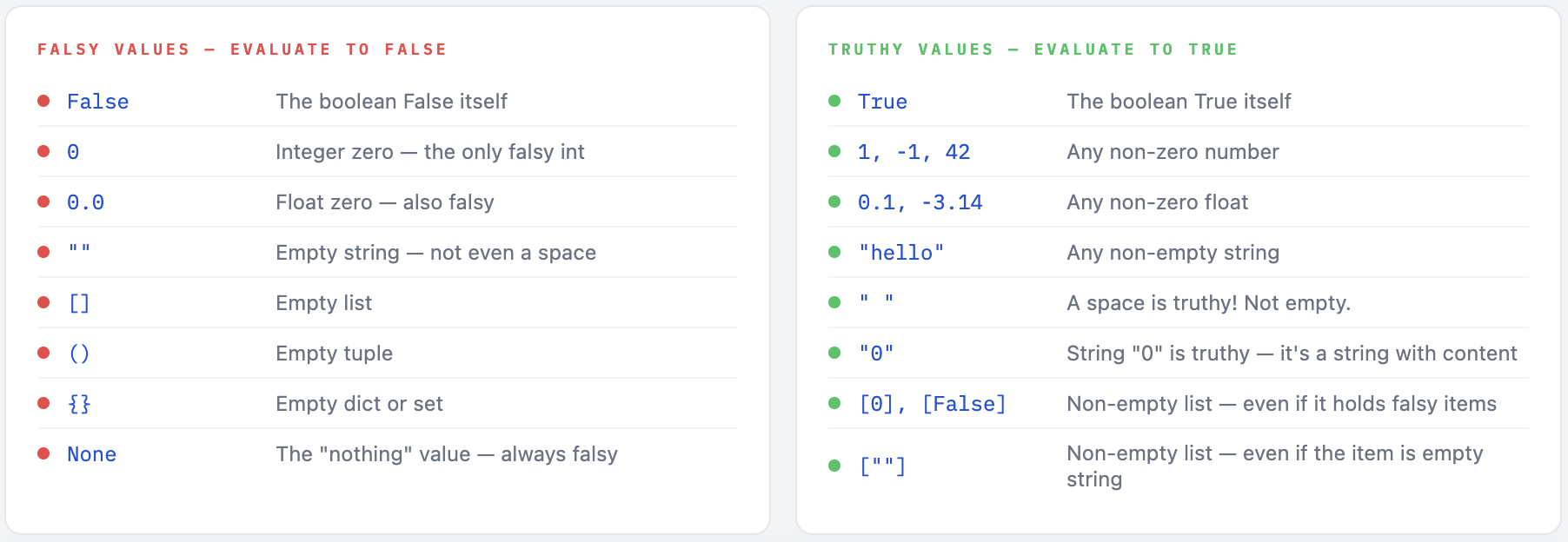
# bool() converts any value to its boolean interpretation
print(bool(0))        # False
print(bool(1))        # True
print(bool(-1))       # True  (negative numbers are truthy)
print(bool(0.0))      # False
print(bool(0.001))    # True  (any non-zero float)

print(bool(""))       # False
print(bool("  "))    # True  (space is not empty!)
print(bool("0"))     # True  (string "0" has content)
print(bool("False")) # True  (non-empty string)

print(bool([]))       # False (empty list)
print(bool([0]))      # True  (list has one item - even if it's 0)
print(bool([False]))  # True  (list has one item)

print(bool(None))     # False (None is always falsy)
⚠ The "0" vs 0 Trap This trips up almost every beginner. The number `0` is falsy. But the string `"0"` is truthy - it's a string with content. This matters when you read user input. If a user types "0" and you store it with `input()`, the string `"0"` is truthy. If you convert it with `int(input())`, the integer `0` is falsy. Always be aware of whether you're working with a string or a number.
Pythonic Truthiness - Writing Cleaner Conditions
Once you understand truthiness, you can write shorter, more readable conditions. Instead of checking len(items) > 0, you can just check items. Instead of name != "", you can just check name. This is considered idiomatic (natural) Python style.
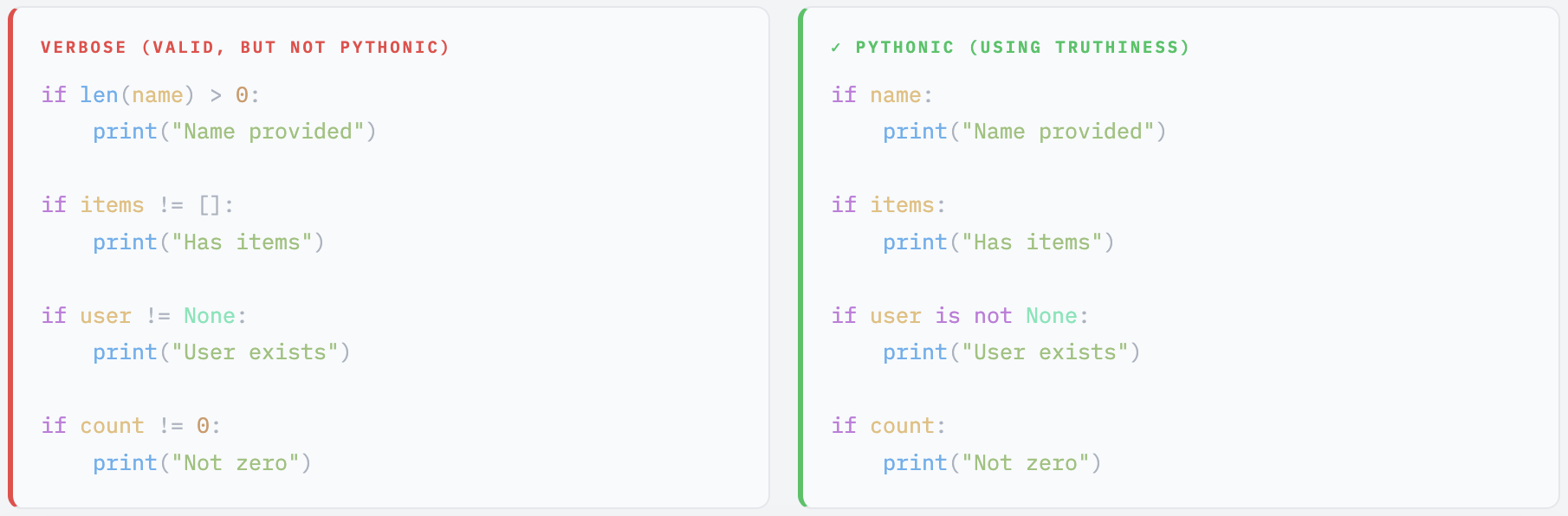
# Scenario 1: checking if a field was filled
username = input("Username: ").strip()   # strip() removes leading/trailing spaces
if username:
    print(f"Welcome, {username}")
else:
    print("Username cannot be empty")

# Scenario 2: cart check before checkout
cart = ["T-Shirt", "Sneakers"]
if cart:
    print(f"Proceeding to checkout with {len(cart)} item(s)")
else:
    print("Your cart is empty")

# Scenario 3: zero score edge case
score = 0
# WRONG: if score: won't enter the block when score=0
if score:
    print("Score submitted")   # Won't print for score=0!

# CORRECT: use explicit comparison when 0 is a valid value
if score is not None:
    print("Score submitted")   # Prints even for score=0
🔴 Zero Is a Valid Score - Don't Use Truthiness Here This is an important lesson: use truthiness only when falsy values (0, empty string, empty list) genuinely mean "not provided" or "not applicable". If 0 is a valid, meaningful value - like a score of 0/100 - always use explicit comparison: `if score is not None` instead of `if score`. The same applies to prices. A price of `0.0` might be a valid "free item" - you don't want your code to skip processing it because `0.0` is falsy.
Assignment Operators
You already know the basic assignment operator = from Day 1. Python also provides compound assignment operators - shorthand that combines an arithmetic operation with assignment in one step. Every time you’d write x = x + something, you can write x += something instead. These are used constantly in Python code, especially when updating running totals, counters, and scores.
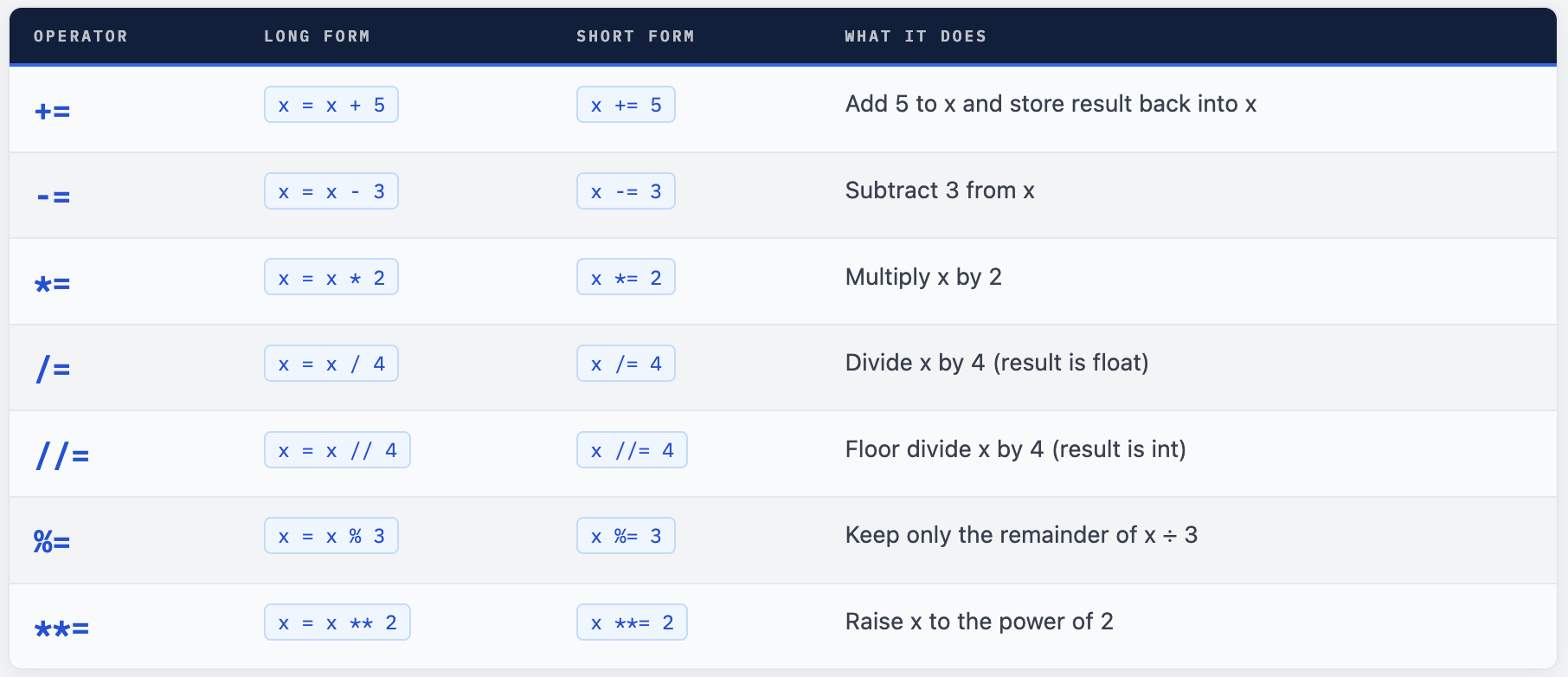
x = 20

x += 5    # x = 20 + 5 = 25
print(x)  # 25

x -= 8    # x = 25 - 8 = 17
print(x)  # 17

x *= 3    # x = 17 * 3 = 51
print(x)  # 51

x /= 2    # x = 51 / 2 = 25.5 (float!)
print(x)  # 25.5

x //= 2   # x = 25.5 // 2 = 12.0 (floor division)
print(x)  # 12.0

x %= 5    # x = 12.0 % 5 = 2.0
print(x)  # 2.0

x **= 3   # x = 2.0 ** 3 = 8.0
print(x)  # 8.0
Real-World Scenarios for Assignment Operators
Compound assignment operators appear in shopping carts, score trackers, loop counters, financial calculations, and string building. Here are four typical use cases you’ll actually write.
Python - Scenario 1: Shopping Cart Running Total
# Building a cart total step by step
cart_total = 0

print("Adding items to cart...")
cart_total += 499    # T-Shirt
print(f"After T-Shirt: ₹{cart_total}")     # ₹499

cart_total += 1299   # Sneakers
print(f"After Sneakers: ₹{cart_total}")   # ₹1798

cart_total += 299    # Socks
print(f"After Socks: ₹{cart_total}")      # ₹2097

cart_total -= 200    # Applied coupon SAVE200
print(f"After Coupon: ₹{cart_total}")     # ₹1897
Python - Scenario 2: Applying Multiple Discounts
# Stacking discount percentages step by step
price = 5000.00
print(f"Original price: ₹{price:.2f}")     # ₹5000.00

price *= 0.90    # 10% member discount
print(f"After member 10% off: ₹{price:.2f}")   # ₹4500.00

price *= 0.95    # 5% festival discount
print(f"After festival 5% off: ₹{price:.2f}")  # ₹4275.00

price *= 0.98    # 2% app discount
print(f"After app 2% off: ₹{price:.2f}")      # ₹4189.50
Python - Scenario 3: Building a String Report
# += for strings joins them together
order_id = "ORD-2024-001"
name     = "Gayatri Sharma"
total    = 4189.50

report  = "ORDER SUMMARY\n"
report += "=" * 30 + "\n"
report += f"Order ID : {order_id}\n"
report += f"Customer : {name}\n"
report += f"Total    : ₹{total:.2f}\n"
report += "=" * 30 + "\n"
report += "Thank you for your order!"

print(report)
Python - Scenario 4: Countdown and Score Tracking
# Countdown timer simulation
countdown = 10
print(f"Launching in {countdown}")
countdown -= 1
print(f"... {countdown}")   # 9
countdown -= 1
print(f"... {countdown}")   # 8

# Score tracking in a quiz
score = 0
score += 10   # correct answer
score += 10   # correct answer
score -= 5    # wrong answer (penalty)
score += 10   # correct answer
print(f"Final score: {score}/30")    # Final score: 25/30

# Points double after reaching 100
score = 100
score **= 2    # 10000 (bonus points!)
print(f"Bonus score: {score}")
Info. 💡 += Also Works with Strings and Lists The `+=` operator isn't just for numbers. You can use it to build strings and grow lists too: - Strings: `name = "Gaya"` → `name += "tri"` → name is now `"Gayatri"` - Lists: `items = [1, 2]` → `items += [3, 4]` → items is now `[1, 2, 3, 4]` The other operators (`-=, *=, etc.`) only work with numbers - but += is versatile.
String Operators
Some Python operators behave differently when applied to strings rather than numbers. Python reuses familiar symbols (+, *) and adds a useful keyword (in) for string operations. Understanding these means you can manipulate text the same way you manipulate numbers - without needing special string methods yet.
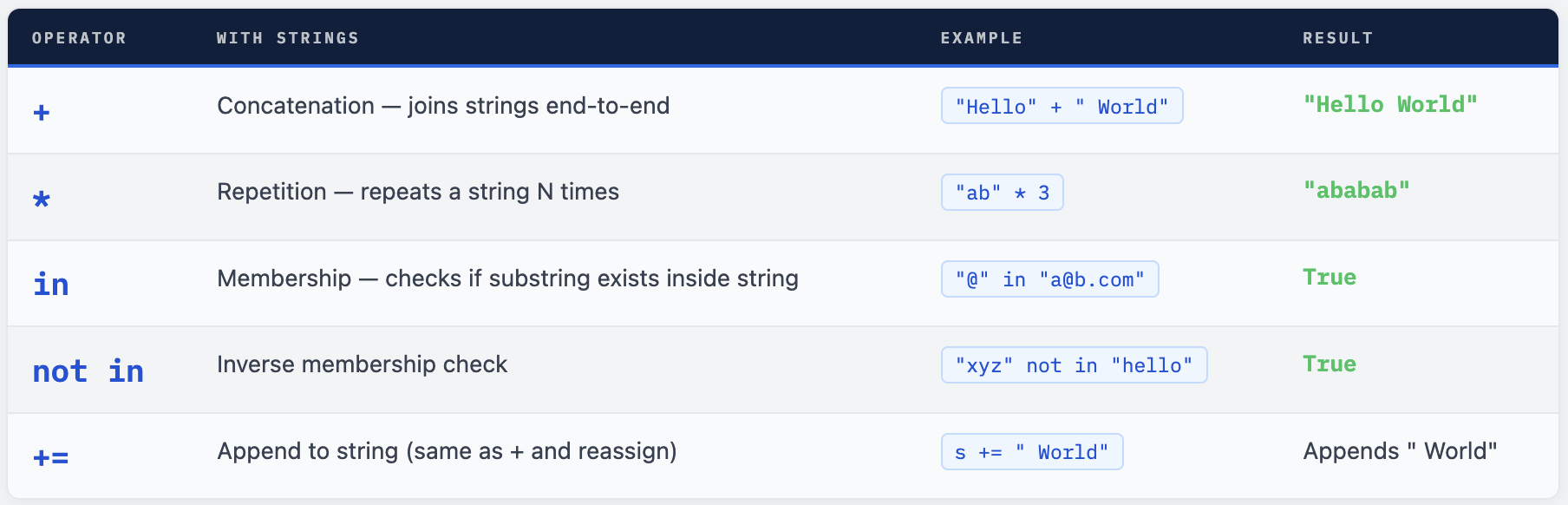
String Concatenation with +
The + operator joins two strings together. Every piece being joined must be a string - Python will not silently convert integers or floats. If you try to concatenate a string with a number, you get a TypeError. Use str() to convert, or better yet, use f-strings.
# Basic concatenation
first_name = "Gayatri"
last_name  = "Sharma"
full_name  = first_name + " " + last_name
print(full_name)    # Gayatri Sharma

# Chaining many + operations
greeting = "Hello, " + first_name + "! Welcome to Day 2."
print(greeting)    # Hello, Gayatri! Welcome to Day 2.

# TypeError - cannot mix string and number with +
age = 21
# print("Age: " + age)         ← TypeError! int cannot be concatenated

# Fix 1: wrap number with str()
print("Age: " + str(age))      # Age: 21

# Fix 2: use f-string (preferred)
print(f"Age: {age}")            # Age: 21 - cleaner

# Fix 3: use , in print (not + concatenation)
print("Age:", age)               # Age: 21 - print adds space automatically
💡 When to Use + vs f-Strings For inserting variables into text, f-strings (introduced in Python 3.6) are always cleaner and less error-prone than string + concatenation. Compare: "Order " + order_id + " for " + name + " is ₹" + str(total) - messy, easy to make mistakes f"Order {order_id} for {name} is ₹{total}" - clean, readable, no type conversion needed Use + concatenation only when building a string from other strings (no numbers involved). For anything else, use f-strings.
String Repetition with *
The * operator repeats a string a given number of times. This is surprisingly useful for formatting output - drawing separator lines, building patterns, or padding text.
# Basic repetition
print("ha" * 3)        # hahaha
print("=" * 40)        # ========================================
print("-" * 20)        # --------------------
print("* " * 5)        # * * * * *
print("Python! " * 3)  # Python! Python! Python!

# Practical: matching separator width to title
title = "Monthly Sales Report"
print(title)
print("=" * len(title))   # ==================== (exact match)

# Building a simple table border
border = "+" + "-" * 20 + "+" + "-" * 15 + "+"
print(border)   # +--------------------+---------------+

# Creating a loading indicator
for i in range(1, 6):
    print("Loading " + "." * i)   # Loading . → Loading .. → etc.
The in Operator - Substring Search
The in operator checks if one string appears anywhere inside another string. It returns True or False. This is one of the most commonly used operators for validating user input, checking email addresses, filtering text, and more. The search is case-sensitive by default.
# Basic substring check
message = "Welcome to Python Programming!"
print("Python" in message)      # True
print("Java" in message)        # False
print("python" in message)      # False (case-sensitive!)
print("python" in message.lower()) # True (fix: convert to lowercase first)

# Email validation - basic check
email = "gayatri@example.com"
is_valid_email = "@" in email and "." in email
print(is_valid_email)     # True (has @ and .)

bad_email = "notanemail"
print("@" in bad_email)   # False

# URL validation - check protocol
url = "https://mrcloudbook.com"
print("https" in url)      # True
print(url.startswith("https")) # True (also works, more explicit)

# Content filtering
comment          = "This product is great and amazing!"
spam_keywords    = "click here"
discount_offer   = "free"
print(spam_keywords in comment)  # False - not spam
print(discount_offer in comment) # False

# not in - the opposite check
print("Java" not in message)    # True - "Java" is absent
print("@" not in bad_email)    # True - invalid email (no @)
✓ in Also Works With Lists - Preview of Day 4 The `in` operator checks membership in any collection, not just strings. You'll use it with lists constantly in Day 4, but here's a quick preview: - `"SHIPPED" in ["PLACED", "SHIPPED", "DELIVERED"]` → `True` - `5 in [1, 2, 3, 4]` → `False` - `"admin" in users` → checks if "admin" is in a list of users
Operator Precedence
When an expression has multiple operators, Python doesn’t just read left to right. It follows a strict priority order - called operator precedence - to decide which operation to do first. This is the same as BODMAS (Brackets, Orders, Division/Multiplication, Addition/Subtraction) from school maths, extended to include comparison and logical operators.
The hierarchy below runs from highest priority (evaluated first) to lowest priority (evaluated last). When operators have equal priority, Python evaluates them left to right.
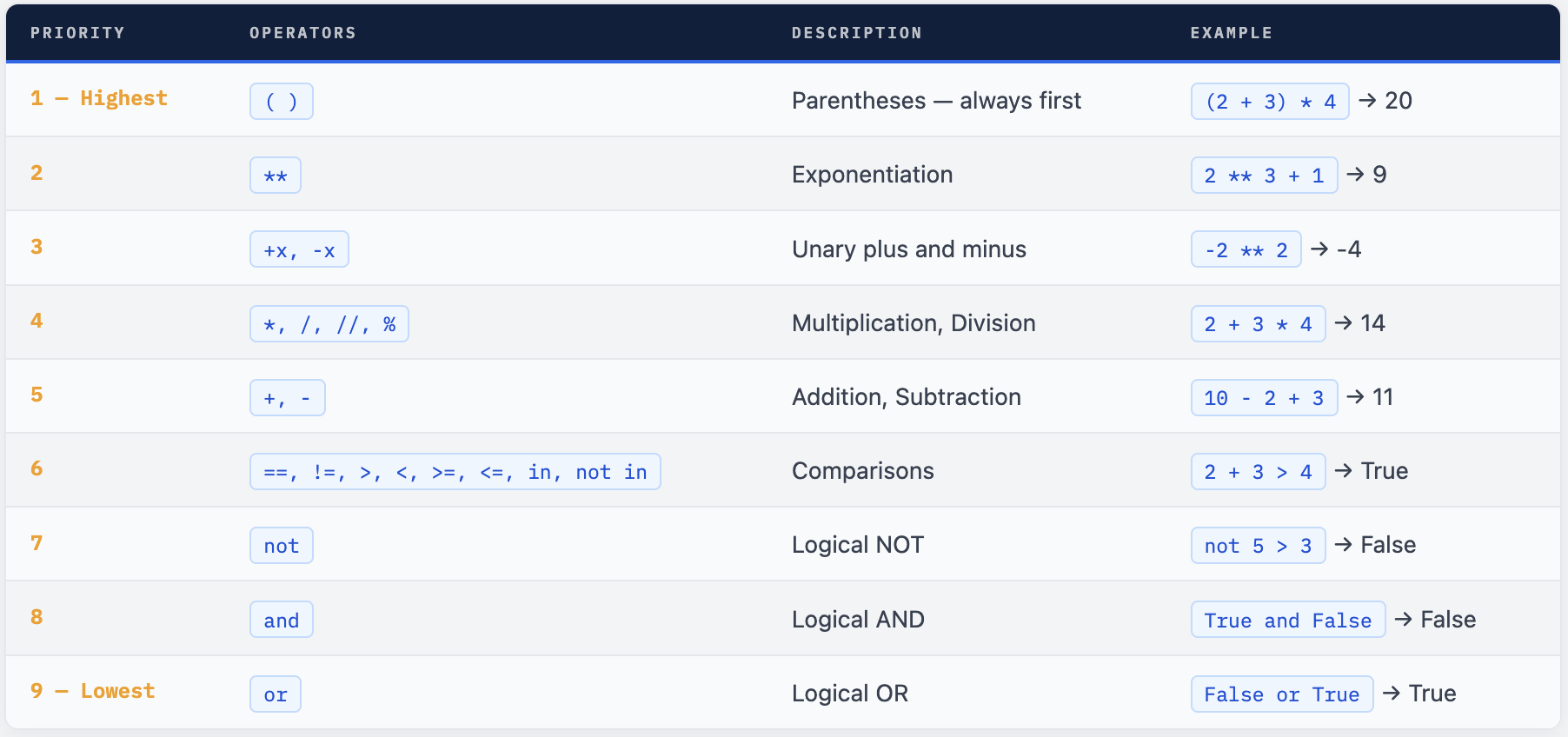
# Arithmetic precedence (same as BODMAS)
print(2 + 3 * 4)       # 14  - * before +
print((2 + 3) * 4)     # 20  - () forces + first
print(10 - 2 ** 3)     # 2   - ** before -: 10 - 8 = 2
print((10 - 2) ** 3)   # 512 - () first: 8 ** 3
print(10 % 3 + 1)      # 2   - % before +: 1 + 1
print(10 % (3 + 1))    # 2   - () first: 10 % 4 = 2

# Comparison + arithmetic
print(2 + 3 > 4)        # True  - arithmetic before comparison: 5 > 4
print(10 / 2 == 5)     # True  - division first: 5.0 == 5
print(3 * 4 == 2 * 6)  # True  - both sides calc first: 12 == 12

# Logical + comparison
age   = 20
score = 80
print(age >= 18 and score >= 75)
# Step 1: age >= 18     → True
# Step 2: score >= 75   → True
# Step 3: True and True → True

print(age < 18 or score > 70)
# Step 1: age < 18      → False
# Step 2: score > 70    → True
# Step 3: False or True → True
Where Beginners Get It Wrong - Common Precedence Traps
These are the cases that produce wrong answers without any error message. The code runs, but silently gives you the wrong result. Study each one carefully.
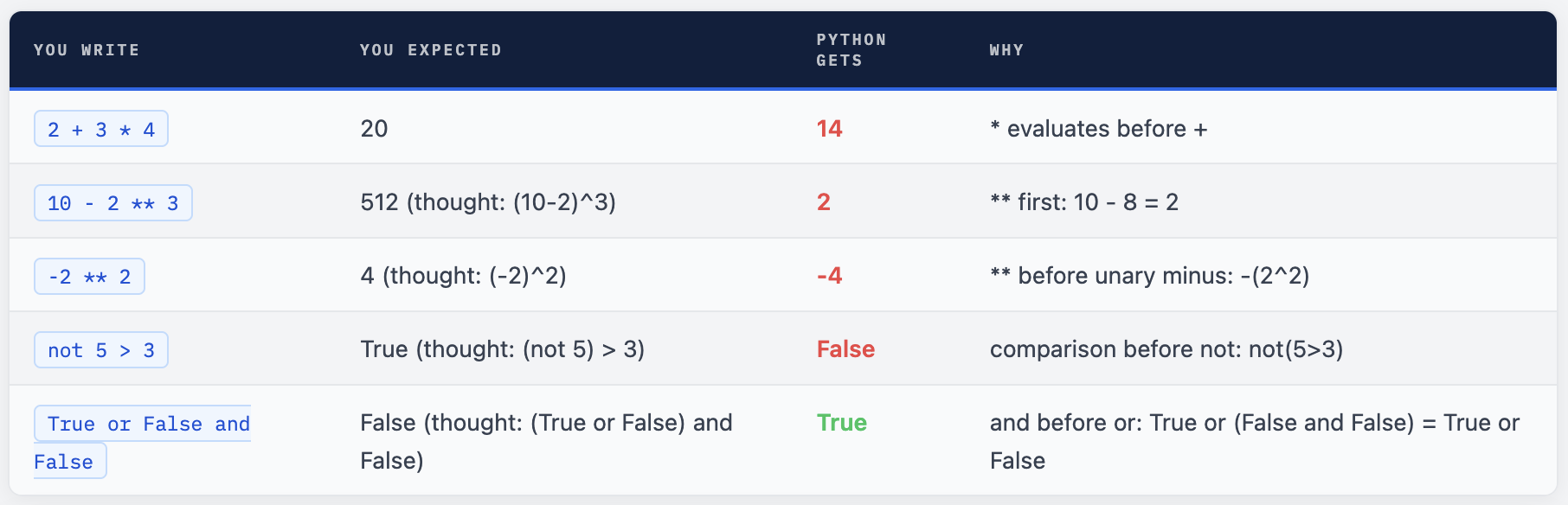
# The -2 ** 2 trap
print(-2 ** 2)       # -4   ← -(2**2) not (-2)**2
print((-2) ** 2)     # 4    ← use parentheses if you meant (-2)^2

# The not precedence trap
print(not 5 > 3)      # False ← not(5>3) = not(True)
print(not (5 > 3))    # False ← same, but intention is clear
print((not 5) > 3)    # False ← (not 5) = False, False > 3 = False

# The and/or precedence trap
# and has HIGHER priority than or
# a or b and c = a or (b and c)
print(True or False and False)      # True  (and first: True or False)
print((True or False) and False)    # False (or first: True and False)

# Real example: discount OR special AND member
is_sale    = True
is_special = False
is_member  = False

# Without parentheses - and evaluates first
print(is_sale or is_special and is_member)       # True
# Evaluated as: is_sale or (is_special and is_member)
# = True or (False and False) = True or False = True

# With parentheses - now different result
print((is_sale or is_special) and is_member)      # False
# = (True or False) and False = True and False = False
✓ The Golden Rule of Precedence If you're ever unsure about precedence: add parentheses. Parentheses always have the highest priority. More importantly, they make your intent completely clear to whoever reads the code - including future you. There's no performance penalty for extra parentheses. Use them freely whenever an expression has three or more operators. A little verbosity here prevents a lot of debugging later.
Visualising Complex Expressions
When you have a complex expression, Python evaluates it in passes. Here’s how to break it down mentally:
# Complex expression: step-by-step trace
x = 5
y = 3
z = 2

result = not x > y or y * z == 6 and x + z > y

# Python evaluates it in this exact order:
# Step 1 (*, +):   y * z  = 6,   x + z  = 7
# Step 2 (>  ==):  x > y  = True, 6 == 6 = True, 7 > y = True
# Step 3 (not):    not True = False
# Step 4 (and):    True and True = True
# Step 5 (or):     False or True = True
print(result)   # True

# Same expression with parentheses showing the grouping:
result = (not (x > y)) or ((y * z == 6) and (x + z > y))
print(result)   # True - same answer, but intent is crystal clear
Common Expression Patterns
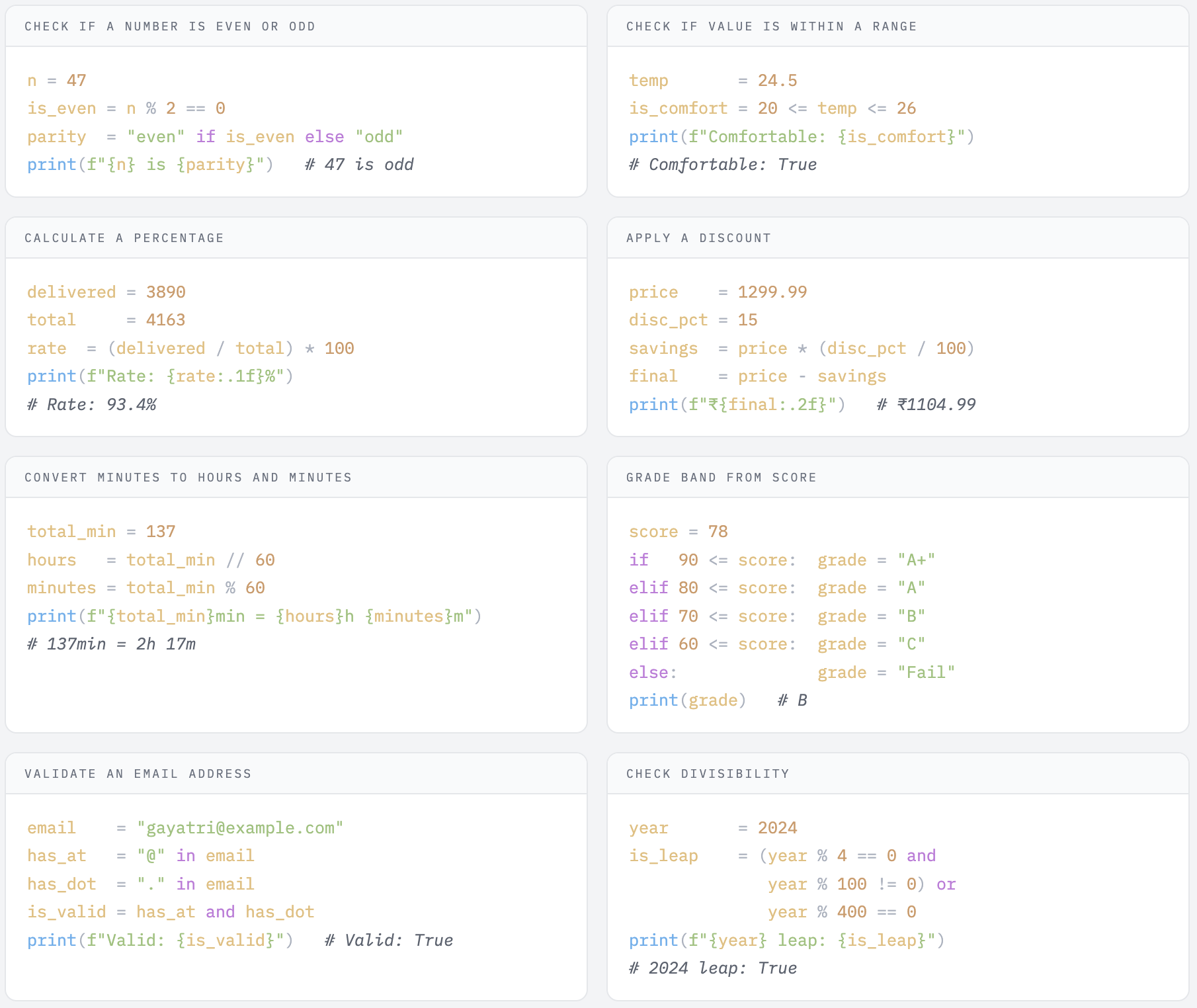
Now that you know all the individual operators, let’s look at the patterns you’ll write over and over in real Python. These appear in shopping carts, school applications, data dashboards, quiz apps, and almost every beginner project. Study them until they feel automatic.
The Ternary Operator (Conditional Expression)
Python has a compact one-liner for simple if/else decisions called the conditional expression (also called ternary operator in other languages). It lets you assign one of two values based on a condition - all in a single line.
# Syntax: value_if_true if condition else value_if_false
age = 20

# Multi-line version:
if age >= 18:
    status = "Adult"
else:
    status = "Minor"

# One-line version (same result):
status = "Adult" if age >= 18 else "Minor"
print(status)   # Adult

# More examples
score   = 72
result  = "Pass" if score >= 40 else "Fail"
print(result)   # Pass

price   = 999
label   = "Affordable" if price < 1000 else "Expensive"
print(label)    # Affordable

n       = 15
parity  = "even" if n % 2 == 0 else "odd"
print(f"{n} is {parity}")   # 15 is odd
💡 When to Use Ternary vs if/else Use the ternary form when the condition is simple and both outcomes are short values. Use full if/else blocks when: - The condition itself is complex - You need to run multiple lines in each branch - Readability suffers from compressing it to one line The goal is always readable code, not the shortest code.
Complete Day 2 Project - Invoice Calculator
Here is a complete program that uses every concept from today: all arithmetic operators, assignment operators, comparison, logical operators, and string operators. This is your Day 2 capstone project. Type it out yourself - don’t paste. The act of typing builds muscle memory for syntax.
This program models a simple e-commerce invoice. The user enters item details and the script calculates the full breakdown including discount, GST, and shipping. It also makes several decisions using logical operators.
invoice.py
# ─────────────────────────────────────────────────────────
span># day2_invoice.py
# Day 2 Project: Invoice Calculator with Operators
# Learn Python with Gayatri - mrcloudbook.com
# ─────────────────────────────────────────────────────────

print("=" * 45)
print("       INVOICE CALCULATOR - Day 2 Project")
print("=" * 45)

# ── SECTION 1: Take inputs ──────────────────────────────
item_name    = input("\nItem name        : ")
quantity     = int(input("Quantity         : "))
unit_price   = float(input("Unit price (₹)   : "))
discount_pct = float(input("Discount (%)     : "))
is_member    = input("Member? (yes/no) : ").strip().lower() == "yes"

# ── SECTION 2: Arithmetic calculations ──────────────────
subtotal     = quantity * unit_price           # * operator
discount_amt = subtotal * (discount_pct / 100)  # / and * operators

# Extra 5% member discount on top
member_disc  = subtotal * 0.05 if is_member else 0  # ternary + *

after_disc   = subtotal - discount_amt - member_disc  # - operator
gst          = after_disc * 0.18              # 18% GST
shipping     = 0 if after_disc >= 500 else 49 # free shipping above ₹500
grand_total  = after_disc + gst + shipping    # + operator

# ── SECTION 3: Boolean decisions ─────────────────────────
is_bulk      = quantity >= 10               # comparison operator
is_affordable= grand_total <= 2000          # comparison
is_eligible  = is_bulk or is_member        # logical or
savings_total= discount_amt + member_disc  # + operator on floats
savings_pct  = (savings_total / subtotal) * 100  # percentage calculation

# ── SECTION 4: Print formatted invoice ───────────────────
print()
print("─" * 45)
print(f"  ITEM        : {item_name.upper()}")
print(f"  QTY         : {quantity} units")
print(f"  UNIT PRICE  : ₹{unit_price:.2f}")
print("─" * 45)
print(f"  SUBTOTAL    : ₹{subtotal:.2f}")
print(f"  DISCOUNT    : ₹{discount_amt:.2f}  ({discount_pct:.0f}%)")

if is_member:
    print(f"  MEMBER DISC : ₹{member_disc:.2f}  (5% member)")

print(f"  AFTER DISC  : ₹{after_disc:.2f}")
print(f"  GST (18%)   : ₹{gst:.2f}")
print(f"  SHIPPING    : ₹{shipping:.2f}  {'(free)' if shipping == 0 else ''}")
print("═" * 45)
print(f"  GRAND TOTAL : ₹{grand_total:.2f}")
print("═" * 45)
print()
print(f"  Total savings   : ₹{savings_total:.2f} ({savings_pct:.1f}%)")
print(f"  Bulk order      : {is_bulk}")
print(f"  Member          : {is_member}")
print(f"  Loyalty eligible: {is_eligible}")
print(f"  Affordable (<₹2k): {is_affordable}")
Sample run output:
=============================================
       INVOICE CALCULATOR - Day 2 Project
=============================================

Item name        : Sneakers
Quantity         : 3
Unit price (₹)   : 1299.99
Discount (%)     : 10
Member? (yes/no) : yes

─────────────────────────────────────────────
  ITEM        : SNEAKERS
  QTY         : 3 units
  UNIT PRICE  : ₹1299.99
─────────────────────────────────────────────
  SUBTOTAL    : ₹3899.97
  DISCOUNT    : ₹389.997  (10%)
  MEMBER DISC : ₹195.00   (5% member)
  AFTER DISC  : ₹3314.97
  GST (18%)   : ₹596.69
  SHIPPING    : ₹0.00  (free)
═════════════════════════════════════════════
  GRAND TOTAL : ₹3911.66
═════════════════════════════════════════════

  Total savings    : ₹585.00 (15.0%)
  Bulk order       : False
  Member           : True
  Loyalty eligible : True
  Affordable (<₹2k): False
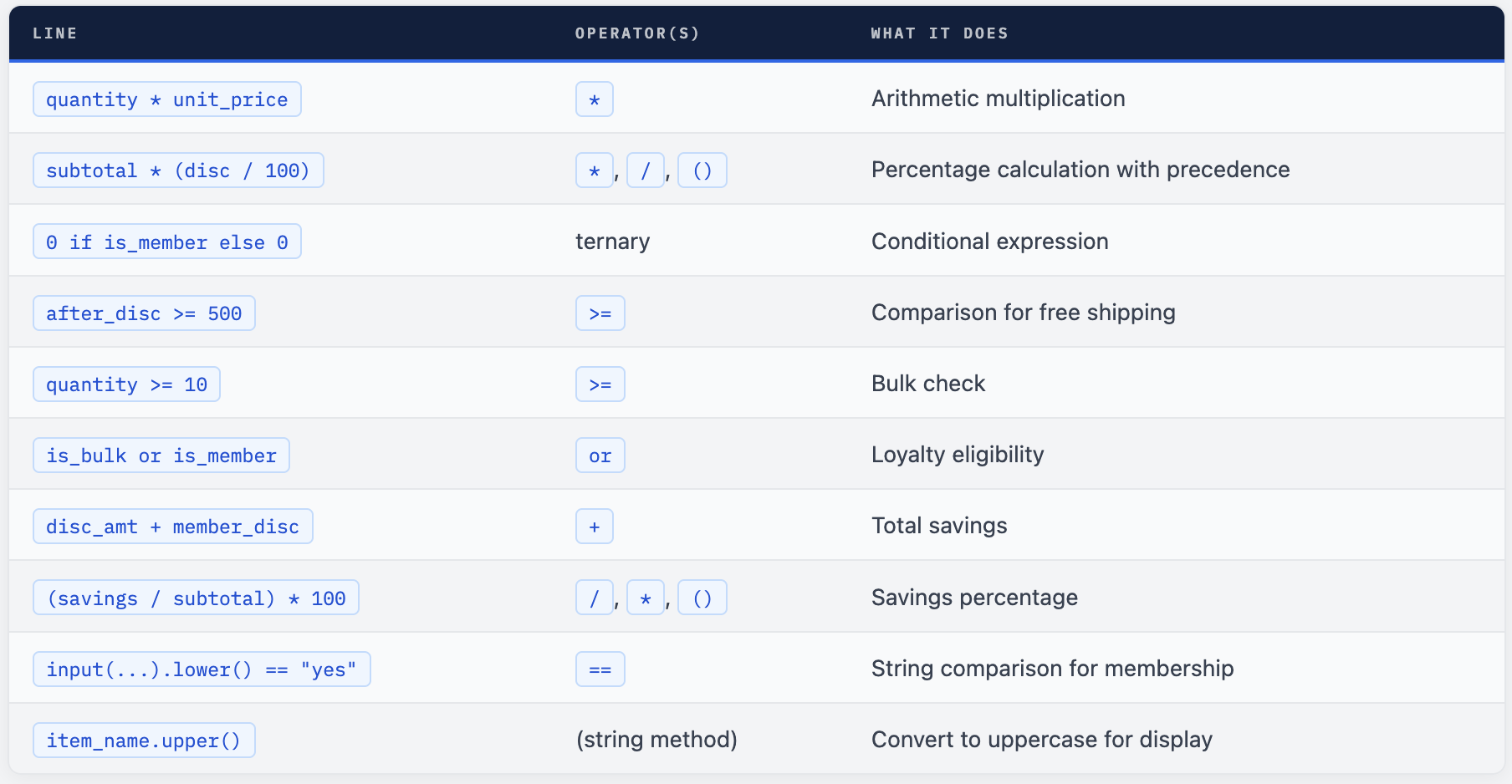
Operators Used in This Program - Summary
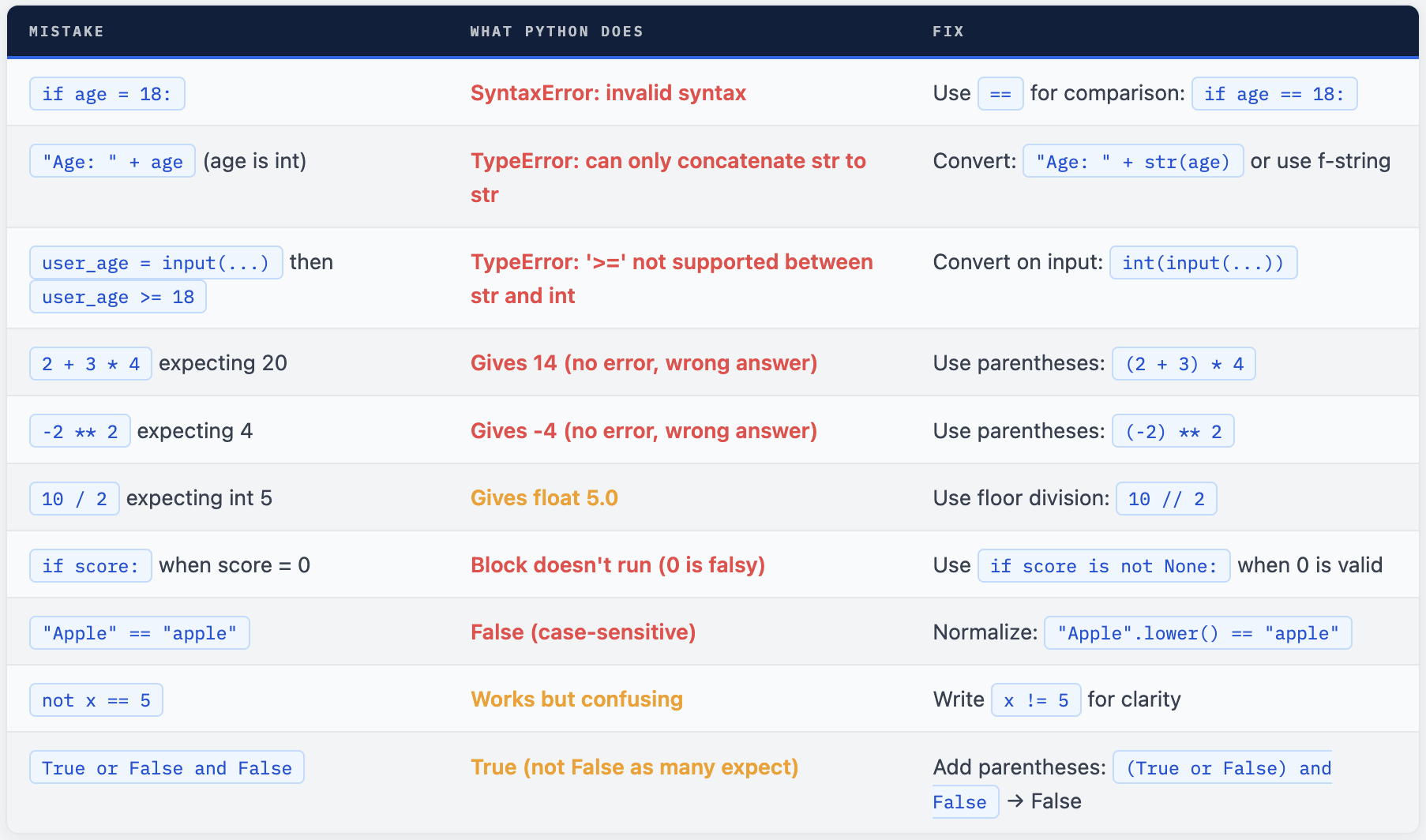
Common Mistakes - and How to Fix Them
Every beginner makes these mistakes. The key is to know them ahead of time so when you see the error message, you know exactly what went wrong. Read each one carefully and try to understand why it fails, not just what the fix is.
Debugging Technique - Use print() and type()
When you get an unexpected result, your first tool is print() and type(). Print every variable before the line that fails. Check whether it’s the right type. This is how experienced developers debug too - they print aggressively until they find what’s wrong.
# Your code isn't working as expected? Add debug prints:
user_input = input("Enter score: ")

# Debug: check the type and value BEFORE using it
print(f"DEBUG: user_input = {user_input!r}")   # !r shows quotes if string
print(f"DEBUG: type = {type(user_input)}")

# Output if user typed 85:
# DEBUG: user_input = '85'        ← the quotes show it's a string!
# DEBUG: type = <class 'str'>     ← confirmed string

# Fix it:
score = int(user_input)
print(f"DEBUG: score = {score!r}")           # DEBUG: score = 85  ← no quotes
print(f"DEBUG: type = {type(score)}")        # <class 'int'>

# Now comparisons will work correctly
print(score >= 40)   # True
Quick Mental Checklist Before Running Your Code
Before running any script that takes user input and performs calculations, ask yourself:
- Did I convert input()? - input() always returns a string. Have I wrapped it with int() or float()?
- Did I use == not =? - Comparisons need double equals. Assignment uses single equals.
- Are my parentheses correct? - Especially in formulas like price * (discount / 100).
- Is 0 a valid value here? - If yes, don’t rely on truthiness - use explicit comparison.
- Case-sensitive? - If comparing strings from user input, normalise with .lower() or .upper() first.
Day 2 Exercise Student Grade Calculator
Build a grade report calculator. The program should accept 3 subject marks from the student and produce a complete grade report. This exercise covers all operators from today.
Requirements
- Ask for student’s name and marks in 3 subjects (integers between 0 and 100)
- Calculate total marks and percentage (out of 300)
- Check individual pass: each subject must score ≥ 35
- Check overall pass: percentage must be ≥ 40%
- Assign a grade: A+ ≥ 90%, A ≥ 80%, B ≥ 70%, C ≥ 60%, D ≥ 40%, F < 40%
- Student passes only if ALL subjects pass AND overall percentage passes
- Print a formatted report with all values - see expected output below
Expected Output:
╔══════════════════════════════════════╗
║        STUDENT GRADE REPORT          ║
╚══════════════════════════════════════╝

Student     : Riya Sharma

Subject 1   : 78  ✓ Pass
Subject 2   : 65  ✓ Pass
Subject 3   : 82  ✓ Pass

Total       : 225 / 300
Percentage  : 75.00%
Grade       : B

All Subjects: Passed
Overall     : Passed
Final Result: PASS ✓
Try It With This Failing Case Too
Make sure your program handles a failing student correctly:
Student     : Arjun Mehta
Subject 1   : 72  ✓ Pass
Subject 2   : 28  ✗ Fail  ← below 35
Subject 3   : 65  ✓ Pass

Total       : 165 / 300
Percentage  : 55.00%
Grade       : D  ← meets overall % but fails a subject

All Subjects: Failed (Subject 2 below 35)
Overall     : Passed (>= 40%)
Final Result: FAIL ✗
Operators are the verbs of Python.
Variables were the nouns you learned on Day 1. Today you got the action words - the symbols that make values calculate, compare, and decide. Every meaningful line of Python code you’ll ever write uses what you learned today. Day 3 brings if/elif/else - where your programs start making real, branching decisions based on the expressions you now know how to write.
Comments (0)
No comments yet. Be the first to share your thoughts.
Leave a comment