Day 0 gave you the foundation - why Python exists, where it lives in the real world, and how to get it running on your machine. You wrote your first script. Now we start building the language itself.
Day 1 is about variables and data types - the two most fundamental concepts in any programming language. Everything you’ll ever write in Python uses these. Functions, loops, APIs, data pipelines - all of it sits on top of what you learn today. If you understand variables and types well, the rest of Python starts to feel logical rather than arbitrary. If you skip over them, you’ll spend weeks wondering why things break in ways that don’t make sense.
We’re going to go deeper than most Day 1 tutorials. Not just what variables are, but what they actually are under the hood. Not just what types exist, but why each one exists and when to reach for it.
What is a Variable? - The real explanation
Most tutorials say something like “a variable is a box that stores a value.” That’s not wrong, but it’s incomplete - and it leads to real confusion once you start passing variables into functions or working with mutable objects. Here’s a more accurate mental model.
In Python, a variable is a name that points to a value stored in memory. The variable isn't the box - it's the label on the box.
Multiple variables can point to the same value. A variable can be reassigned to a completely different value - even a completely different type - at any time. The value itself exists in memory independently of what names point to it.
Watching it happen
# A variable is a name that points to a value
name = "Gayatri"
age  = 25
is_learning = True

# When Python runs name = "Gayatri", three things happen:
# 1. Python creates the string object "Gayatri" in memory
# 2. Python creates the name 'name' in the current namespace
# 3. Python makes that name point to the string object

# You can check what a variable points to:
print(name)         # Gayatri
print(id(name))     # memory address - e.g. 140234567890
print(type(name))   # <class 'str'>

Why this matters: two names, one object
Because variables are names pointing to objects - not the objects themselves - this behaviour is possible and important to understand:
a = "Gayatri"
b = a            # b now points to the SAME object as a

print(a is b)   # True - same object in memory
print(id(a) == id(b))  # True

# Reassigning b makes it point to a NEW object
b = "Chennai"
print(a)         # Gayatri - unchanged
print(b)         # Chennai
print(a is b)   # False - now different objects
⚙️ Under the hood - why variables are called "references" CPython (the standard Python implementation) compiles your code to bytecode, then the Python Virtual Machine executes it. In that model, a variable name is an entry in a namespace dictionary - essentially a Python dict mapping names to objects. When you write name = "Gayatri", CPython executes a STORE_NAME bytecode instruction that adds the key "name" pointing to the string object in the local namespace. This is why Python variables are called references - they reference an object in memory, not hold the value directly.
The assignment operator =
In Python, = does not mean “equals” the way it does in mathematics. It means assign - make the name on the left point to the value on the right. This is one of the most important early distinctions to internalise.
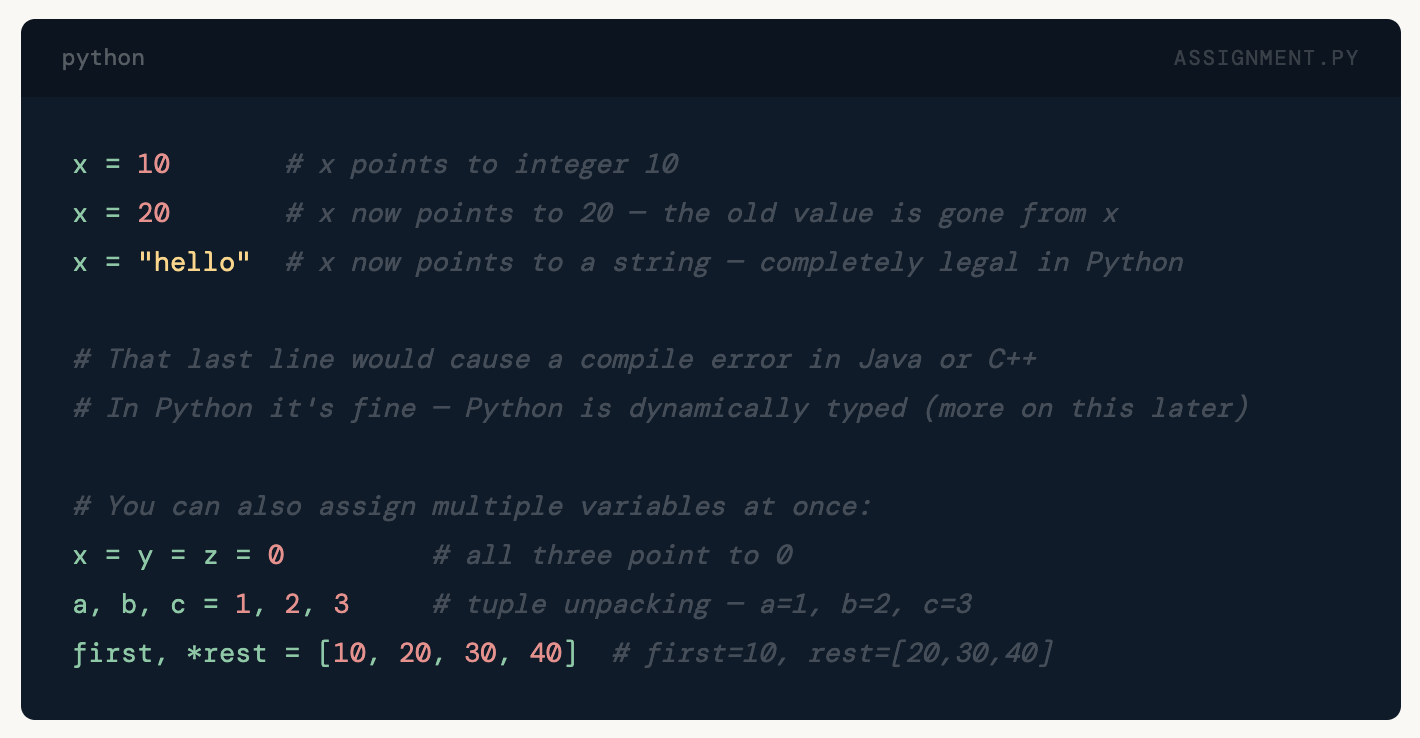
x = 10       # x points to integer 10
x = 20       # x now points to 20 - the old value is gone from x
x = "hello"  # x now points to a string - completely legal in Python

# That last line would cause a compile error in Java or C++
# In Python it's fine - Python is dynamically typed (more on this later)

# You can also assign multiple variables at once:
x = y = z = 0         # all three point to 0
a, b, c = 1, 2, 3     # tuple unpacking - a=1, b=2, c=3
first, *rest = [10, 20, 30, 40]  # first=10, rest=[20,30,40]
Naming Rules & Conventions
Python has hard rules for variable names - break them and you get a SyntaxError. It also has community conventions - break them and your code still runs, but other Python developers will flinch when they read it.
Rules enforced by Python
- Must start with a letter or underscore - not a digit
- Can contain letters, digits, and underscores only - no hyphens, spaces, or special characters
- Cannot be a Python keyword - words like
if, for, while, True, False, None, import, class, return - Case-sensitive -
name,Name, andNAMEare three completely different variables
Conventions followed by the Python community (PEP 8)
- Use snake_case for variable names:
user_name, total_orders, is_active - Use ALL_CAPS for constants:
MAX_RETRIES = 3, BASE_URL = "https://api.example.com" - Prefix with underscore for “private” internal variables:
_cached_value - Make names descriptive -
order_countis better thanocorx - Avoid single-letter names except in short loops:
for i in range(10)is acceptable
# ✅ Valid and well-named
user_name    = "Gayatri"
total_orders = 4163
_private_val = 42
order2       = "FN123"
MAX_RETRIES  = 3

# ✅ Valid but poorly named (avoid these)
x  = "Gayatri"     # What is x?
oc = 4163         # What is oc?
d  = 0.15         # d for discount? who knows

# ❌ Invalid - will throw SyntaxError
# 2name = "test"        → starts with a digit
# user-name = "test"   → hyphens not allowed
# for = 10             → reserved keyword
# my name = "test"     → space in name
💡 Check reserved keywords any time Run import keyword; print(keyword.kwlist) in Python to see the full list of reserved keywords. There are 35 in Python 3.12. The ones you'll hit most often early on: if, else, elif, for, while, in, not, and, or, True, False, None, def, return, import, class.
Python’s Core Data Types
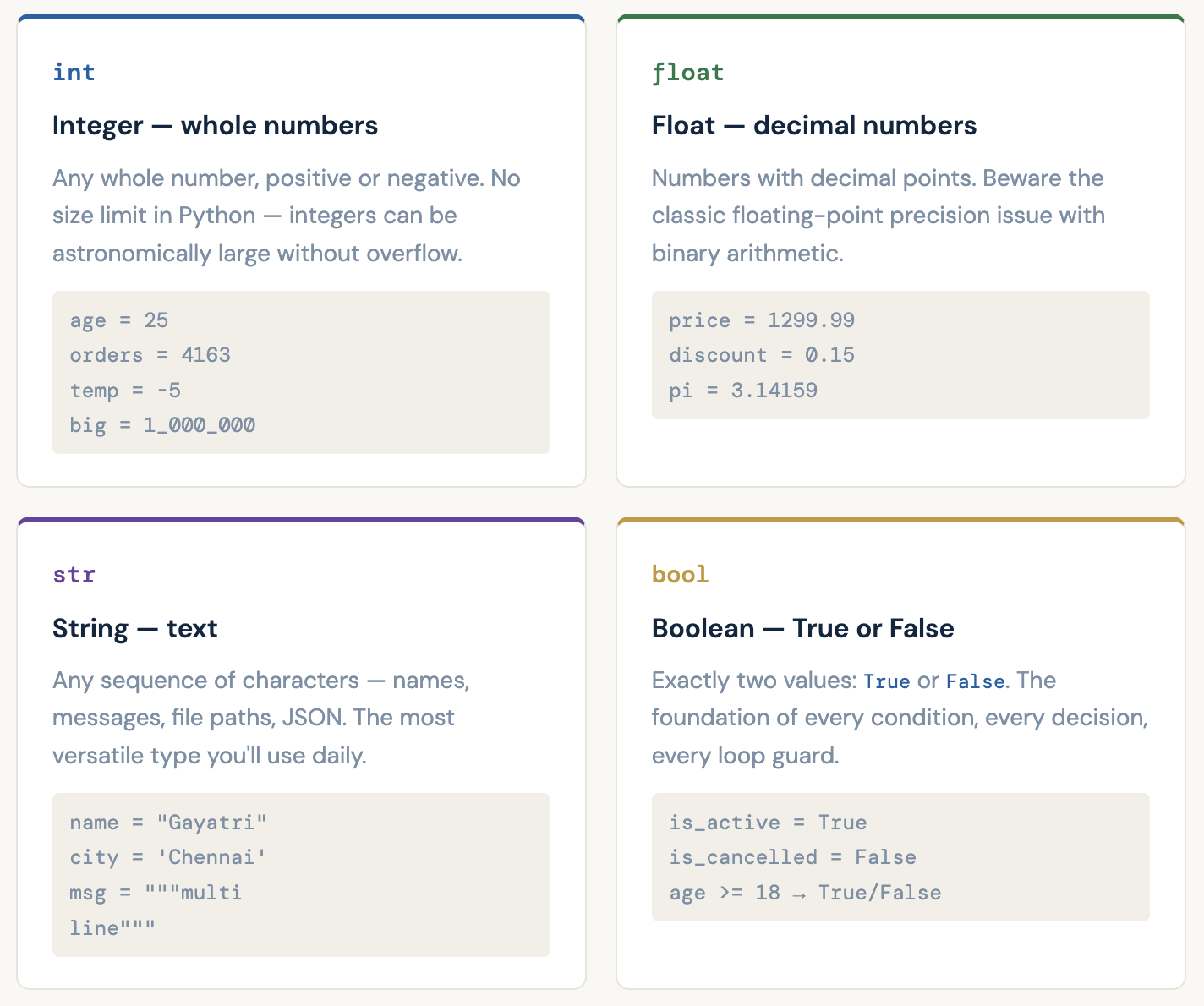
Python has many built-in data types, but four are so fundamental that you’ll use them in almost every script you ever write. Understand these deeply before moving to anything else.
int - integers in depth
Integers in Python have no size limit. Unlike C or Java where an int overflows at ~2 billion, Python integers expand to use as much memory as they need. You’ll never overflow a Python integer in normal use.
order_count = 450
age         = 25
temperature = -5
big_number  = 1_000_000   # underscores for readability - Python ignores them

# All integer arithmetic operators:
print(10 + 3)    # 13   - addition
print(10 - 3)    # 7    - subtraction
print(10 * 3)    # 30   - multiplication
print(10 / 3)    # 3.3333... - division ALWAYS returns float in Python 3
print(10 // 3)   # 3   - floor division (integer result, rounds down)
print(10 % 3)    # 1   - modulo (the remainder)
print(10 ** 3)   # 1000 - exponentiation (10 to the power of 3)

# No overflow - Python integers can be huge:
print(2 ** 100)   # 1267650600228229401496703205376 - no problem
💡 // and % - you'll use these constantly Floor division // divides and rounds down to the nearest integer. Modulo % gives the remainder. Both are used all the time: checking if a number is even (n % 2 == 0), paginating results (page = index // page_size), cycling through a fixed set of values (index % len(options)). Get comfortable with both.
float - decimals and the precision trap
Floats represent decimal numbers. They are fast and work well for most purposes, but carry one important caveat that trips up beginners and experienced developers alike.
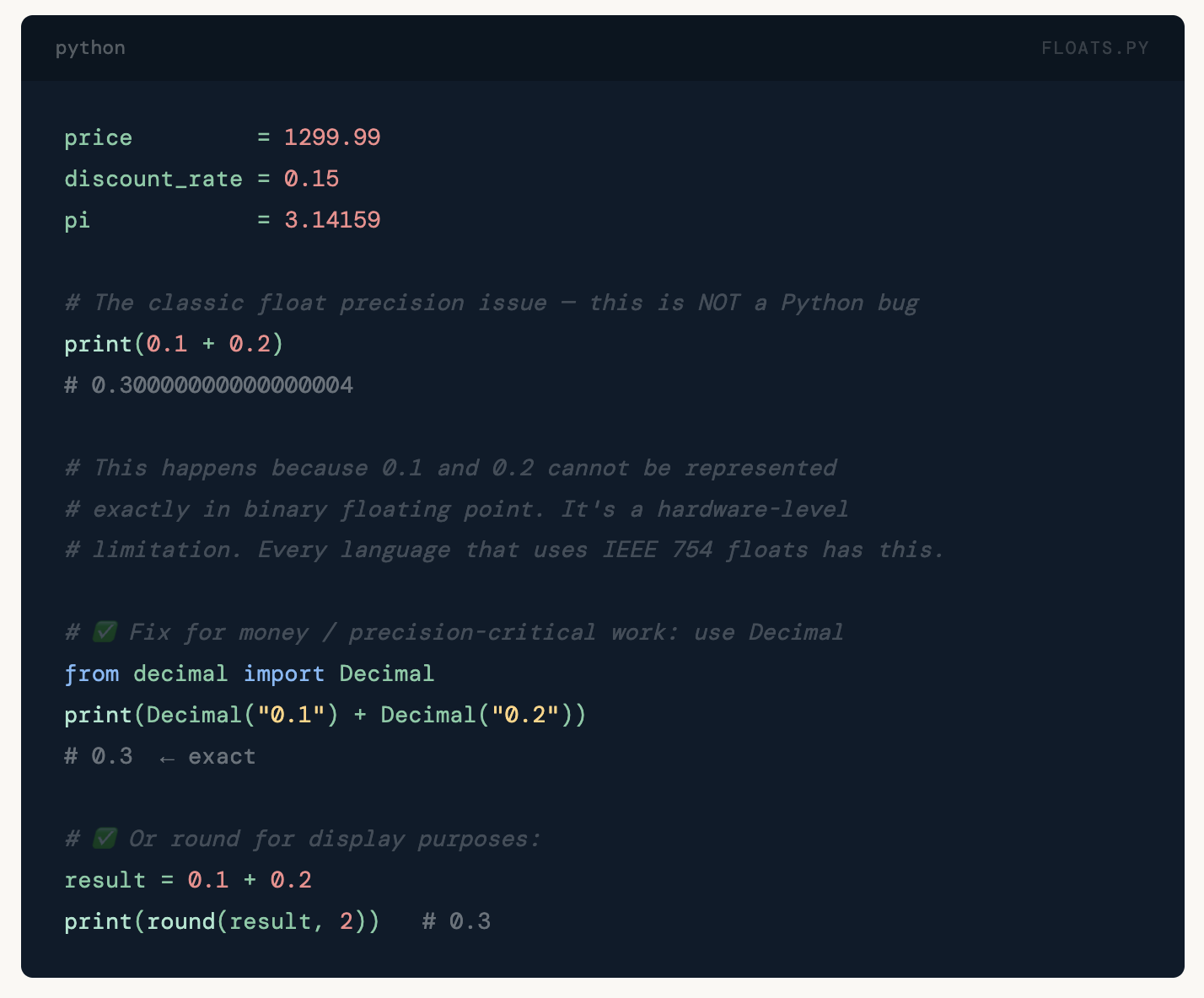
price         = 1299.99
discount_rate = 0.15
pi            = 3.14159

# The classic float precision issue - this is NOT a Python bug
print(0.1 + 0.2)
# 0.30000000000000004

# This happens because 0.1 and 0.2 cannot be represented
# exactly in binary floating point. It's a hardware-level
# limitation. Every language that uses IEEE 754 floats has this.

# ✅ Fix for money / precision-critical work: use Decimal
from decimal import Decimal
print(Decimal("0.1") + Decimal("0.2"))
# 0.3  ← exact

# ✅ Or round for display purposes:
result = 0.1 + 0.2
print(round(result, 2))   # 0.3
⚠️ Never use float for money in production If you're building anything that handles currency - billing, invoices, tax calculations - use from decimal import Decimal and always pass the number as a string to Decimal(). Decimal(0.1) is wrong (it inherits the float imprecision). Decimal("0.1") is correct.
str - strings in depth
Strings are sequences of characters. In Python, strings are immutable - once created, they can’t be changed in place. Operations on strings always create new string objects.
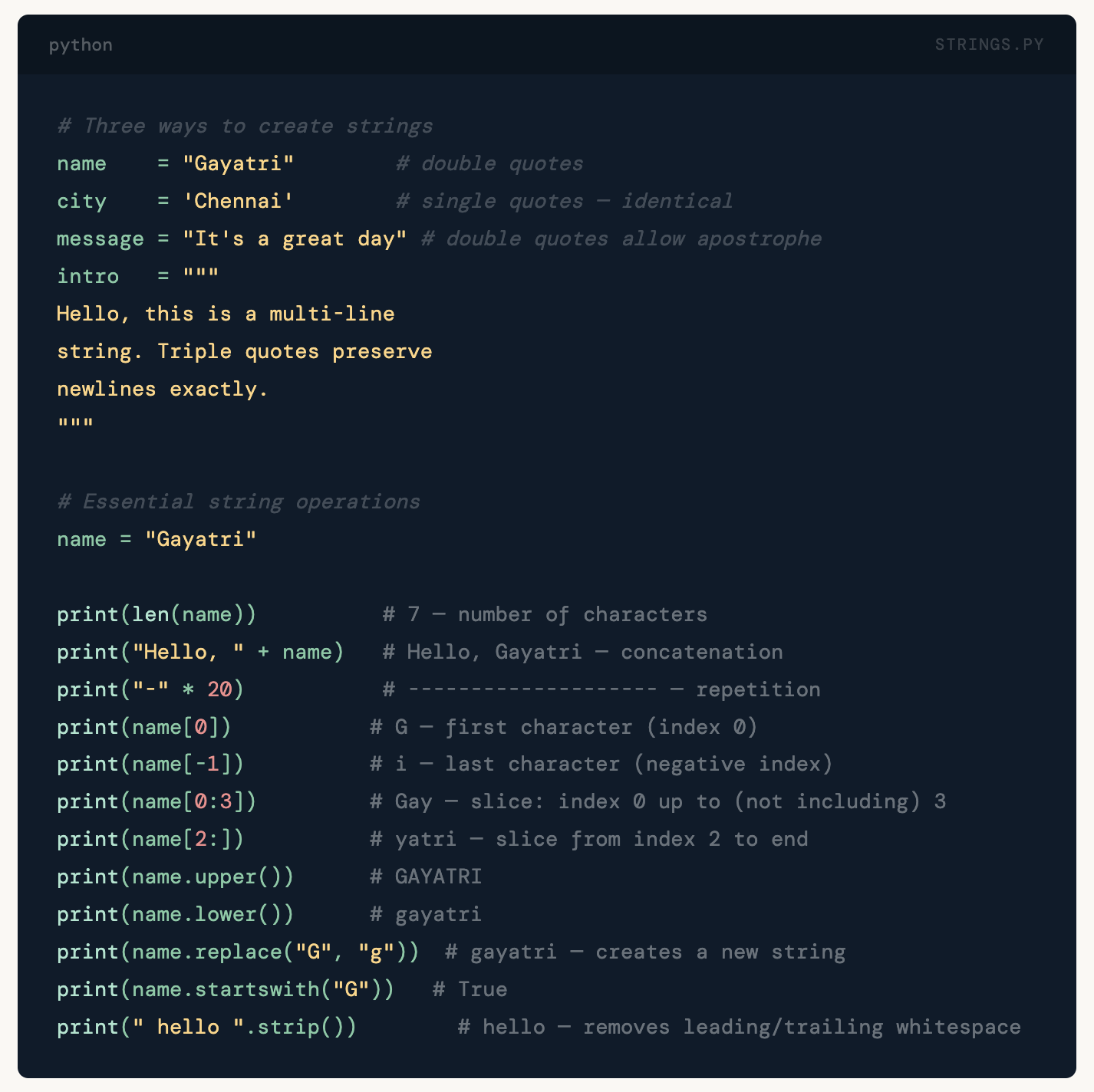
# Three ways to create strings
name    = "Gayatri"        # double quotes
city    = 'Chennai'        # single quotes - identical
message = "It's a great day" # double quotes allow apostrophe
intro   = """
Hello, this is a multi-line
string. Triple quotes preserve
newlines exactly.
"""

# Essential string operations
name = "Gayatri"

print(len(name))          # 7 - number of characters
print("Hello, " + name)   # Hello, Gayatri - concatenation
print("-" * 20)           # -------------------- - repetition
print(name[0])           # G - first character (index 0)
print(name[-1])          # i - last character (negative index)
print(name[0:3])         # Gay - slice: index 0 up to (not including) 3
print(name[2:])          # yatri - slice from index 2 to end
print(name.upper())      # GAYATRI
print(name.lower())      # gayatri
print(name.replace("G", "g"))  # gayatri - creates a new string
print(name.startswith("G"))   # True
print(" hello ".strip())        # hello - removes leading/trailing whitespace
f-strings - the modern way to format strings
F-strings (formatted string literals) were introduced in Python 3.6 and are now the standard. They are faster than older formatting methods, more readable, and support full Python expressions inline. Learn this and use it from day one.
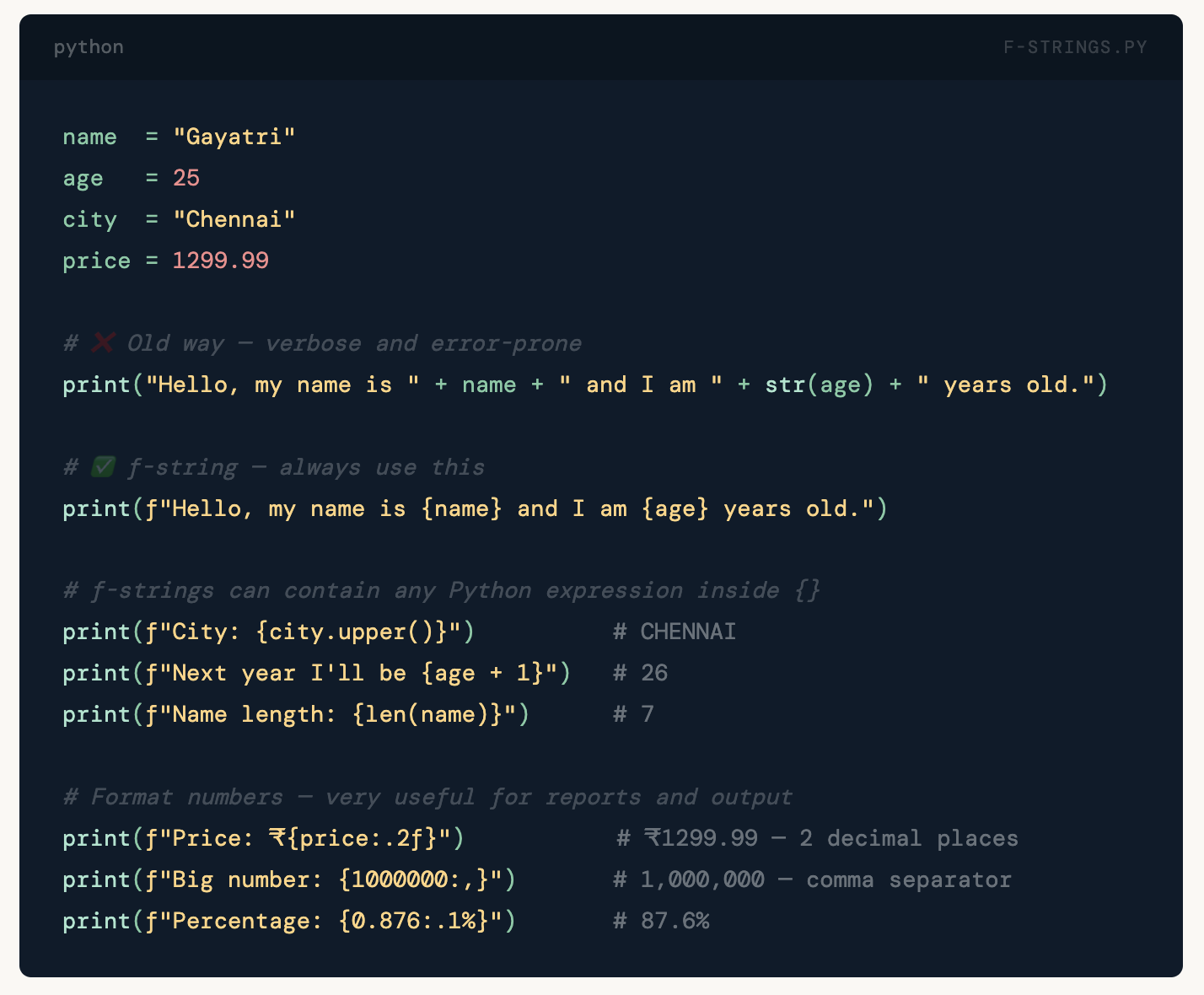
name  = "Gayatri"
age   = 25
city  = "Chennai"
price = 1299.99

# ❌ Old way - verbose and error-prone
print("Hello, my name is " + name + " and I am " + str(age) + " years old.")

# ✅ f-string - always use this
print(f"Hello, my name is {name} and I am {age} years old.")

# f-strings can contain any Python expression inside {}
print(f"City: {city.upper()}")          # CHENNAI
print(f"Next year I'll be {age + 1}")   # 26
print(f"Name length: {len(name)}")      # 7

# Format numbers - very useful for reports and output
print(f"Price: ₹{price:.2f}")           # ₹1299.99 - 2 decimal places
print(f"Big number: {1000000:,}")       # 1,000,000 - comma separator
print(f"Percentage: {0.876:.1%}")       # 87.6%
bool - True and False
Booleans are the simplest type - exactly two values. But they have a surprising depth in Python that trips up beginners.
is_active    = True
is_cancelled = False

print(type(True))       # <class 'bool'>

# Booleans ARE integers in Python (bool is a subclass of int)
print(True  + 1)        # 2
print(False + 10)       # 10
print(True  == 1)       # True
print(False == 0)       # True

# Truthiness - every value in Python has a boolean interpretation
# These are all "falsy" (treated as False in conditions):
bool(0)        # False
bool("")       # False - empty string
bool([])       # False - empty list
bool(None)     # False

# Everything else is truthy:
bool(1)        # True
bool("hello") # True
bool([1,2])   # True
📝 Truthiness is one of Python's superpowers Because every object has a boolean interpretation, you can write if user_name: instead of if user_name != "":, or if items: instead of if len(items) > 0:. This is idiomatic Python - you'll see it everywhere in real codebases. Day 3 (Control Flow) will use this constantly.
type() - your debugging companion
The type() function tells you what type any object is. Use it constantly while learning, and keep using it when debugging unexpected behaviour in production.
name      = "Gayatri"
age       = 25
price     = 1299.99
is_active = True
nothing   = None

print(type(name))       # <class 'str'>
print(type(age))        # <class 'int'>
print(type(price))      # <class 'float'>
print(type(is_active))  # <class 'bool'>
print(type(nothing))    # <class 'NoneType'>

# isinstance() is more Pythonic for type checks in real code
print(isinstance(age, int))       # True
print(isinstance(price, float))  # True
print(isinstance(age, (int, float)))  # True - check multiple types
Dynamic Typing - Python’s Most Misunderstood Feature
Python is dynamically typed. This means the type of a variable is determined at runtime - not when you write the code. You don’t declare types in advance. A variable that holds an integer can later hold a string. Python figures out the type from the value you assign.
This is different from statically typed languages like Java, C++, Go, and Kotlin, where you declare the type when you create the variable and it’s fixed.
# Java - must declare type upfront, cannot change
# int age = 25;
# age = "twenty-five";  ← compile error

# Python - type is determined from the value, can change
age = 25                  # age is an int
print(type(age))          # <class 'int'>

age = "twenty-five"       # age is now a str - completely valid
print(type(age))          # <class 'str'>

age = 25.5                # age is now a float
print(type(age))          # <class 'float'>
The trade-offs - dynamic vs static typing
Dynamic typing gives you speed and flexibility in development. You write less boilerplate, iterate faster, and can work with data without knowing its shape in advance. The trade-off is that type errors get caught at runtime, not at compile time. If you pass a string where an integer is expected, Python won’t warn you until that line actually runs.
Type annotations - optional, but worth knowing
Python 3.5+ added optional type hints. They don’t enforce types at runtime - Python ignores them during execution. But they dramatically improve code readability, enable better IDE autocomplete, and let tools like mypy catch type errors before you run your code.
# Without annotations - valid Python, but ambiguous
def calculate_total(price, quantity, discount):
    return price * quantity * (1 - discount)

# With annotations - intent is crystal clear
def calculate_total(price: float, quantity: int, discount: float) -> float:
    return price * quantity * (1 - discount)

# Variable annotations
name:      str   = "Gayatri"
age:       int   = 25
price:     float = 1299.99
is_active: bool  = True

# Annotations do NOT enforce types - this still runs without error:
age: int = "twenty-five"   # Python doesn't stop you
💡 Start annotating early - it pays dividends Even for personal scripts, adding type annotations to functions makes your code significantly easier to read when you come back to it a month later. It's a low-effort habit with high returns. In team environments, it's essentially mandatory for any professional Python codebase.
Type Conversion - Changing Types Explicitly
Python won’t automatically convert types for you (unlike JavaScript, which does this aggressively and creates endless confusion). If you need a different type, you convert explicitly using the type’s constructor function.
# str → int
age_str = "25"
age_int = int(age_str)
print(age_int + 1)        # 26

# int → str
count   = 450
message = "Total orders: " + str(count)
print(message)            # Total orders: 450

# str → float
price_str = "1299.99"
price     = float(price_str)
print(price * 1.18)      # 1533.99 (with 18% GST)

# float → int: TRUNCATES (not rounds)
x = int(3.9)              # 3 - decimal is chopped, not rounded
y = int(3.1)              # 3
print(x, y)

# round() for actual rounding
print(round(3.9))         # 4
print(round(3.14159, 2)) # 3.14

# bool conversions
print(bool(0))            # False
print(bool(1))            # True
print(bool(""))           # False
print(bool("hello"))     # True
The most common conversion error - and the fix
The number one bug beginners hit on Day 1 is trying to do arithmetic on the result of input(). It looks like it should work. It doesn’t. Here’s why:
# ❌ The bug everyone hits
age = input('Enter your age: ')
# input() ALWAYS returns a string - no matter what the user types
print(age + 1)
# TypeError: can only concatenate str (not "int") to str

# ✅ The fix - convert immediately
age = int(input('Enter your age: '))
print(age + 1)   # works correctly

# ✅ Same pattern for float
price = float(input('Enter price: '))
print(price * 1.18)   # with GST

# What happens if user types "hello" when you expect a number?
# int("hello") → ValueError: invalid literal for int()
# Day 8 covers exception handling - for now, trust your user inputs
⚠️ input() always returns a string - always This is the single most frequent Day 1 bug. It doesn't matter if the user types 25 - input() gives you the string "25", not the integer 25. If you need a number, wrap it: int(input(...)) or float(input(...)). Do this every single time.
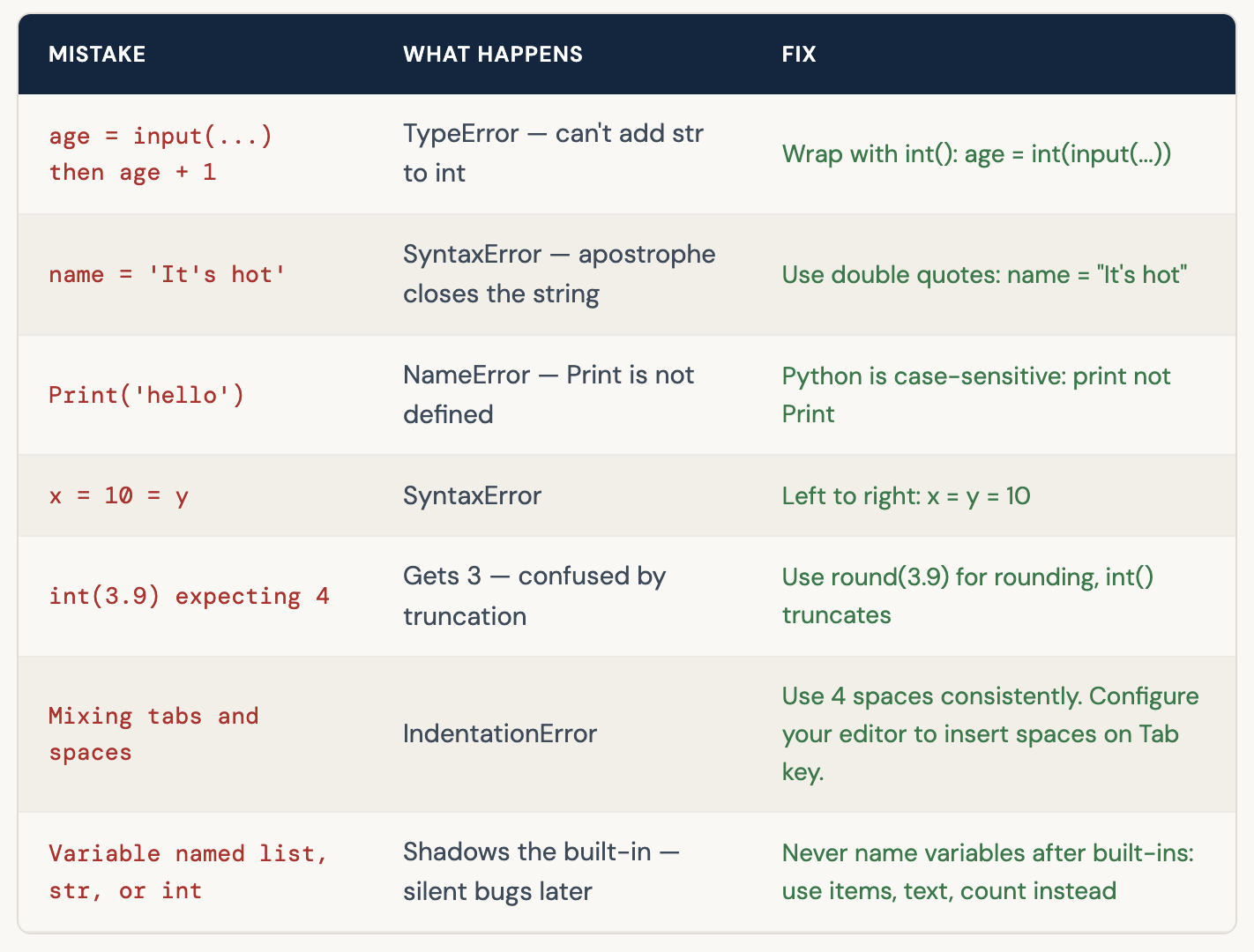
Common Day 1 Mistakes
Day 1 Exercise - Order Summary Calculator
Here’s the complete Day 1 example script that brings everything together. Type it out - don’t paste. The act of typing forces you to think about each line.
# day1.py - Variables and Data Types
# Day 1 of: Learn Python with Gayatri

# ── Collecting information from the user ──────────────────────
name = input("Enter your name: ")
age  = int(input("Enter your age: "))
city = input("Enter your city: ")

# ── Doing some work with the data ─────────────────────────────
birth_year = 2026 - age
is_adult   = age >= 18         # comparison returns a bool

# ── Displaying results using f-strings ────────────────────────
print()
print(f"--- Profile Summary ---")
print(f"Name    : {name}")
print(f"Age     : {age}")
print(f"City    : {city}")
print(f"Born in : {birth_year}")
print(f"Adult   : {is_adult}")
print(f"Name has {len(name)} characters.")
print(f"Name in uppercase: {name.upper()}")
python3 day1.py
Enter your name: Gayatri
Enter your age: 25
Enter your city: Chennai

--- Profile Summary ---
Name    : Gayatri
Age     : 25
City    : Chennai
Born in : 2001
Adult   : True
Name has 7 characters.
Name in uppercase: GAYATRI
Your exercise - build the order calculator
Now write this yourself without looking at the solution. The script should:
- Ask for the order number (string)
- Ask for the item name (string)
- Ask for the quantity (int)
- Ask for the price per item (float)
- Calculate the total amount
- Print a formatted order summary exactly matching this output:
--- Order Summary ---
Order No  : FN3864707883
Item      : Sneakers
Quantity  : 2
Unit Price: ₹1299.99
Total     : ₹2599.98
Try it yourself before looking for hints Getting stuck and working through it is where the learning actually happens. When you're stuck - not before - here's the nudge: you'll need int(input(...)) for quantity, float(input(...)) for price, and f"₹{total:.2f}" for the formatted total. That's all you need.
"Variables and data types are the atoms of Python. Everything - functions, loops, classes, APIs, data pipelines - is built on top of what you learned today."
The more solid this foundation is, the faster everything else clicks into place. Don’t rush to Day 2 until you can explain what a variable actually is, why int(3.9) gives 3 and not 4, and what happens when you call input() without converting the result. Those three things alone will save you hours of debugging over the next few weeks.
See you in Day 2.
Comments (1)
Name = "nitesh" age = 30 learning = True print(Name) #print(Name,age,learning) print("memory address : ",id(Name)) print(type(name)) # nitesh # memory address : 140247480702160 # <class 'str'> class → In Python, everything is an object, and every object belongs to a class 'str' → This means string type type() is a built-in Python function that tells you what kind of data (object type) a variable holds. print(type(age)) # <class 'int'> print(type(learning)) # <class 'bool'>
Leave a comment